Introduction
Game Programming with Usagi
A beginner-friendly guide to coding games with Lua
by Brett Chalupa
NOTE: this book is a continual work in progress! The plan is to add to it over time, based on feedback and engine development.
Hi, my name is Brett Chalupa! I’m the creator of Usagi Engine and primary author of Game Programming with Usagi. This book is a guide for how to jump into making games. It’s project-based and starts with the fundamentals of programming. This book, much like Usagi itself, is simple, accessible, and free.
The advice often given to new game developers is to make a lot of small games. That way the new developer can learn the fundamentals of game development, explore ideas, and figure out what games they enjoy making. The problem though is that most game engines aren’t conducive to making small games quickly. After making small games for over twenty years, I decided to try to solve that problem by creating Usagi Engine, a free and open source game engine that’s specifically focused on making small 2D games and being able to quickly share them. Your code, art assets, audio files, and data are live reloaded as you change them, removing the laborious step of having to constantly re-launch your game after every change to test it. If you want to see if a different color looks better, just edit your sprite, save it, and see it update instantly. I can’t overstate how useful this is.
Usagi games are programmed with Lua, a simple and widely-used language. There are many different game engines and libraries that use Lua, which means the knowledge you gain from learning to make games with Usagi is useful even if you stop using the engine. When you code a game, the engine provides functions, which are named pieces of code that do something like draw a shape on the screen or play a sound effect. Large game engines have hundreds or thousands of functions, requiring you to study complex manuals to find what you need. Usagi, on the other hand, embraces constraints and has a limited number of functions that cover the functionality most games need.
Why Usagi
Usagi is not the everything engine. There’s a lot it doesn’t do. But it excels at being simple, approachable, and fast. When you’re exploring an idea or participating in a game jam, you don’t want to spend your time coding input mapping or where to put save data on Linux computers. You want to focus on making your game fun to play. Usagi provides input mapping, simple ways to check for player input via keyboard and gamepad, easy save data, and a fully-featured Pause menu. Also, with a single command you can export your game for web, Linux, macOS, and Windows.
Here are some of my favorite aspects of Usagi and why it’s enjoyable to use:
- Live reload of code and assets in your running game for rapid development
- Single command cross-platform export
- Unified, simple input checking for gamepads and keyboard
- Built-in Pause menu with settings, including input mapping
Book Overview
This book, Game Programming with Usagi Engine, is written for someone just getting started out making games. If you’ve coded games before, great! You’ll be able to pick up on things even quicker. But if you haven’t, don’t worry. We’ll go through making games step-by-step in guided tutorials. The second half of the book contains recipes that are focused lessons on specific functionality.
There are two sections to the book: Tutorials and Recipes.
The Tutorials are guided, project-based lessons where you’ll make a game from scratch. The complexity of each chapter steadily grows, so if you’re new to game programming, it’s best to start at the beginning and go through each one in order. If you’ve programmed games before, jump around a bit!
The Recipes are deep-dives into specific topics. Sort of like blog posts on various topics related to Usagi Engine. They’re great for learning a specific concept as opposed to guided programming and engine fundamentals.
If you’re looking for Usagi’s reference manual, you’ll want to read through usagiengine.com.
This book is written for humans, by humans! No generative AI was used in the writing of this book.
If you find the book helpful and are able, consider buying me a coffee as a way to say thanks! I make everything about Usagi free: the engine, the book, and the videos. Any amount of financial support is much appreciated!
Getting the Most Out of the Book
Each chapter is broken down into sections, each of which cover a key concept in the game we’ll be building out. The source code snippets are shown in a block of text and then beneath it I explain what that code does. At the end of each section, there’s a link to the full source code at that point in time of the project, that way you can see the full files and where your version might differ.
You’ll be tempted to copy and paste the code from the book, but I strongly recommend you type it out yourself. Part of learning how to code is getting familiar with the process of typing text into your editor and getting use to those ergonomics.
The tutorial chapters may be missing obvious features you think the game might need, like sprites or music or sound effects. I’d encourage you to add those things yourself, change the code, and make it your own game. It might also be that the concept is too complex for that point in the book and that it’ll be covered in a future game.
Most of all, have fun! Game programming can be challenging but it’s quite rewarding. To get to play your game after building some new feature and see it get better and better is an amazing feeling.
If you’re stuck or run into an issue, join the Usagi Engine Discord and ask for help in the #book channel.
Getting Started
There are three things you need to get started with Usagi:
- A computer running Linux, macOS, or Windows
- A text editor for writing code; here are some free, privacy-respecting options:
- Usagi installed; follow the instructions at usagiengine.com
Usagi is interacted with via the command line. You type in commands rather than click buttons in a graphical user interface. On Linux and macOS, the command-line program is called the Terminal. On Windows, the two primary tools are called the Command Prompt and PowerShell (you can use either with Usagi). While the command line can be daunting at first, there are only a few commands you’ll need to know to work with Usagi most of the time.
We’ll cover all of the essential commands and make our first basic game in the upcoming chapters.
Dodge ’Em Up
In this chapter we’ll make a very simple game where you move a square around the screen and dodge circles that fly at you. We’ll cover all of the basics of making a game with Usagi and then package up our game to share it with others.
Initializing a New Game
Now that you’ve got Usagi installed, you’ll have the usagi command available.
Go ahead and open your text editor. Many code editors include a way to open a
terminal/shell within it. If you’re using a text editor that doesn’t, then
launch your terminal or Command Prompt or PowerShell separately. Run
usagi init hello_usagi. This will create a folder called hello_usagi with a
bunch of different files in them. The most important one is main.lua, which is
the primary entrypoint for your game. It’s where you’ll start out coding.
USAGI.md contains the full and complete documentation for Usagi in the
Markdown format. You can open it up and browse it to learn all about what Usagi
can do. It’s a user manual of sorts.
meta/usagi.lua is a file that helps your text editor know what functions and
variables are available from Usagi. You don’t edit this file, it’s read-only and
to help improve your experience writing code. Don’t worry much about this yet!
In your terminal, run usagi dev hello_usagi. You’ll see a window pop up that
draws some text on the screen.
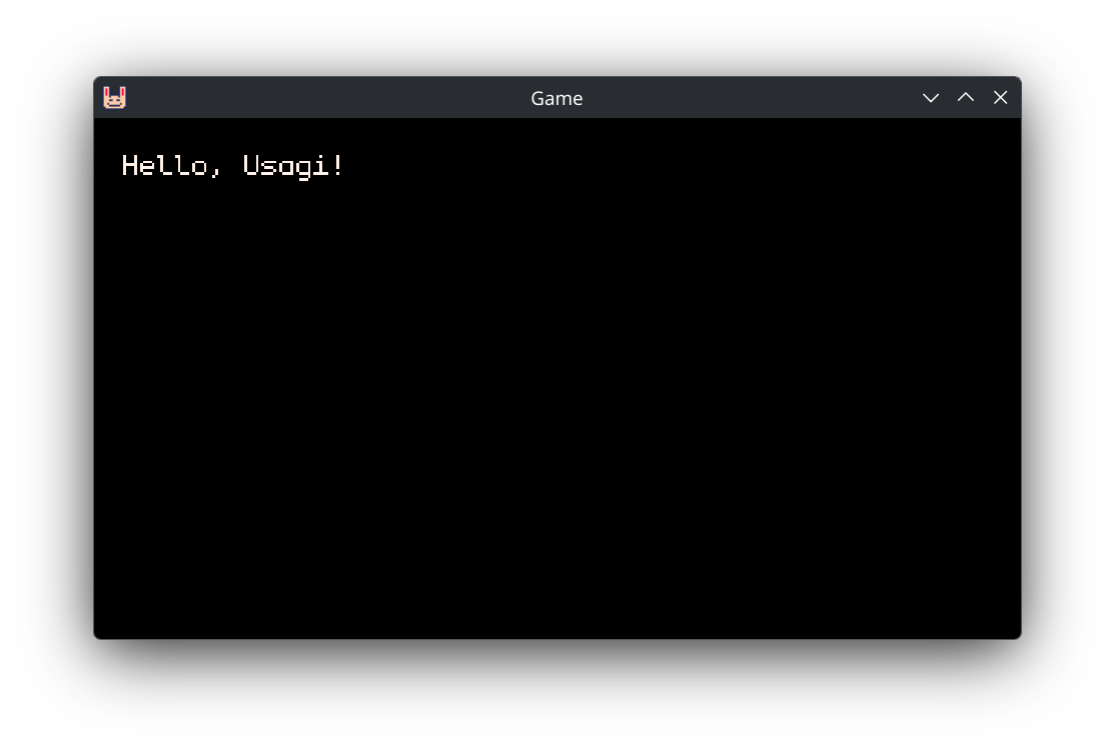
Then in your text editor, open main.lua. You’ll see this:
function _init()
  -- Live reload preserves globals across saved edits but resets locals.
  -- Stash mutable game state in a capitalized global like `State` so it
  -- survives reloads; F5 calls _init again to reset.
  State = {}
end

function _update(dt)
end

function _draw(dt)
  gfx.clear(gfx.COLOR_BLACK)
  gfx.text("Hello, Usagi!", 10, 10, gfx.COLOR_WHITE)
end
If this is your first time seeing code, congratulations! This is Lua.
functions are reusable pieces of code that can be called to make whatever code
is contained within the function and end run. We’ll dive more into functions
soon. But let’s walk through the code a bit more first.
_init() is a function that gets run when your game starts (and when you press
F5 or Ctrl+R). It’s a good place to set up data once.
Then _update(dt) and _draw(dt) are sort of siblings. They get called 60
times per second, over and over again, automatically by Usagi. This is called
the game loop. Games run rapidly so that movement is smooth and the game can
react quickly to player input. Each iteration through the loop is called a
frame, similar to how each image in a movie is a frame. Movies are often 24
frames per second (FPS), whereas games are often 60 FPS. The _update function
is where you check for player input, have entities in your game react to what’s
happening, and simulate the game. There’s nothing there yet, but there will be
soon. The _draw function is where you can show text, draw shapes, or put your
game’s art on the screen.
dt is short for delta-time and it’s passed into _update and _draw
automatically by the game engine. We’ll cover it more in depth in a future
chapter. For now, it’s unused and not something to worry about.
gfx.clear(gfx.COLOR_BLACK) clears the screen so that all that’s shown is a
black rectangle. Each frame we clear the screen so that what was drawn on the
last frame doesn’t reappear. Try changing gfx.COLOR_BLACK to gfx.COLOR_RED.
The background of your game instantly updates from black to red.
The next line gfx.text("Hello, Usagi!", 10, 10, gfx.COLOR_WHITE) is what draws
the message on the screen.
_update and _draw are functions we define ourselves, which Usagi looks for
and calls. gfx.clear and gfx.text are functions that Usagi provides, which
we call. Calling a function makes that code run. So gfx.text draws text to
the screen. It knows which text to draw, where to place it, and what color to
make it by passing in arguments. Arguments are comma-separated values that
correspond to the parameter list of the function. gfx.text expects the text
message to show, the x coordinate, the y coordinate, and the color of the text
as its arguments.
usagi.conf is a file where you can set your game’s name and game_id, among
other configuration values. The game_id is used for putting your game’s save
data in the proper location on your players’ computers. Don’t worry about this
too much yet.
Try changing a few aspects of gfx.text and see what happens. Update the
message, change the 10s, and use a different color.
Next, copy that line of code and paste it below. Draw a different message to the
screen in a different position. And don’t forget to save your main.lua file.
You’re coding! And Usagi is live updating, giving you instant feedback to your changes.
Normally, in most game engines, you’d need to change your code, save it, and run a command to start the game again. With Usagi, you just change it and save it and see your changes.
The x and y parameters of the gfx.text function are the pixel coordinates
on our screen of where to place the upper-left corner of the text. The
upper-left corner of our game is the 0 x position and the 0 y position. If you
increase the x value, the text will move to the right. If you increase the y
value, it will move down.
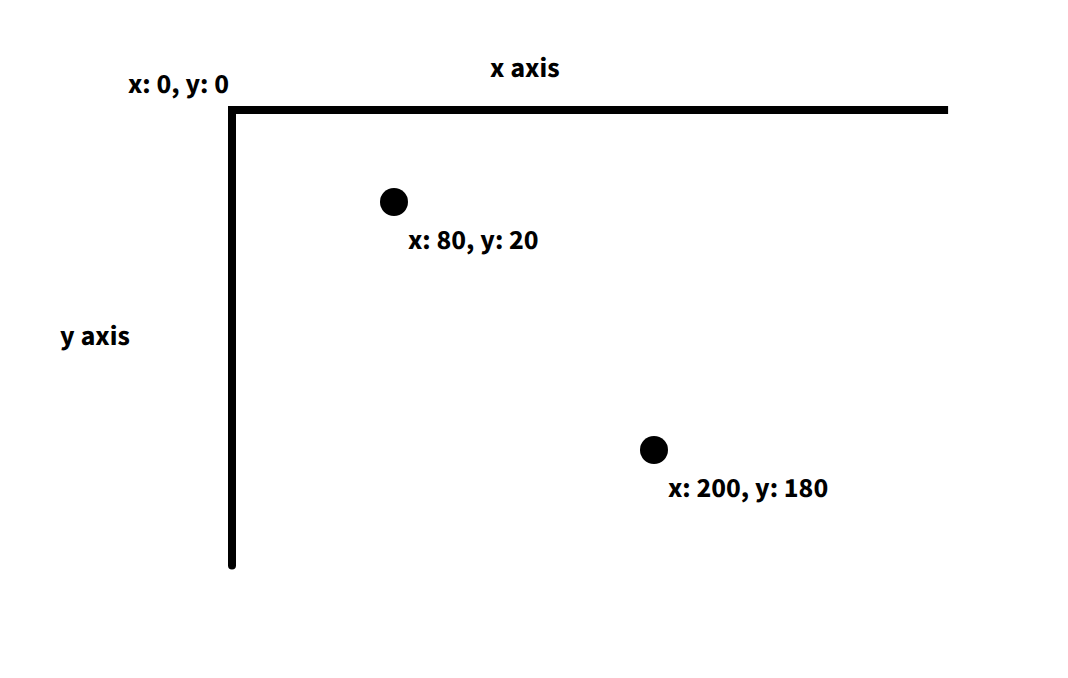
By default, Usagi games are 320 pixels wide and 180 pixels tall. If you set the
x position of your text to 400, it won’t be visible in your game.
Greeting
Let’s write our own function. Functions are a key programming concept that allows us to organize code into a named group that we can easily reuse. Functions can accept data that the code within makes use of. And functions can spit data back based on what the code within does. Rather than just greeting Usagi, let’s make it easy to say hello to any given name.
At the bottom of main.lua, add the following code:
function greet(name)
  return "Hello, " .. name .. "!"
end
Then, in _draw:
gfx.text(greet("Alucard"), 10, 10, gfx.COLOR_WHITE)
Try changing the name. What our updated gfx.text is doing is calling our new
greet function. We pass in the name we want to greet, wrapped in quotations
(note: these are not curly quotes; those are for writing prose, not coding).
When you wrap characters in quotations, this is called a string and it is
not evaluated as code. It’s instead data that we can use in our code. The
return keyword in our function is what our function spits back to wherever
calls it. In our case, it passes the returned value into gfx.text. It draws
"Hello, Alucard!" on the screen. The .. (two periods) is Lua’s syntax for
how to combine strings. It squishes together "Hello, ", our name we pass in,
and "!" into a new string.
Add some other greetings to try out your new function.
Here’s a simple function for adding two numbers and returning the result:
function add(a, b)
  return a + b
end
Functions can accept all sorts of data and return something that’s computed
based on those values. You can see that + is used to calculate the sum of two
values in this example function. While add isn’t something we’ll use in our
game, it’s useful to show what functions can be like. I tend to think of
functions as verbs, actions we want our code to take.
Aside: you may have noticed some lines of text starting with -- in
main.lua. The double dash in Lua creates a comment which is code that’s
not executed and is meant to be used to document how something works. Comments
are useful for future you (or collaborators) to remember what something does.
Throughout the book you’ll see comments like: -- px/s to mean that the number
represents pixels per second for movement speed. I’ll use comments to help
explain some of the code in our games.
View the source code for this section.
Drawing a Square
Let’s draw a square to represent our player. You can delete our greet
function. And then replace the gfx.text function call with this:
gfx.rect_fill(20, 40, 16, 16, gfx.COLOR_GREEN)
This draws a green rectangle at the position of x: 20 and y: 40. The rectangle
is a square, with each side being 16 pixels long. The third parameter is width,
the fourth is height. And the final parameter is the color. Try changing those
values around to see what happens. If you change gfx.rect_fill to gfx.rect,
it’ll draw an outline of the rectangle instead of filling it in.
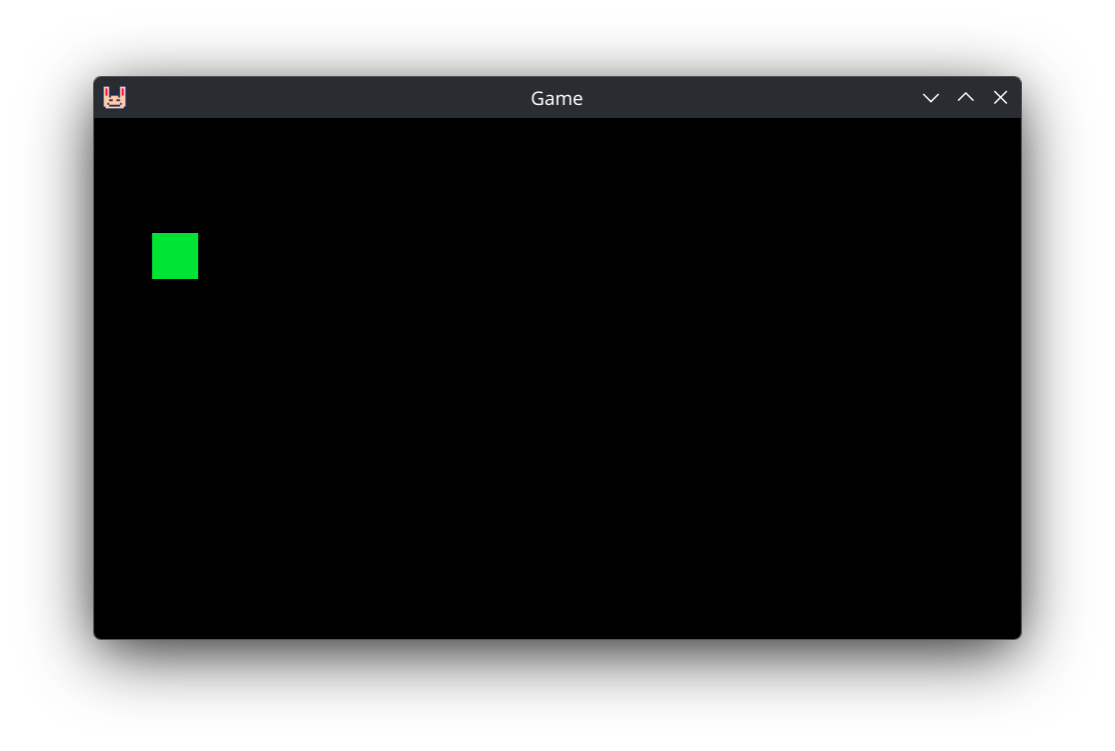
Usagi makes it easy to draw a few different shape primitives like rectangles, circles, and triangles. We’ll draw circles in an upcoming section to represent enemies.
View the source code for this section.
Player Input
When you changed the x and y parameters in the gfx.rect_fill function call,
the square moved around the screen. That’s all that movement in a game is:
positions changing. Those positions can change due to the passage of time or in
reaction to something else or from player input.
We keep track of data that can change in what’s called a variable. Variables get a name so that we can reference it and change it.
At the top of your main.lua file, add the following:
x = 20
y = 40
This creates and sets the x variable to the number 20 and the y value to
the number 40. The = sign does not mean equals, as in equality. It is the
assignment operator. It sets the variable on the left side to the value on the
right side.
Now update your gfx.rect_fill to use the new x and y variables:
gfx.rect_fill(x, y, 16, 16, gfx.COLOR_GREEN)
Instead of using the hard-coded values we previously had to position the square,
it’s now determined by our new x and y variables. If you change the values
assigned tox and y, it changes where the square is drawn.
In order to move our little green square around, we need to check if the player
has pressed input from their keyboard or gamepad. Usagi provides a simplified
input API that lets you check for input directions and up to three action
buttons. So input.held(input.UP) checks if the Up arrow key or
W key on your keyboard is pressed or if any connected gamepads’ d-pad
up or analog stick up are held down. Usagi provides a baked-in Pause menu with
the ability for players to remap controls. So if they change the up action to
something else you don’t have to change your code. Kind of nice!
We’ll make use of this input.held check in our _update function:
function _update(dt)
  if input.held(input.LEFT) then
    x = x - 4
  end
  if input.held(input.RIGHT) then
    x = x + 4
  end
  if input.held(input.UP) then
    y = y - 4
  end
  if input.held(input.DOWN) then
    y = y + 4
  end
end
If you use the arrow keys, WASD, or your gamepad, you can move the green square
around the screen. How this works is that 60 times per second, our game checks
if the direction inputs are held down. If they are, we use = to reassign the
variable value to the previous value plus 4 pixels. So if the right key is held
down, each loop of our game adds 4 pixels to the x variable. This causes our
square to fly across the screen to the right.
The if ... then code means: only run the code between this check and the
corresponding end if what’s between the if and the then is true. In
programming, true and false are known as boolean values and are used for
logic checks. If the left input is held down, then decrease the x position by
4 pixels. One of the nice parts about the Lua programming language is how
natural the code reads, making it easier to understand because it’s a lot like
how English is spoken.
Boolean checks are used so frequently when programming games. If the player is dead, then show game over. If the timer is up, then play a sound effect. We’ll be adding many more throughout this chapter and the entire book.
View the source code for this section.
Spawning Enemy Circles
Having a moveable player character is a natural first step, but let’s give the player something to do. We’re going to make circles fly at the player from the right side of the screen, spawning them at random positions and giving them random speeds so that there’s a bit of challenge.
At the top of main.lua, below our x and y variable assignment, add this:
enemies = {}
This assigns {} to the enemies variable. But what do those squigly brackets
mean? They’re the symbols that represent the beginning and end of a table
in Lua. So far we’ve worked with strings, which are characters within
"hello123". We’ve used whole integer numbers to represent the player’s
position. The third absolutely foundational type of data in Lua programs are
tables. They’re used to store collections of other data.
Aside: If you’ve programmed in other languages, Lua’s tables are a single data structure used for arrays and for JavaScript-like objects or Ruby-like hashes.
The data within a table can be an ordered list. Something like this:
even_nums = { 2, 4, 6, 8, 10 }
classmates = { "Simon", "Alucard", "Richter" }
I’ll call these types of tables array tables or just arrays throughout
the book. They’re also sometimes referred to as numeric tables.Each entry is
separated by a comma (,).
Or you can assign values to a specific key:
monster = {
  hp = 44,
  str = 12,
  def = 5
}
The monster table has the key hp (which is technically the string "hp")
assigned the value of 44, using a very similar syntax to variable assignment.
Each key must have an associated value. And each key value pair in the table is
separated by a comma (,), just like the array style table.
These types of tables are sometimes called associative tables. Throughout the book they’ll often just be referred to as tables.
Array tables can contain tables as entries:
monsters = { { name = "Vampire", hp = 31 }, { name = "Golem", hp = 44 } }
And associative tables can have tables assigned to their keys:
player = {
  items = { "Potion", "Wing" }
  hp = 44,
}
Tables are flexible in Lua and quite powerful. I can’t think of a game I’ve made that doesn’t use them, as they’re where you store collections of data. A game is essentially a bunch of different collections of data that respond to player input or time or some other system in the game.
But back to our enemies = {} line of code. That creates an empty table with
nothing in it. We’ll treat this as an array table of data that contains our
enemy positions, spawning new ones at a set interval.
Right below that line, create these two new variables that we’ll use for spawn timing:
enemy_spawn_timer = 0
enemy_spawn_delay = 2 -- secs
In our _update function, below where we handle player input for movement, we
need to countdown our enemy_spawn_timer every frame of our game and add an
enemy to our enemies array if the timer is less than or equal to 0:
  enemy_spawn_timer = enemy_spawn_timer - dt
  if enemy_spawn_timer <= 0 then
    table.insert(enemies, { x = usagi.GAME_W, y = 40 })
    enemy_spawn_timer = enemy_spawn_delay
  end
Just like we do with the x and y position for player movement, we update our
enemy_spawn_timer but subtracting the dt (delta time, which is how long has
passed between frames in seconds) from its current value. Then we check if it’s
<= (less than or equal to) 0. If it is, then we call the table.insert
function, which Lua provides. The first argument is the array table we want to
insert an entry into. In our case, it’s the enemies array. table.insert adds
a new entry at the end of the table. The second argument is the data we want to
append. We pass an associative table with an x position and a y position,
which represents where the enemy will spawn at. usagi.GAME_W is the width of
the game, so the far right of the window. And 40 is just a little bit down
from the top of the screen.
Right after the enemy is spawned, we reset the enemy_spawn_timer to the
enemy_spawn_delay, beginning the countdown to spawn another enemy again. The
game continues to loop, running _update 60 times per second, decreasing
enemy_spawn_timer each time.
Right below that new code we added in _update, we want to make our enemies
move across the screen from right to left. In order to do this, we need to walk
through each enemy in our enemies array, one by one, and update its x
position by subtracting a value from it. Walking through an array item by item
is done with a for loop. Here’s the code:
  for i = 1, #enemies do
    local enemy = enemies[i]
    enemy.x -= 2
  end
Let’s break it down line by line:
for i = 1, #enemies do
The first line starts the loop. for is the keyword to begin that style of
loop. i = 1 assigns a variable at the start of the loop the value of 1. The
next argument is the ending value of the loop. In our case, it’s the total
number of enemies in that array. In Lua, you get the number of items in an
array with #. The for loop increments i by 1 until it hits the upper
value. And for each iteration of the loop, it calls the code contained between
the do and the end. In our case, that’s:
local enemy = enemies[i]
enemy.x -= 2
We assign a local variable enemy. local is a keyword in Lua that says:
only make this variable exist within the scope it was created in. Don’t worry
too much about local yet, we’ll cover that in the future. The value we assign
to enemy is enemies[i]. For array tables in Lua, you access the values in
the list by its position. The first item has a position of 1, the 2nd has a
position of 2, and so on. We call our position variable i, which is short
for index. You could name it pos, short for position if you want. So that
line that assigns local enemy grabs the current enemy in the array and assigns
it to a variable so we can easily change it. Which we do on the line below by
subtracting 2 pixels from that enemy’s x position. This will make the enemy
move from right to left off the screen.
In an associative Lua table with keys and values, you can access and modify the
value of a given key using the dot syntax: enemy.x refers to the value
assigned to the x key in that table. You could also access it with
enemy["x"], but the dot syntax is more concise and common. Using the square
brackets is just like how we access array entries, but rather than use the
number position, we use the string key.
If games are collections of data, which we store in tables, then loops are how we enumerate through our list and check or change that data.
All that’s left for this section is to actually draw our enemies. In our _draw
function, after we clear the screen and draw our player, we need to loop through
our enemies yet again and draw them:
  for i = 1, #enemies do
    local enemy = enemies[i]
    gfx.circ_fill(enemy.x, enemy.y, 8, gfx.COLOR_RED)
  end
We use the same style of for loop. But rather than update the enemy’s
position, we draw a filled red circle at the enemy’s position. The 8 is the
radius of the circle in pixels. Note: when we draw our player, the origin is
the upper left of the green rectangle. But when drawing a circle, the x and
y describe the circle’s center point. This can be slightly confusing but it’s
worth knowing upfront as it’ll influence the code we write in the rest of the
chapter.
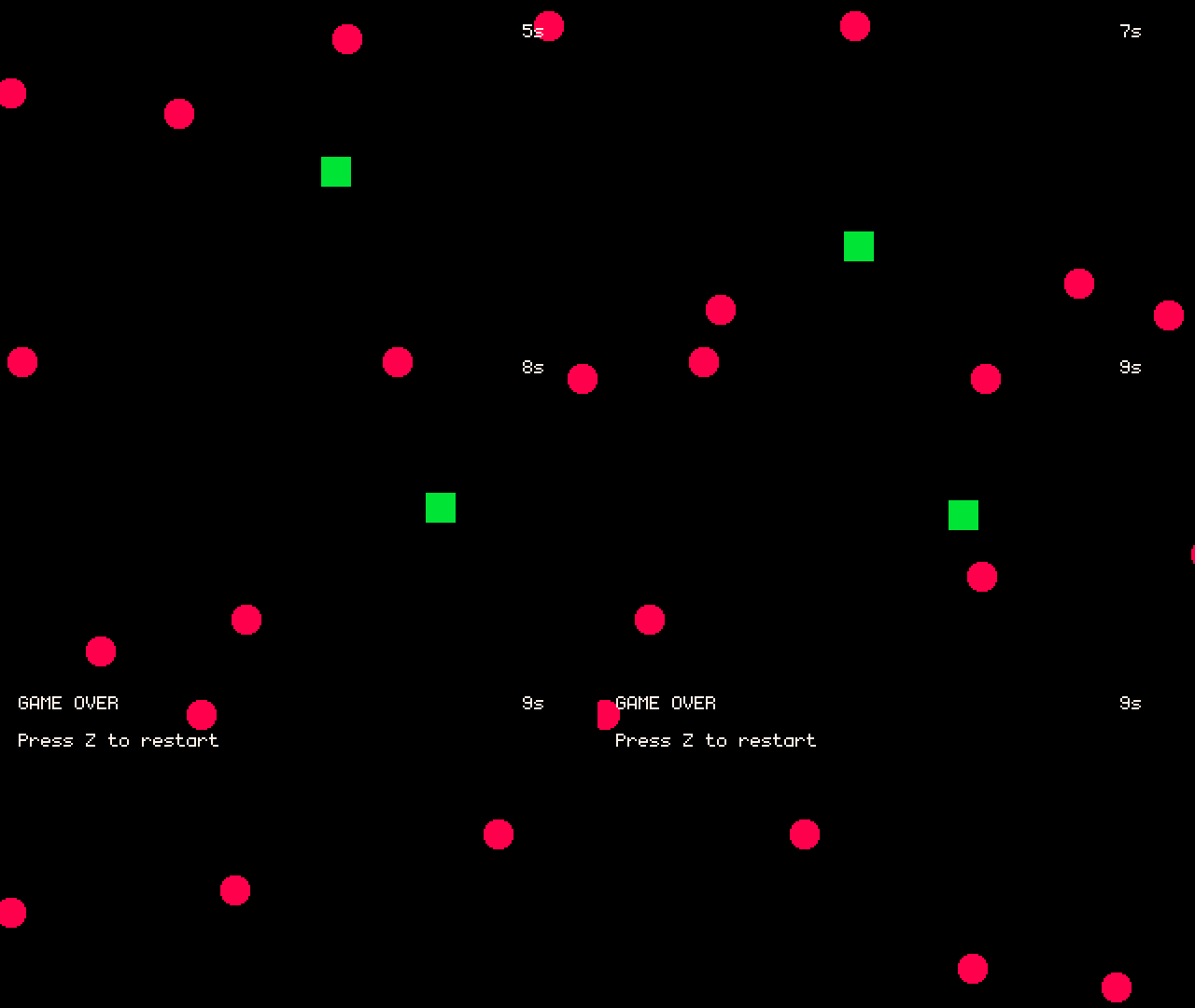
Save your main.lua and you’ll see red circles fly across the screen:
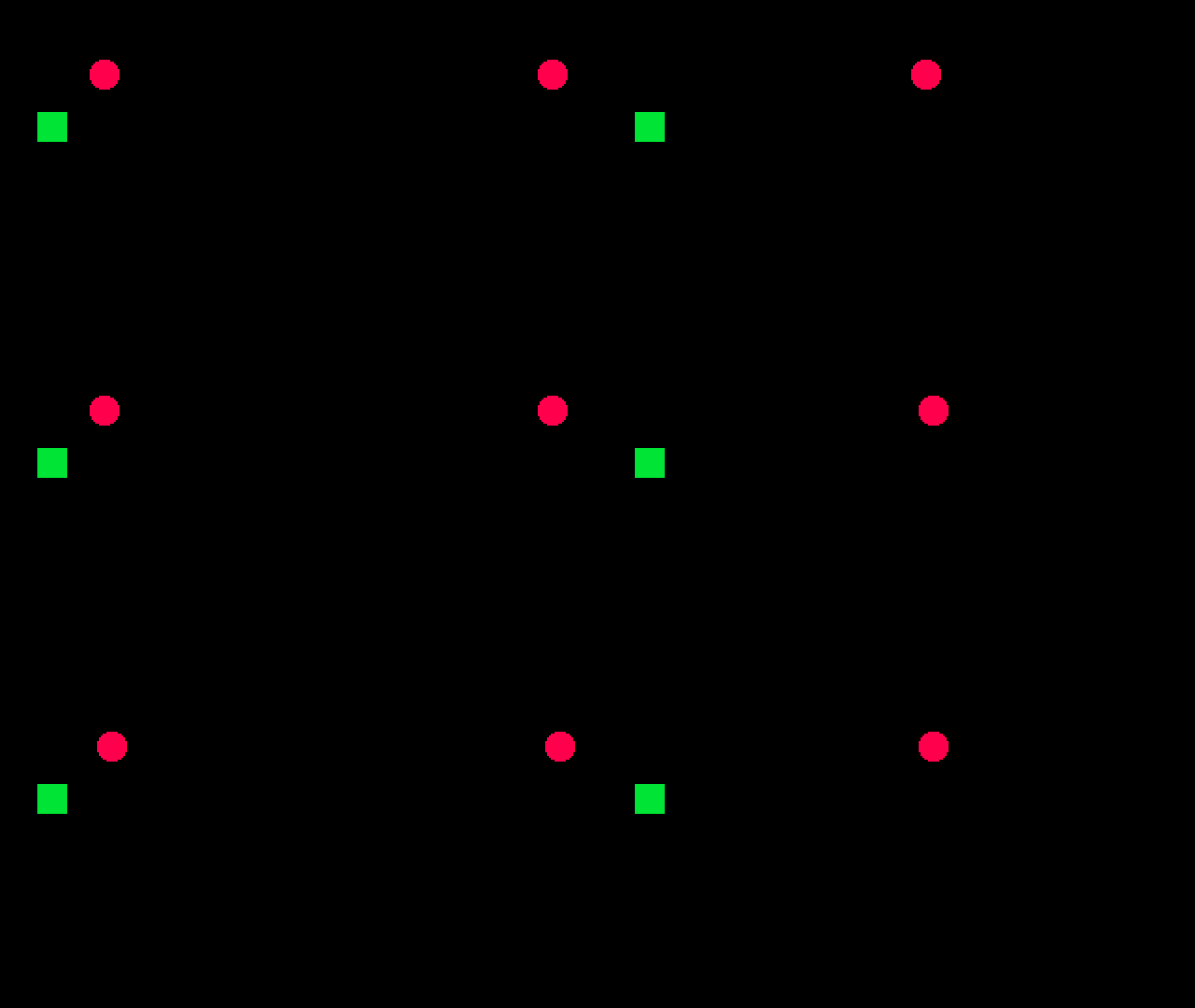
Kind of neat to see something moving on its own! But we’re missing a few things:
handling when a circle hits the player and spawning our enemies at different y
positions to make it more challenging. Also, it’d be more interesting if the
speed of each circle was random to add some variation and keep the player on
their toes.
View the source code for this section.
Random Y and Speed
To make our game have a bit of randomness, we’ll make use of Lua’s math.random
function. It allows us to pass in a lower and upper value, and it returns a
number in that range (inclusive of the lower and upper values). So
math.random(1, 4) randomly returns a whole number between 1 and 4, including 1
and 4. The possible values are 1, 2, 3, and 4.
In _update change the code where we spawn our enemies to this:
  if enemy_spawn_timer <= 0 then
    local padding = 10
    table.insert(
      enemies,
      {
        x = usagi.GAME_W + padding,
        y = math.random(padding, usagi.GAME_H - padding),
        spd = math.random(2, 4) -- pixels per frame
      }
    )
    enemy_spawn_timer = enemy_spawn_delay
  end
Rather than hardcoding the y value, we calculate a number between 10 and the
game’s height minus 10 pixels. The 10 pixel padding helps keep the enemies
contained within the field. Then we set the spd of each enemy to a random
value between 2 and 4. The code is broken down into multiple lines to make it
easier to read, since really long lines of code are difficult to understand and
edit.
Then, below our spawning check, make it so that the enemies update loop uses
the enemy.spd instead of the hardcoded value.
  for i = 1, #enemies do
    local enemy = enemies[i]
    enemy.x -= enemy.spd
  end
Our enemies are spawning all over the screen, with some moving faster than
others. But they’re a bit few and far between to actually pose any threat. At
the top of main.lua, decrease the enemy_spawn_delay value:
enemy_spawn_delay = 0.5 -- secs
Spawning an enemy every half second is feeling pretty good to me! But you’re welcome to change it and tune it to what feels good. That’s a key part of making games: adjusting speeds and sizes and stats to make the game feel good.
View the source code for this section.
Recycling Enemies
There’s a glaring issue in our game though. Something that’s not even visible!
Where do those little red circles that fly off of the screen go?!
Are they just scrolling forever onward left??? Until the sun explodes??
Well… let’s find out! At the end of _draw, let’s render some text that shows
us how many enemies there are in our enemies array:
gfx.text("Enemies: " .. #enemies, 10, 10, gfx.COLOR_WHITE)
The number of enemies keeps increasing. Which means each frame we’re looping through dozens or hundreds or thousands of enemies. But they’re not even visible nor a threat to the player. Also, if you know a little bit about how computers work, you might be thinking, if there were millions of those little buddies, couldn’t my computer run out of memory? What would happen then? It wouldn’t be good, that’s for sure!
In our simple game, the risk here is pretty low. But we should clean up these enemies and recycle them. That way we don’t waste CPU cycles and memory. And it’s a good learning opportunity!
The way we’ll clean up our enemies that have disappeared in the void is to walk
through our enemies table backward, check if the x position of that enemy is
below a certain threshold, and if it is, then we’ll remove that enemy from the
table. Add this code below the for loop where we update the x position of each
enemy:
  for i = #enemies, 1, -1 do
    if enemies[i].x < -10 then
      table.remove(enemies, i)
    end
  end
This is a new second loop through our enemies. But rather than going from the
beginning to the end, we go from the end to the beginning. The for loop also
supports setting the value at which to increment or decrement by. In our new
loop, it says: start i at the length of our enemies table, looping until i
is 1, adding -1 to i after each iteration.
You’ll notice that the length of enemies that’s drawn on the screen now
decreases when enemies fly off the screen and increases when new ones spawn. But
it no longer grows infinitely!
Our code that loops through from beginning to end, for i = 1, #enemies do,
could also be written like:
for i = 1, #enemies, 1 do
But that’d be verbose since incrementing by 1 is the default behavior.
Within our reverse loop, we check if the enemy at i’s x position is less
than -10. -10 is just a little buffer for once the enemy is definitely off the
screen and no longer visible. If the enemy is off the screen, we call
table.remove with our enemies table and the index we want to remove the
value at (which is i, the current iteration of the loop).
We have to loop through in reverse order to be sure that we don’t shift the items in the array, leading to items being skipped in the loop. Let’s say we have this code:
nums = {1, 2, 3}
for i = 1, #nums do
  if nums[i] == 2 then
    nums.remove(nums, i)
  end
end
We’d actually run into a serious problem. When we remove the first item of the
array, the remaining items shift forward in the table. In the first iteration of
the loop, the first value in the nums array does not equal 1 (== is a
boolean check to see if two values are equivalent, returning true if they
are). On the second loop, the value in our array does equal 2, which means we
remove the item at position (i) 2 in our array. So nums becomes
{ 1, 3 }. The third iteration of the loop has i set to 3, since it
incremented by 1. nums[3] doesn’t exist anymore since we shifted 3 into
the 2nd position! We’ve effectively skipped over checking the number 3 in our
contrived (and possibly slightly confusing) example. In our game code, if we
skipped over checking some enemies, that could lead to buggy behavior where we
miss checking the position of certain enemies.
But if we loop through our nums in reverse order, it’s safe to remove items
because later entries in the array have already been checked and it’s okay if
their position changes. Let’s walk through our simple example but in reverse:
nums = {1, 2, 3}
for i = #nums, 1, -1 do
  if nums[i] == 2 then
    nums.remove(nums, i)
  end
end
i is 3 in the first iteration of the loop. nums doesn’t change. Then on
the 2nd iteration of the loop, i is 2, which is equal to 2, so our code to
remove the 2nd entry in our nums array runs. nums now becomes { 1, 3 }.
But because we’re decrementing i, which is now 1 on the 3rd loop, it checks
nums[1] which is the expected value 1. Even though the position of 3
changed, it doesn’t matter since i values will be at the beginning of the
array and their positions haven’t shifted.
If numbers are swimming around in your head and you’re feeling dizzy and now hate programming, don’t sweat it! Just know that when we’re removing items from an array, we have to loop through them in reverse order to prevent introducing bugs and potentially skipping over entries.
View the source code for this section.
Hit Detection
We’re on the cusp of having something that’s pretty fun to play! We need to make it so that when our player is hit by a circle, the game ends. We’ll check to see if the player’s square overlaps with any of the circles. If it does, then it’s game over! When it’s game over, we’ll display a message and let the player play again.
Add a variable at the top of main.lua by our other variables that tracks
whether or not we’ve lost:
game_over = false
You can assign true or false to variables, which are the boolean values that
we are using in our various if checks. When the game starts, the game is not
over yet, so we initialize it to false.
Then in _update, where we loop through the enemies and update their position
(not the loop where we check if they’re off the screen), we need to check if
each enemy overlaps with the player:
  for i = 1, #enemies do
    local enemy = enemies[i]
    enemy.x -= enemy.spd

    if util.circ_rect_overlap(
          { x = enemy.x, y = enemy.y, r = 8 },
          { x = x, y = y, w = 16, h = 16 }
        ) then
      game_over = true
    end
  end
util.circ_rect_overlap is a function Usagi provides that checks if any portion
of a circle overlaps with a rectangle. The first argument is a table
representing the circle, which is the enemy’s position and its radius. The
second is the player’s rectangle, which is its position and its size.
So if the enemy circle overlaps the player rectangle, then we set the
game_over variable to true. Which we’ll then use to render a game over
message and also check if the player wants to restart the game.
At the end of our _update function, below where we loop through each enemy in
reverse to check if they’re off the screen, add this code that checks if
game_over is true and if the player has pressed BTN1. (More on BTN1 in a
moment.) If both of those are true (the and keyword is used to combine checks
where both have to be true, meaning this code won’t run if game_over is false
but BTN is pressed), then we reset our game data to start the playing the game
again.
  if game_over and input.pressed(input.BTN1) then
    -- reset our game data
    x = 20
    y = 60
    enemies = {}
    enemy_spawn_timer = 0
    game_over = false
  end
input.BTN1 is part of Usagi’s universal, simple input API. We checked for
directional inputs before. But now we need to check an action button. The simple
input API allows you to check keyboard and gamepad input, giving players
flexibility in their input methods. Rather than you having to check if a
specific key on the keyboard or button on the gamepad was pressed, you can use
input.pressed(input.BTN1) to check if the key/button bound to that action was
pressed once. By default BTN1 is mapped to Z on the keyboard and
the A button on gamepads. Usagi has support for up to 3 buttons.
So if the game is over and BTN1 is pressed, restart the game. Nice!
Now that we properly set game_over, we can check in our _draw function for
its value and update what we render accordingly.
Let’s only draw the player if it’s not game over:
  if not game_over then
    -- draw the player
    gfx.rect_fill(x, y, 16, 16, gfx.COLOR_GREEN)
  end
if not game_over then does exactly what it reads like: if game_over is
false, then run the code between the then and the end.
At the bottom of _draw, if it is game over, let the player know with some
helpful text:
  if game_over then
    gfx.text("GAME OVER", 10, 10, gfx.COLOR_WHITE)
    gfx.text("Press " .. input.mapping_for(input.BTN1) .. " to restart",
      10, 30, gfx.COLOR_WHITE)
  end
input.mapping_for is a useful function Usagi provides that returns whatever
key or gamepad button is bound to that input item. It auto detects if the last
input source was a keyboard or gamepad and updates accordingly.
We’ve got a little game that we can play now! It’s got a lose condition and a little bit of challenge.
View the source code for this section.
Play Time
But there’s one aspect missing: we don’t know how long we survived for. Let’s keep track of how long the player has survived and display that in our game.
We need a new variable to keep track of play_time at the top of main.lua:
play_time = 0
In _update where we reset the game data, reset play_time to 0:
  if game_over and input.pressed(input.BTN1) then
    -- reset our game data
    x = 20
    y = 60
    enemies = {}
    enemy_spawn_timer = 0
    game_over = false
    play_time = 0
  end
Right below that restart check, check if it’s not game over and add the dt to
play_time:
  if not game_over then
    play_time = play_time + dt
  end
dt is a decimal value, since it’s usually about 0.016. Each frame we add that
to play_time to keep track of the time that’s passed so long as the player
hasn’t been hit. Then at the bottom of _draw, drop the decimal places from
play_time and render the whole number of seconds the player has survived:
gfx.text(math.floor(play_time) .. "s", 280, 10, gfx.COLOR_WHITE)
View the source code for this section.
Sharing Your Game
You did it! You made a game! It’s got a goal: survive as long as possible. There’s a bit of challenge to it. And you can play it over again when you game over. This simple little game has the core concepts virtually all games have: a gameplay loop, code that runs every frame, data, player input.
Now all that’s left is to share our game. Usagi makes that easy. Run:
usagi export in your project folder from the terminal. This will create an
export folder that has your game build for Web, Windows, macOS, Linux, and
even Raspberry Pi devices. You can share your game with your family and friends
or upload it online for others to play.
A popular place to share your game online is itch.io. It lets
you publish your game to a page that you can share privately or publicly,
totally for free. Sign up for an account and then from the Dashboard, click
“Create new project”. Add a title for your game, like “Dodge ’Em Up” or whatever
you want to call your game. Set Kind of project in the new project form to
“HTML”. Then in the Uploads section click “Upload files”. Navigate to your
Usagi project, open the new exports folder, and select all of the versions of
your game. They’ll upload to itch. It’ll upload each one, and you can select the
operating system accordingly. For game-web.zip, check the “This file will be
played in the browser” box so the web game loads properly on itch. At the bottom
of the form, click “Save & view page”. You’ll have a draft page you can view and
test your game in. And you can change the visibility to Public if you want to
share it with others.
📺 Watch a video of this process.
Bonus Credits
Nice job following along and making your first Usagi game! It’s a bit simplistic, so here are some ideas for how you could expand upon it to make it more fun:
- We have a lot of duplicated numbers throughout our code, like the radius of the enemy circles and the player’s size. Put those in variables and replace the magic numbers with the new variables you created. This makes the code easier to understand and easier to change since the variable names are descriptive and the value is consolidated in one place.
- Keep track of the player’s high score in a variable. When they game over,
compare the new time to the high score and update it if the new one is longer.
Display the high score in
_drawfunction. - Make enemies fly in from different sides, not just the right side.
- Add multiple enemy types that have different sizes and colors, to make the game more challenging.
- Make more enemies spawn or make them faster as time goes, making the game harder the longer the player survives.
- Usagi has some functions to make it easy to add screen effects, like screen
shake and flash. Try adding
effect.screen_shake(0.2, 4)when the player gets hit andgame_overis set totrueto add a little bit of juice to your game. - There’s a lot our game doesn’t do, like playing sound effects or music. Check out the Usagi documentation and explore what else is possible to add in your game. Make it your own!
Shoot ’Em Up
Shoot ’em ups (a.k.a. shmups, STGs, shooters) are games where you pilot a ship and fire bullets. Your goal is simple: survive and defeat enemies. But with that simple goal, there’s challenge, fun, and depth. Many shmups have scoring systems, adding even more replayability to game. Shmups go back decades. I’m talking about games like Galaga, R-Type, Dodonpachi. Intense action games with an arcade lineage. They also happen to be my favorite type of game to play and make.
Here’s a look at the game we’re going to be making:
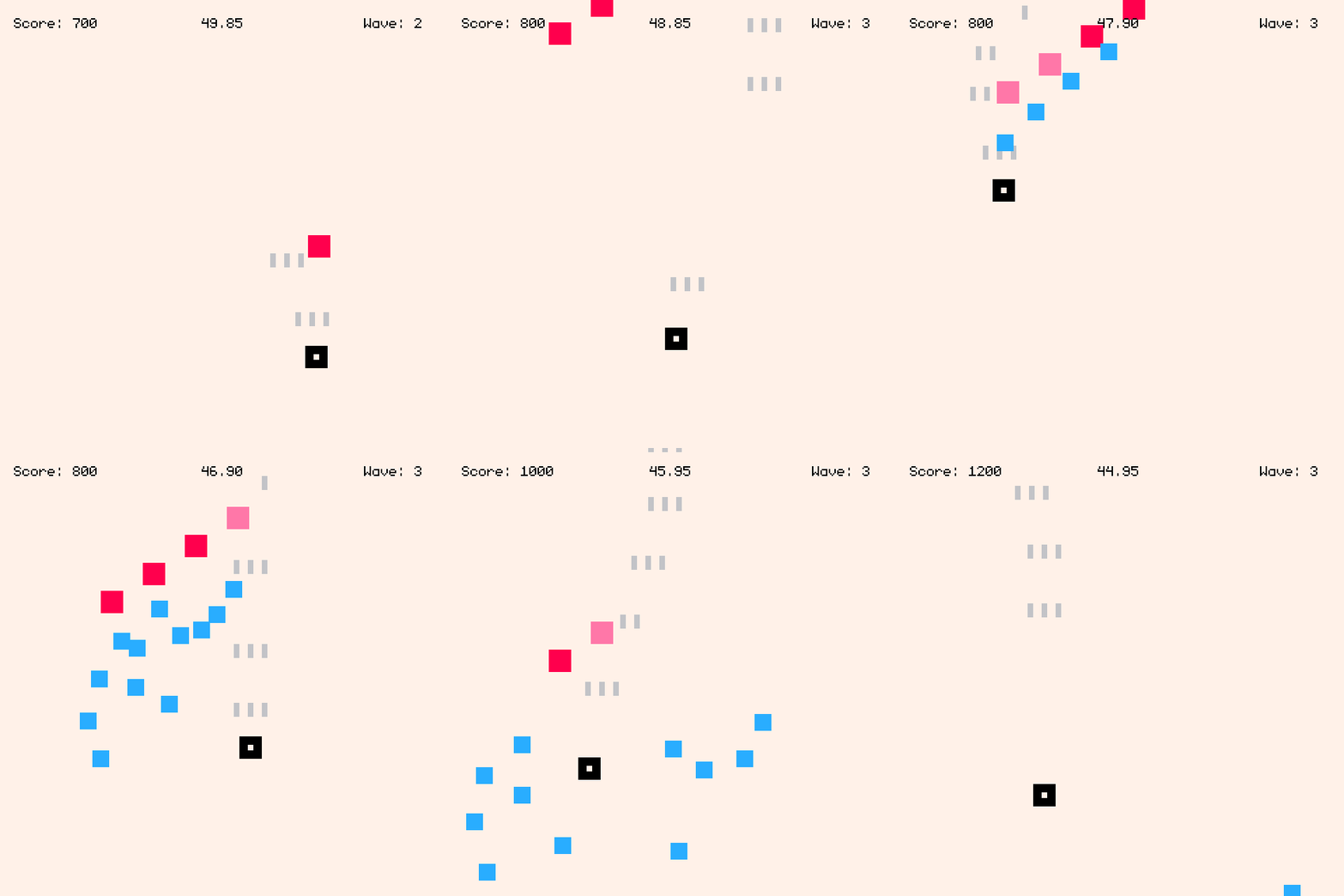
Shmups are great for learning how to make games because you can build something fun and challenging and begin iterating on it quickly, experimenting with systems and enemy behaviors. The core of the game is having a playable ship that can fire bullets, enemies that spawn and attack, and some sort of win state. These simple basics can be expanded upon endlessly.
For our shoot ’em up, we’re going to make a game where enemies spawn in waves. You have to defeat them (or they have to exit the screen) before the next wave spawns. You’ll have 60 seconds survive, defeat as many enemies as possible, and get the high score. Some enemies will dive down the screen, others will fire bullets at the player. By the end of this chapter, we’ll have made a shmup that you can tune, expand, and make your own. We’ll also dive deep on collision detection and finding a balance between challenging gameplay and enjoyable dodging.
This chapter builds upon the foundations from the Dodge ’Em Up chapter, so if you’re new to programming and Usagi Engine, read that first.
Moveable Player
Ensure you have Usagi Engine installed. Run
usagi init shmup to create your new project. Open your new project folder in
your code editor. Then run usagi dev in the folder to start up your game in
dev mode.
We’ll start by drawing a square to represent our player that can be moved around the screen. In the Dodge ’Em Up chapter, you may have noticed that if you press Up and Right (or any diagonal combination), the player moved faster than they did when moving in the cardinal directions. In a lot of shmups, this isn’t ideal, as you want movement to be precise. In order to make the distance traveled in all 8 possible directions the same, we need to normalize our input.
Here’s the starting place for our game in main.lua:
local player_size = 16
local player_speed = 180 -- px/s

function _init()
  State = {
    player = {
      x = usagi.GAME_W / 2 - player_size / 2,
      y = usagi.GAME_H - 60
    }
  }
end

function _update(dt)
  local input_delta = { x = 0, y = 0 }
  if input.held(input.UP) then
    input_delta.y -= 1
  end
  if input.held(input.DOWN) then
    input_delta.y += 1
  end
  if input.held(input.LEFT) then
    input_delta.x -= 1
  end
  if input.held(input.RIGHT) then
    input_delta.x += 1
  end
  local normalized_input = util.vec_normalize(input_delta)
  State.player.x += normalized_input.x * player_speed * dt
  State.player.y += normalized_input.y * player_speed * dt
  State.player.x = util.clamp(State.player.x, 0, usagi.GAME_W - player_size)
  State.player.y = util.clamp(State.player.y, 0, usagi.GAME_H - player_size)
end

function _draw(dt)
  gfx.clear(gfx.COLOR_WHITE)
  gfx.rect_fill(
    State.player.x, State.player.y,
    player_size, player_size, gfx.COLOR_BLACK
  )
end
We set player_size and player_speed variables. The local keyword is a new
concept in our code that’s worth covering. local is a keyword that tells Lua
to only make this variable visible within the current scope. The scope of these
variables is the current file: main.lua. But when you’re within a function and
create a local variable, the scope is that function and that variable is not
accessible outside of that function. It’s a good habit to get into creating
local variables since Lua’s variables are global by default. You don’t want to
accidentally create a global variable and end up referencing it somewhere else
because you used that same variable name. Basically: make variables local
unless you want to intentionally make it globally accessible. In Usagi code,
globals start with capital letters, like the State variable, which I’ll
explain in a moment. Functions can also be local, but this requires you to
place them in specific ordering in your source code, which is a hassle and
beyond what this tutorial covers.
In the usagi.conf file, we set the name of our game and the game_id.
Change the game_id to com.usagiengine.YOURUSERNAME.shmup, where you actually
put in your username/handle. Or if you have a website or itch.io page, use it in
reverse order, like io.itch.brettchalupa.shmup. This should be a unique
identifier for your game, which becomes important when adding save data to
games, as it helps ensure your game’s save data goes in a unique directory. The
game_width and game_height tell Usagi Engine to make our game field those
specified sizes. You can change these values to whatever you want, but for our
game, a square field feels good since you don’t have to worry about covering a
wide distance to reach enemies on the other side of the screen. Enemies will fly
in from the top, which will make our shoot ’em up a vertically-oriented game.
name = Shmup
game_id = com.brettmakesgames.shmuptutorial
game_width = 320
game_height = 320
In _init(), we create a global State table with our player’s position.
State is a common way in Usagi games to have a global to contain all of the
game’s data, allowing for easy access. Since State is initialized in
_init(), it doesn’t change when the game is live reloaded, which is what we
want. This lets our player stay in the same position when our game code changes.
You can reload State and reset your game by pressing Ctrl+R. You
can change player_speed and instantly test that new value without the entire
game reseting.
The math in the player x and y value centers our player horizontally and
places the y value 60 pixels up from the bottom of the game. The values of
usagi.GAME_W and usagi.GAME_H correspond to what we set in usagi.conf. You
could just hardcode 320 instead for each of them, but if you decide to change
the width or height of your game, you’ll be left searching for and updating all
of those old values.
The _update function contains our player movement, similar to Dodge ’Em Up.
Except rather than changing the player’s x and y value in the if checks,
we update a variable called input_delta. input_delta is a Lua table that
lets us set whether or not there was movement on a given axis. By using 1,
we’re creating what’s known as a unit vector, which makes normalizing the
movement on the diagonals easier. Then we call util.vec_normalize(input_delta)
after our input checks. util is a collection of functions that Usagi provides
to make common operations easier. That function returns a new table with the
values normalized.
When you press right and down, rather than x and y both being 1, the value
of both gets normalized to: 0.7071.... This makes it so that the distance
traveled is the same in all directions. We then take that normalized value and
multiply it by the player_speed and dt (dt is delta time, the amount of
time since our last _update call). This gives us the new position for the
State.player. After that, we prevent the player from moving off the screen by
calling util.clamp on the x and y position of the player. util.clamp
takes three values: the value you want to limit, the lower limit, and the upper
limit. If the value is below the lower limit, then the lower limit is returned.
If the value is higher than the upper limit, the upper limit is return.
Otherwise, the value is returned.
If you went through the Dodge ’Em Up chapter, you might be wondering what +=
and -= means since we didn’t use that syntax in the first chapter. Those are
called compound assignment operators. Lua doesn’t support them by default
but Usagi pre-processes your source code to add support for them.
input_delta.y -= 1 is the same as input_delta.y = input_delta.y - 1. It’s a
more convenient shorthand.
Finally, in _draw, we clear the screen so we have a white background. And then
draw a black rectangle at the State.player’s position.
This was a whole lot for the first section of our chapter, but we’ve got a good
starting point to build upon. Tweak the player_speed and player_size to see
what happens.
View the source code for this section.
Firing Bullets
Let’s make our player’s ship fire bullets upward. We’ll keep track of them in a Lua table. Each frame we’ll move them upward and if they scroll off the screen, we’ll remove them from the table.
Start by setting up some local variables at the top of main.lua:
local fire_delay = 0.1   -- s
local fire_timer = 0
local bullet_speed = 420 -- px/s
local player_bullet_w = 4
local player_bullet_h = 10
We’ll use all of these variables for firing and drawing bullets.
In our State table, add a new empty table for bullets:
  State = {
    player = {
      x = usagi.GAME_W / 2 - player_size / 2,
      y = usagi.GAME_H - 60,
      bullets = {}
    }
  }
We’ll add new bullets into that table when they’re fired and loop through it for updating the bullets and draw them on the screen.
Note: when you add a new entry to State (or any table that’s only
initialized in _init()), you may see an error pop-up the first time you make
use of it in your code. The error will be about trying to do something with that
new table entry, like nil arithmetic error or something similar. This is because
Usagi’s live reload when you change your source doesn’t call _init() and the
code is trying to access the table entry that doesn’t exist yet (it’s nil).
Usagi’s live reload not calling init() allows you to have game state that
doesn’t get wiped on each live reload, which is ideal when testing changes you
just made. You don’t lose your level or hp or whatever it is your game has in
it. But if you change something within _init(), you need to hard reload your
game to get that value populated. Press Ctrl + R or F5 to
hard reload your game and run _init() again. When you see an error and aren’t
sure what to do, try a hard reload first!
In our _update function, below where we handle player movement, add the
following code:
  fire_timer -= dt

  if fire_timer <= 0 and input.held(input.BTN1) then
    local bul_y = State.player.y - player_bullet_h
    -- fire 3 bullets
    table.insert(State.player.bullets,
      { x = State.player.x - player_bullet_w, y = bul_y })
    table.insert(State.player.bullets,
      { x = State.player.x + player_size / 2 - player_bullet_w / 2, y = bul_y })
    table.insert(State.player.bullets,
      { x = State.player.x + player_size, y = bul_y })
    fire_timer = fire_delay
  end

  for i = #State.player.bullets, 1, -1 do
    local bullet = State.player.bullets[i]
    -- move the bullet upward
    bullet.y -= bullet_speed * dt

    -- remove bullets that have flown off the top of the screen
    if bullet.y < -player_bullet_h then
      table.remove(State.player.bullets, i)
    end
  end
In each frame, we subtract the dt from fire_timer to count it down. Then, if
the fire_timer is less than or equal to 0 and the player is pressing BTN1
(keyboard: Z or gamepad: A by default), then fire three bullets. The firing of a
bullet uses the Lua function table.insert, which appends a new bullet at the
x and y position to State.player.bullets table. Then, finally, we reset
the fire_timer to fire_delay, which restarts the countdown, adding a slight
gap between each time a set of bullets get fired.
The for i = #State.player.bullets, 1, -1 do line of code is a loop that goes
through the player’s bullets in reverse, moving them up the screen by
subtracting the bullet_speed * dt from each bullet’s y position. If the
bullet is so far up the screen that’s it’s no longer visible (the negative
height of the bullet), then we need to remove it from the player’s bullets
table. We have to loop through the bullets in reverse order so that if we do
remove a bullet, those in the array from that position onward will properly
shift into position. If you didn’t reverse the order of looping through the
bullets, if you removed the first bullet, they remaining would shift forward,
causing the next iteration of the loop to skip one and potentially access an
index that no longer exists.
Now we need to draw our bullets by looping through them at the bottom of
_draw() and drawing a light gray rectangle:
  for _, bullet in ipairs(State.player.bullets) do
    gfx.rect_fill(bullet.x, bullet.y,
      player_bullet_w, player_bullet_h, gfx.COLOR_LIGHT_GRAY)
  end
The for _, bullet in ipairs(State.player.bullets) do line loops through each
of the bullets in State.player.bullets. The code between the for ... do and
its end is called for each bullet in that list. ipairs returns two values,
the index of the item in the list and the actual item in the list. We set the
index variable to _, meaning we don’t use it.
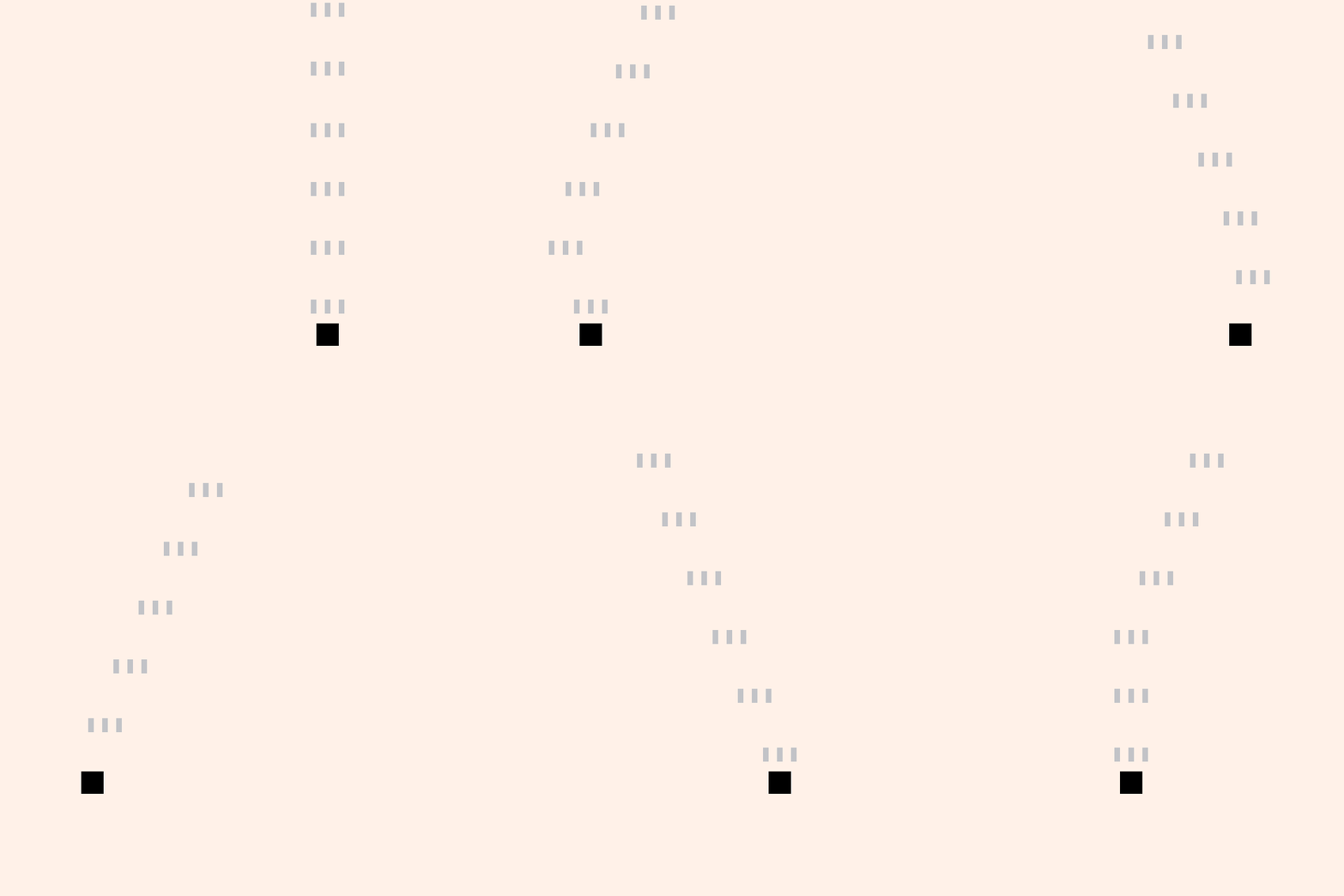
In less than 100 lines of code, we’ve got a pretty good feeling player ship that moves around the screen and fires bullets. Not bad!
View the source code for this section.
Defeating Enemies
A shmup without enemies is no shmup at all! Let’s spawn enemies that fly down the screen and when they’re hit by the player’s bullet, they lose health points (HP). When their HP drops to 0, they’ll disappear.
Start by defining the local variable hit_flash_time. It’s the time in
seconds that an enemy will flash then they’re hit by a bullet:
local hit_flash_time = 0.2 -- secs
Then define a new function that returns a new enemy table at a given position. This function makes it easy to keep all of the different of an enemy close together.
function init_enemy(x, y)
  return {
    x = x,
    y = y,
    hp = 12,
    w = 16,
    h = 16,
    speed = 44, -- px/s
    color = gfx.COLOR_RED,
    flash_timer = 0
  }
end
We’ll call this function soon. The returned table has the width (w) and height
(h), the color, the speed, and the flash_timer to keep track of changing
the enemy’s color when they’re hit. It’s worth noting that there’s a downside to
putting all of these values in a table like this: when our game code live
reloads, the State.enemies contains the old values, not the new ones until
either new enemies spawn or you press Ctrl + R to reload your game.
Since our game is so simple right now, that’s not a big deal. But it’s worth
seeing the difference in approach compared to using local variables we use the
different player properties. Later on this chapter, we’ll break up our code into
multiple files and revise how this is handled. But for now, returning the table
like this works.
We’ll store our enemies in a table in State, spawning three of them with our
new init_enemy function:
function _init()
  State = {
    player = {
      x = usagi.GAME_W / 2 - player_size / 2,
      y = usagi.GAME_H - 60,
      bullets = {}
    },
    enemies = {
      init_enemy(72, -20),
      init_enemy(usagi.GAME_W - 72, -20),
      init_enemy(usagi.GAME_W / 2, -60),
    },
  }
end
Then in _update, in our bullet loop, loop through each enemy and check if the
bullet overlaps with any of the enemies:
    -- check if the bullet has overlapped with any of the enemies
    for _, enemy in ipairs(State.enemies) do
      if util.rect_overlap(
            { x = bullet.x, y = bullet.y,
              w = player_bullet_w, h = player_bullet_h },
            enemy) then
        bullet.dead = true
        enemy.hp -= 1
        enemy.flash_timer = hit_flash_time
      end
    end

    -- remove bullets that have flown off the top of the screen
    if bullet.y < -player_bullet_h or bullet.dead then
      table.remove(State.player.bullets, i)
    end
util.rect_overlap is a function Usagi provides that checks if two rectangles
are intersecting. It returns true if they are. Each rectangle passed to this
function must be a table with an x, y, w, and h key and value. If they
do overlap, then we set the bullet’s dead property to true, reduce the
enemy’s hp, and set the enemy’s flash_timer to the local variable we
created earlier for how long to change the color when the enemy is hit.
Then, right after that, where we were checking for bullets that fly off the
screen, we also check if bullet.dead to see if we should remove dead bullets
as well. Just add or bullet.dead to the check that previously existed.
Now, similar to bullets and still in _update, we need to move our enemies down
the screen and remove them if they’ve run out of hp or fly off the screen:
  for i = #State.enemies, 1, -1 do
    local enemy = State.enemies[i]

    enemy.y += enemy.speed * dt

    if enemy.flash_timer > 0 then
      enemy.flash_timer = enemy.flash_timer - dt
    end

    if enemy.hp <= 0 or enemy.y > usagi.GAME_H then
      table.remove(State.enemies, i)
    end
  end
We loop through in reverse, just like bullets. And we set enemy.flash_timer to
the previous value minus dt, reducing that timer. We’ll check that in the
_draw code to know which color to draw the enemy.
When we defeat all of our enemies, let’s spawn some more, at the end of our
_update function:
  if #State.enemies == 0 then
    table.insert(
      State.enemies,
      init_enemy(72, -20)
    )
    table.insert(
      State.enemies,
      init_enemy(usagi.GAME_W - 72, -20)
    )
    table.insert(
      State.enemies,
      init_enemy(usagi.GAME_W / 2, -60)
    )
  end
There’s nothing too fancy here. We check if the number of enemies is 0 and
spawn more if so.
In _draw, after we draw our player rectangle but before we draw bullets,
we’ll loop through each enemy and draw them, factoring in whether or not their
flash_timer is greater than 0. If it is, then we’ll draw the enemy as pink
instead of the red that we set in init_enemy:
  for _, enemy in ipairs(State.enemies) do
    local color = enemy.color
    if enemy.flash_timer > 0 then
      color = gfx.COLOR_PINK
    end
    gfx.rect_fill(enemy.x, enemy.y, enemy.w, enemy.h, color)
  end
Our game is starting to have glimmers of being fun with enemies endlessly approach and bullets we can hit them with.
Enemy Bullets - Aimed Shots
Our game is a bit easy though. Sure, we could make the enemies move faster or spawn more of them. But the best way to add challenge (and fun) is to make the enemies fire back. In shoot ’em ups, there are two broad categories of enemy shot types: aimed shots that move toward the player’s position and shots that move in a specific pattern, regardless of the player’s location. We’ll focus on aimed shots in this section, making our enemies fire bullets toward the player’s position at the time of fire. This allows the player to dodge them by always needing to stay in motion. This is slightly different than a homing shot, which would follow the player where they move, requiring them to either shoot the missle down or somehow shake it off (homing shots would be a cool thing for you to add once this chapter is over!).
We’ll make our enemy bullets quite large compared to the player’s. Add a new variable at the top of the file for representing the width and height of the enemy bullets:
local enemy_bullet_size = 12
Add two new properties to our returned enemy table in init_enemy() that we can
use to track when a enemy should fire a bullet:
    fire_timer = 1.5, -- seconds until first shot
    fire_delay = 0.4, -- seconds between shots
    shots_fired = 0,
    shots_limit = 3,
fire_timer will be used to countdown 1.5 seconds and then have the enemy fire
their first bullet. We’ll reset fire_timer after each shot to fire_delay,
which will set the delay of future shots to 0.2s. We’ll use shots_fired to
count how many times the enemy has spat out a bullet and stop firing once that
number reaches shots_limit.
In the _init function’s State table, add a new key: enemy_bullets that’s
initialized to an empty table: {}:
enemy_bullets = {},
We’ll keep track of enemy bullets separate from each enemy so that even after an enemy dies or flies of their screen, their bullets live on, carrying out their mission to destroy us.
We need to make it so that our enemies fire bullets in our _update function
within the enemies loop. We’ll be calculating the linear velocity of the bullet
based on the angle of the enemy toward the player. We’ll use the power of
trigonometry to accomplish this! Right after the code where we handle updating
the enemy’s flash timer, add this:
    enemy.fire_timer -= dt
    if enemy.fire_timer <= 0 and enemy.shots_fired < enemy.shots_limit then
      local ex = enemy.x + enemy.w / 2 - enemy_bullet_size / 2
      local ey = enemy.y + enemy.h

      -- bullet center positions
      local bcx = ex + enemy_bullet_size / 2
      local bcy = ey + enemy_bullet_size / 2

      local angle = math.atan(
        (State.player.y + player_size / 2) - bcy,
        (State.player.x + player_size / 2) - bcx
      )

      table.insert(State.enemy_bullets,
        {
          x = ex,
          y = ey,
          angle = angle,
        })
      enemy.shots_fired += 1
      enemy.fire_timer = enemy.fire_delay
    end
There’s a lot here. Let’s break it down and go over what’s happening.
We subtract dt from the enemy’s fire_timer so that it counts down, just like
our other timers. Then, if the fire_timer is less than or equal to 0 and
the number of shots fired is less than the limit, we insert a new bullet into
State.enemy_bullets. In order to properly aim the bullet at the player, we
need to calculate the angle at which the bullet needs to travel based on the
enemy that’s firing the bullet’s position and the player’s position at the time
of fire. This is calculated using the arctangent of the y position delta and x
position delta. Then we increment the enemy’s shots_fired and reset the
fire_timer for future checks as to whether or not the enemy should fire
another bullet.
If you’re curious about the deeper trigonometric aspects of the arctangent calculate, check out the Wikipedia page on Inverse trigonometric functions. If you’re not curious, just accept that’s how aimed shots work and move on. For what it’s worth, these aspects of math in game programming make my head spin still (maybe a sign I should study it more!).
Right below the enemy loop in _update, in a new loop, we need to loop through
each enemy bullet, update its position, check for overlap with the player, and
remove any bullets that are dead or offscreen:
  for i = #State.enemy_bullets, 1, -1 do
    local bullet = State.enemy_bullets[i]
    local speed = 120
    bullet.x += math.cos(bullet.angle) * speed * dt
    bullet.y += math.sin(bullet.angle) * speed * dt

    if util.rect_overlap(
          { x = bullet.x, y = bullet.y, w = enemy_bullet_size, h = enemy_bullet_size },
          { x = State.player.x, y = State.player.y, w = player_size, h = player_size }
        ) then
      bullet.dead = true
    end

    if bullet.y > usagi.GAME_H or bullet.dead then
      table.remove(State.enemy_bullets, i)
    end
  end
We need to take the bullet.angle into account when we move the bullet. In
order to calculate the linear velocity, we pass that bullet.angle into
math.cos for the x velocity and math.sin for the y velocity, multiplying
it by enemy bullet’s speed and dt.
We then check if the bullet’s rectangle overlaps the player’s rectangle. If so, the bullet is dead. (And in the future, the player will die too.)
At the end of the enemy bullet update loop, we remove any dead bullets or those that are off screen.
Finally, loop through and draw each of the State.enemy_bullets after we draw
the player bullets:
  for _, bullet in ipairs(State.enemy_bullets) do
    gfx.rect_fill(bullet.x, bullet.y,
      enemy_bullet_size, enemy_bullet_size, gfx.COLOR_BLUE)
  end
There’s nothing particularly special about this code, we draw a blue square to represent the enemy bullets.
The Usagi _draw loop draws in order of the gfx calls. Each proceeding gfx
call draws on top of the previous ones. In shmups, it’s absolutely vital
that enemies and bullets are visible. So we draw the enemy bullets last, on top
of everything else.
Enemy bullet firing is one of the more complex parts of our shmup. Now that we’ve cleared that hurdle, we’ll be making some smaller changes to make our game more challenging and fun.
Tune some of the different values in the code to see what feels good, like try changing the bullet size, the fire delay, how many shots get fired. When making games, once you have the systems in place, you can turn the knobs and see what happens, which can often lead to some delightful surprises in your game’s design.
View the source code for this section.
Hitboxes
Our game currently uses the entire player’s rectangle to check for collisions with enemy bullets. This makes our game quite difficult, and in many modern shmups, the hitbox of the player is a much smaller square in the center. Hitboxes are a game dev term that represent a specific shape that’s used for hit detection.
Here’s a sprite from the art Kenney with a box I’ve drawn over it:
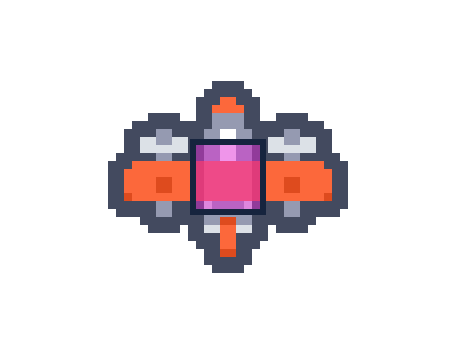
That pink-ish box would make for a more player-friendly hitbox, allowing for easier dodging and less frustrating gameplay. In some shmups, the hitbox is even smaller.
Let’s make our player’s hitbox smaller than the black square we draw and use
that for collision detection. In main.lua, create a new function called
player_hitbox. It will return a Lua table representing the rectangle we want
to use:
function player_hitbox(player)
  local hitbox_size = 4
  return {
    x = player.x + player_size / 2 - hitbox_size / 2,
    y = player.y + player_size / 2 - hitbox_size / 2,
    w = hitbox_size,
    h = hitbox_size,
  }
end
The returned table is a small square centered on the player’s location.
In the _update function where we loop through the #State.enemy_bullets and
call util.rect_overlap and pass in two tables to represent the bullet’s hitbox
and the player’s hitbox, change the second argument to instead call out to our
new function:
    if util.rect_overlap(
          { x = bullet.x, y = bullet.y, w = enemy_bullet_size, h = enemy_bullet_size },
          player_hitbox(State.player)
        ) then
      bullet.dead = true
    end
Aside: if you wanted, you could even make the enemy bullet hitbox smaller than the bullet’s size. Or extract it into a function and make it the exact same. It’d make the code a little bit cleaner.
Let’s draw the player’s hitbox as a white dot in the middle of the player in
_draw right after we draw our player:
  local p_hitbox = player_hitbox(State.player)
  gfx.rect_fill(
    p_hitbox.x, p_hitbox.y, p_hitbox.w, p_hitbox.h,
    gfx.COLOR_WHITE
  )
The reason we wrote the player_hitbox code instead of creating that table over
and over to represent the hitbox is so that we could reuse that code in the
_update collision detection code and we could then use it in _draw. By
consolidating the code into one place, this makes it much easier to change. If
you decide to make the hitbox smaller, just update hitbox_size in that single
place. This principle of don’t repeat yourself (DRY) is quite useful for making
code easier to change and understand.
View the source code for this section.
Refactoring Our Code
On the topic of code quality, there’s something that’s not great about our
main.lua code right now. It’s the _update function. It’s over 100 lines
long, and it’s doing a lot of important work. Let’s break that code down into
smaller, reusable functions. This process of reorganizing our code is called
refactoring. It’s a way to step back and assess the code that exists and try
to answer the question: can this be organized better so I can better understand
it and more easily change it in the future? A key part of refactoring is that
we don’t want to change the functionality.
When I read through our _update function, I see it handling some distinct
functionalities:
- Updating the player’s position based on input
- Handling firing the player’s bullets
- Updating the player’s bullets and checking for collisions with enemies
- Updating enemies positions and firing the enemies’ bullets
- Updating enemy bullets and checking for collisions with the player
- Spawning more enemies
These all naturally break down into distinct functions that we can call. Take
those logical groupings, give them names, and then call those functions in
_update:
function _update(dt)
  update_player_move(dt)
  update_player_fire(dt)
  update_player_bullets(dt)
  update_enemies(dt)
  update_enemy_bullets(dt)
  try_spawn_enemies()
end
Doesn’t _update just feel better now? It’s clear to see the order of
operations. And then if we need to change enemy behavior, we go to the
update_enemies function.
We use the update_* prefix to make it clear that the code is called in the
_update function. The try_spawn_enemies function uses the try_* suffix
because it doesn’t spawn enemies every time it’s called. It only does it is
there are currently 0 enemies. If the function was just named spawn_enemies,
when you read it in _update, you might think it’s always spawning enemies. By
naming it try_spawn_enemies, it implies that certain conditions must be met
for a spawn event to happen.
All of our new functions look like this:
function update_player_move(dt)
  local input_delta = { x = 0, y = 0 }
  if input.held(input.UP) then
    input_delta.y -= 1
  end
  if input.held(input.DOWN) then
    input_delta.y += 1
  end
  if input.held(input.LEFT) then
    input_delta.x -= 1
  end
  if input.held(input.RIGHT) then
    input_delta.x += 1
  end
  local normalized_input = util.vec_normalize(input_delta)
  State.player.x += normalized_input.x * player_speed * dt
  State.player.y += normalized_input.y * player_speed * dt
  State.player.x = util.clamp(State.player.x, 0, usagi.GAME_W - player_size)
  State.player.y = util.clamp(State.player.y, 0, usagi.GAME_H - player_size)
end

function update_player_fire(dt)
  fire_timer -= dt

  if fire_timer <= 0 and input.held(input.BTN1) then
    local bul_y = State.player.y - player_bullet_h
    -- fire 3 bullets
    table.insert(State.player.bullets,
      { x = State.player.x - player_bullet_w, y = bul_y })
    table.insert(State.player.bullets,
      { x = State.player.x + player_size / 2 - player_bullet_w / 2, y = bul_y })
    table.insert(State.player.bullets,
      { x = State.player.x + player_size, y = bul_y })
    fire_timer = fire_delay
  end
end

function update_player_bullets(dt)
  for i = #State.player.bullets, 1, -1 do
    local bullet = State.player.bullets[i]
    -- move the bullet upward
    bullet.y -= bullet_speed * dt

    -- check if the bullet has overlapped with any of the enemies
    for _, enemy in ipairs(State.enemies) do
      if util.rect_overlap(
            { x = bullet.x, y = bullet.y,
              w = player_bullet_w, h = player_bullet_h },
            enemy) then
        bullet.dead = true
        enemy.hp -= 1
        enemy.flash_timer = hit_flash_time
      end
    end

    -- remove bullets that have flown off the top of the screen
    if bullet.y < -player_bullet_h or bullet.dead then
      table.remove(State.player.bullets, i)
    end
  end
end

function update_enemies(dt)
  for i = #State.enemies, 1, -1 do
    local enemy = State.enemies[i]

    enemy.y += enemy.speed * dt

    if enemy.flash_timer > 0 then
      enemy.flash_timer = enemy.flash_timer - dt
    end

    enemy.fire_timer -= dt
    if enemy.fire_timer <= 0 and enemy.shots_fired < enemy.shots_limit then
      local ex = enemy.x + enemy.w / 2 - enemy_bullet_size / 2
      local ey = enemy.y + enemy.h

      -- bullet center positions
      local bcx = ex + enemy_bullet_size / 2
      local bcy = ey + enemy_bullet_size / 2

      local angle = math.atan(
        (State.player.y + player_size / 2) - bcy,
        (State.player.x + player_size / 2) - bcx
      )

      table.insert(State.enemy_bullets,
        {
          x = ex,
          y = ey,
          angle = angle,
        })
      enemy.shots_fired += 1
      enemy.fire_timer = enemy.fire_delay
    end

    if enemy.hp <= 0 or enemy.y > usagi.GAME_H then
      table.remove(State.enemies, i)
    end
  end
end

function update_enemy_bullets(dt)
  for i = #State.enemy_bullets, 1, -1 do
    local bullet = State.enemy_bullets[i]
    local speed = 120
    bullet.x += math.cos(bullet.angle) * speed * dt
    bullet.y += math.sin(bullet.angle) * speed * dt

    if util.rect_overlap(
          { x = bullet.x, y = bullet.y, w = enemy_bullet_size, h = enemy_bullet_size },
          player_hitbox(State.player)
        ) then
      bullet.dead = true
    end

    if bullet.y > usagi.GAME_H or bullet.dead then
      table.remove(State.enemy_bullets, i)
    end
  end
end

function try_spawn_enemies()
  if #State.enemies == 0 then
    table.insert(
      State.enemies,
      init_enemy(72, -20)
    )
    table.insert(
      State.enemies,
      init_enemy(usagi.GAME_W - 72, -20)
    )
    table.insert(
      State.enemies,
      init_enemy(usagi.GAME_W / 2, -60)
    )
  end
end
Every function we extracted except try_spawn_enemies needs dt passed in. But
none of the actual code within the functions has changed. That’s a clean
refactor!
Aside: A natural next step would be to extract our functions into different
files to further organize our code. That’s beyond the scope of this chapter, but
that’d be something great for you to explore on your own if you’re interested in
that. There are some natural groupings so far, like player.lua, enemy.lua,
bullet.lua.
View the source code for this section.
Game Over
When our player gets hit by bullets, nothing consequential happens. Much like in the Dodge ’Em Up chapter, we’ll make it trigger a game over and allow the player to restart to try again.
Start by adding a game_over key to the State table:
game_over = false,
Then, in our new update_enemy_bullets function, in addition to setting the
bullet to to dead, we’ll also set the State.game_over to true:
    if util.rect_overlap(
          { x = bullet.x, y = bullet.y, w = enemy_bullet_size, h = enemy_bullet_size },
          player_hitbox(State.player)
        ) then
      bullet.dead = true
      State.game_over = true
      effect.flash(0.4, gfx.COLOR_WHITE)
      effect.screen_shake(0.8, 2)
    end
We also call out to two functions Usagi provides: effect.flash and
effect.screen_shake. They add a little bit of juice to the game by flashing
the screen white for 0.4 seconds and then shaking the screen at intensity level
2 for 0.8 seconds. While you don’t want to go overboard with these effects,
using them wisely can make your game feel more alive and polished.
In _update, check if State.game_over and check for player input to restart
the game, otherwise call our normal update functions:
function _update(dt)
  if State.game_over then
    if input.pressed(input.BTN1) then
      _init()
    end
  else
    update_player_move(dt)
    update_player_fire(dt)
    update_player_bullets(dt)
    update_enemies(dt)
    update_enemy_bullets(dt)
    try_spawn_enemies()
  end
end
When game_over is true, we check to see if the player has pressed BTN1, and if
they have, just call the game’s _init() to start it all over again.
If the player is dead, we shouldn’t draw their square in _draw(), so add this
conditional check:
  if not State.game_over then
    gfx.rect_fill(
      State.player.x, State.player.y,
      player_size, player_size, gfx.COLOR_BLACK
    )
    local p_hitbox = player_hitbox(State.player)
    gfx.rect_fill(
      p_hitbox.x, p_hitbox.y, p_hitbox.w, p_hitbox.h,
      gfx.COLOR_WHITE
    )
  end
We need to let the player know it’s game over, so in _draw() render text at
the very end of the function:
  if State.game_over then
    gfx.text("GAME OVER", 10, 10, gfx.COLOR_BLACK)
    gfx.text("Press " .. input.mapping_for(input.BTN1) .. " to restart!",
      10, 32, gfx.COLOR_BLACK)
  end
While we could only draw the enemies and bullets if it’s not game over, it’s fun to draw them when they’re not updating, leading to a freeze frame effect when the player dies.
This is starting to fee like a real game! Play it for a bit and tune the enemy speeds, the bullet speeds, and whatever else is variable to see what feels best to you.
View the source for this section.
Enemy Waves
Spawning enemies over and over in the same position isn’t very fun. Let’s set up our game so that we can define the waves of enemy in an easy way that makes it possible for us to design the encounters. We’ll have enemies fly down at various locations, giving our game a flow for the player to navigate through.
The simplest way to set this up is to create an array table where each item in the array is its own array table of spawn positions.
local WAVES = {
  {
    { 72,  -20 },
    { 112, -60 },
    { 200, -100 },
    { 240, -140 },
  },
  {
    { 72,           -20 },
    { 100,          -60 },
    { usagi.GAME_W - 72,  -20 },
    { usagi.GAME_W - 100, -60 },
  },
  {
    { 72,  -20 },
    { 102, -40 },
    { 132, -60 },
    { 162, -80 },
  },
  -- add more waves here youself!
}
We reference usagi.GAME_W to position enemies relative to the game’s width,
which we set in usagi.conf. When we want enemies to spawn on the right side of
the screen, we subtract some pixels from usagi.GAME_W. You could just hardcode
the values too.
In some programming languages and in this book, it’s common to capitalize all
the characters of a value that isn’t meant to change. Lua doesn’t have a concept
of constants, so to signify that our waves don’t change, WAVES is written in
SCREAMING_SNAKE_CASE.
Each item in the WAVES array contains an array of spawn positions. In order to
keep the code concise, we just use an array to represent the x and y position,
that way we don’t have to type { x = 72, y = -20 } over and over again. The
first value is x, the second is y.
The arrays are nested three levels deep, but it makes it easy to add new waves and edit the existing enemy spawns. Also, you don’t have to format your code like it is in the book. Some editors automatically format code on save to make it easier to read.
In _init, change State.enemies to be an empty table and set current_wave
to 0:
function _init()
  State = {
    player = {
      x = usagi.GAME_W / 2 - player_size / 2,
      y = usagi.GAME_H - 60,
      bullets = {}
    },
    enemies = {},
    enemy_bullets = {},
    game_over = false,
    current_wave = 0,
  }
end
By setting current_wave to 0, we’ll let our game’s revised
try_spawn_enemies handle incrementing it and spawn the enemies of the 1st
wave, which will populate State.enemies. Revise the try_spawn_enemies
function to be:
function try_spawn_enemies()
  if #State.enemies == 0 and State.current_wave < #WAVES then
    State.current_wave += 1
    State.enemies = {}
    for _, enemy in ipairs(WAVES[State.current_wave]) do
      table.insert(State.enemies, init_enemy(enemy[1], enemy[2]))
    end
  end
end
It checks if the length of State.enemies is 0 because the enemies all died
or flew off the screen. But it also checks if State.current_wave is less than
the total number of waves in WAVES. If both are true, then it’s time to spawn
the next wave of enemies. Spawning enemies from the current wave consists of
reseting State.enemies to an empty table {} just to be sure there’s nothing
weird lingering. Then we loop through each spawn location of the current wave,
inserting the enemy into the State.enemies table. Since we set all of the y
values to be negative in WAVES, they fly in from the top of the screen. We
access the first element, the x value, with enemy[1] and the second element,
the y value, with enemy[2].
Revise the waves in WAVES by adding a bunch of different encounters. Play test
your game a bunch and see what feels good. You’re doing game design! Note:
you’ll need to press Ctrl+R to hard reload your game to reset
State.current_wave to 0 if you want to test previous waves. But if you add
new WAVES to your running game, it’ll advance through and let you play test
them right away, which is kind of nifty.
View the source code for this section.
Time Out
Let’s make it so that our game is 60 seconds long. We’ll add a timer that counts down and when it hits 0, it’ll be time out for that round. Just like when the player dies, they can restart and play again.
You’ll need to add enough WAVES to fill up the space of 60 seconds. Be sure to
account for skilled players who can clear the waves quickly. You don’t want
someone to sit there for 20 seconds if they cleared all the waves before time
ran out.
Start by adding a new timer field to State in _init:
timer = 60, -- secs
Then in _update subtract dt from State.timer each frame that it’s not game
over and when the timer hits 0, set the State.game_over boolean to true:
function _update(dt)
  if State.game_over then
    if input.pressed(input.BTN1) then
      _init()
    end
  else
    State.timer -= dt
    State.timer = math.max(State.timer, 0)
    if State.timer == 0 then
      State.game_over = true
    end
The math.max function call basically says, if State.timer is less than 0,
set it to 0 so that we can check if we’ve timed out. It returns the larger of
the two values. You could also write it like this:
if State.timer < 0 then
  State.timer = 0
end
But I thought it’d be nice for you to see another math function that Lua
provides.
In _draw, near the end so that it draws on top of everything else, render text
of the State.timer and when it is game over and the State.timer is 0, show
a “TIME OUT” message:
  gfx.text(string.format("%.2f", State.timer), usagi.GAME_W / 2 - 16, 10, gfx.COLOR_BLACK)

  if State.game_over then
    if State.timer == 0 then
      gfx.text("TIME OUT", 10, 10, gfx.COLOR_BLACK)
    else
      gfx.text("GAME OVER", 10, 10, gfx.COLOR_BLACK)
    end
    gfx.text("Press " .. input.mapping_for(input.BTN1) .. " to restart!",
      10, 32, gfx.COLOR_BLACK)
  end
string.format("%.2f", State.timer) takes our State.timer value and converts
it to a string rounded to two decimal places. So it’ll show as 44.32 in our
game. the 2 in "%.2f" means show 2 decimal places. Otherwise State.timer
will be many decimal places long and look bad.
View the source code for this section.
Scoring
Let’s add score tracking to our game. Scoring can encourage players to replay a game to try to beat their previous best. We’ll start with a very simple scoring logic: when you defeat an enemy, you get 100 points.
Add new score key to State in _init() that we’ll use to keep track of
score. Set it to 0 by default:
score = 0,
In _draw, draw our score just like we draw our wave number:
gfx.text("Score: " .. State.score, 10, 10, gfx.COLOR_BLACK)
Because we draw the score in the upper-left corner, we need to shift the game
over and restart text down a bit by adding to their y draw value:
  if State.game_over then
    if State.timer == 0 then
      gfx.text("TIME OUT", 10, 32, gfx.COLOR_BLACK)
    else
      gfx.text("GAME OVER", 10, 32, gfx.COLOR_BLACK)
    end
    gfx.text("Press " .. input.mapping_for(input.BTN1) .. " to restart!",
      10, 54, gfx.COLOR_BLACK)
  end
In update_player_bullets, check to ensure that the enemy has more than 0 HP
in the overlap check so that we don’t accidentally allow a second bullet
overlapping with the dead enemy to give us double score. And then add 100 to
State.score if we’ve just killed the enemy (i.e., their hp has dropped to
0 or less):
      if util.rect_overlap(
            { x = bullet.x, y = bullet.y,
              w = player_bullet_w, h = player_bullet_h },
            enemy) and enemy.hp > 0 then
        bullet.dead = true
        enemy.hp -= 1
        enemy.flash_timer = hit_flash_time

        if enemy.hp <= 0 then
          State.score += 100
        end
      end
That’s all it takes to add simple scoring to our game. In the Bonus Credits section below, you’ll find some ideas for how you could expand it to make it more fun. Scoring at its best gives the player more systems to experment with and play around with.
View the source code for this section.
Sound Effects
Our game is feeling a bit… quiet. In fact, there’s no sound at all yet. The proper application of sound effects can make a game go from feeling just okay to feeling real good.Let’s add some basic sound effects to our game for when the player fires, enemies get killed, and the player dies.
Usagi makes it easy to play sound effects, but we first need to make some. If you’re experienced with sound creation, use your tool of preference. I like to use jsfxr, a free web-based tool that allows you to generate and download retro sound effects for free. Alternatively, you can find sound effects online at places like itch.io and opengameart.org.
For the book, let’s use jsfxr. In the left column of the tool, you’ll see presets for different actions, like Pickup/coin, Laster/shoot, Explosion, and so on. You can click those to have it generate a sound. You can click it again to have it generate a new one. And then you can drag the sliders around to change how your sound effect sounds. Try changing them and see what happens!
Start with Laser/shoot for the player’s firing. Mash the Play button
rapidly to get a sense of how it’ll sound when repeated. Something short and
quieter is ideal since it will be repeated often. Click Download:
laserShoot.wav. It’ll put that .wav file in your Downloads folder. In your
game folder, create a new folder called sfx and move laserShoot.wav into it.
In update_player_fire in main.lua when we fire the three player bullets,
play the new sound effect:
  if fire_timer <= 0 and input.held(input.BTN1) then
    local bul_y = State.player.y - player_bullet_h
    sfx.play("laserShoot")
    -- fire 3 bullets
sfx.play plays the corresponding sound effect in the sfx folder once.
laserShoot is the name of the sound corresponding to the file
sfx/laserShoot.wav.
Usagi automatically picks up your new sound effect and plays it when you fire. Doesn’t firing the player’s bullets feel better already?
While it’s true sound effects can make your game feel better, they can also make the game worse if the sound effect is annoying when repeated a lot or particularly grating. So be sure to test your sound effects and tweak them as needed.
Repeat that process but generate an Explosion for enemy death. I’ve renamed
the explosion.wav to enemyDeath.wav so that we can have different explosion
sound effects.
In update_player_bullets, in the same place we add to the score, play the new
sound effect:
        if enemy.hp <= 0 then
          sfx.play("enemyDeath")
          State.score += 100
        end
Make another explosion sound effect, playerDeath.wav, and put it in sfx. The
player’s explosion doesn’t happen nearly as often as firing bullets or enemy’s
dying, so make it sound impactful. In update_enemy_bullets, play it when an
enemy bullet overlaps with the player’s hitbox:
    if util.rect_overlap(
          { x = bullet.x, y = bullet.y, w = enemy_bullet_size, h = enemy_bullet_size },
          player_hitbox(State.player)
        ) then
      bullet.dead = true
      sfx.play("playerDeath")
      State.game_over = true
      effect.flash(0.4, gfx.COLOR_WHITE)
      effect.screen_shake(0.8, 2)
    end
Adding sound effects makes a huge difference. Play around with making different ones until you’re happy with how it sounds.
Usagi provides some tools to make game development easier. In a new command
line, run usagi tools. A window will pop up. There’s a Jukebox tab. You
can see all of your game’s sound effects and test them out to hear them.
View the source code for this section.
Sharing Your Game
You made a wave-based shmup with a playable ship that fires bullets, enemies that spawn and fire bullets, waves, scoring, and sound effects. Nice work! Action games are fun to build because of the immediate feedback and how making small tweaks and adding new systems leads to immediate feedback.
Use usagi export to generate cross-platform builds of your game in the
exports folder. You can then send your game to friends or publish it on itch
or Newgrounds or wherever. Be sure to check out
the full guide from the Dodge ’Em Up chapter
if you want a deeper dive on this process.
Bonus Credits
There’s a lot you could do to expand your shmup:
- Refine the design of the waves
- Expand the game to be 120 seconds instead of 60
- Add more types of enemies that exhibit different behaviors (add a third item to the wave spawn arrays to represent enemy type and then in the enemy update and drawing code, check that value and implement behavior accordingly)
- Add sprites once you learn how to do that with Usagi Engine
- Add in music
- Add homing missiles that the enemies fire
- Make player bullets fire out in a spread with an angle + linear velocity rather than just upward
- Give the player more points if they kill an enemy faster, encouraging more aggressive play
- Add a chain system where if the gap between killing each enemy is short enough, you get a score multiplier
- Draw explosion circles when an enemy dies to
- Try using
sfx.play_exand setting a random pitch for the player’s weapon firing to add variance, using what we learned about generating random number generation in the Dodge ’Em Up chapter - Add a bomb that fires when BTN2 is pressed, that creates an ever-growing circle that kills enemies when it encounters them
References
- Bomberfrog source code — an open source horizontal wave-based shmup I made for a game jam
- Bog Hog’s Shmup Workshop — video series detailing how to approach making a shmup, covering movement, shooting, hitboxes, scoring, pattern design, and more; there’s also a written version
- Lazy Devs Shmup Tutorial — guided video series on making a shmup in Pico-8; you could follow along but with Usagi!
Possible Future Expansions
If you liked this chapter and want more shmup tutorials, let me know in Discord!
Here are ideas of what I’d like to add to this chapter in a possible future expansion:
- Sprites for the player, enemies, and bullets
- Drawing a moving starfield on the background
- Adding more enemy types, like a boss
- How to code more bullet patterns, like spirals
- High score tracking with saving and loading
It’s likely those concepts will be covered in future chapters too. Those would also be great items for you to explore as part of self-learning too. If you get stuck, let me know and I’ll try to help!
Usagi Quickstart
Usagi is a simple game engine for rapidly creating 2D games. If you’re experienced with game programming, this guide will you started with Usagi’s essentials over the course of a few minutes.
📺 Watch a video version of the quickstart guide.
Your first step is to install Usagi, following the instructions on the website.
Usagi is interacted with via the command line. Initialize a new project with
usagi init. Let’s say you want to make Snake: usagi init snake. This command
bootstraps your game.
This creates a new snake folder on your computer. Within it you’ll see
main.lua with the three key Usagi lifecycle functions:
_init- code that’s run on game start and when the game is hard reloaded in dev mode with Ctrl + R_update- where your input, simulation, etc. goes; called every frame, 60 times a second, with optionaldtparameter_draw- where you draw sprites, shapes, text, etc. to the screen; called every frame, 60 times a second, with optionaldtparameterk
You’ll also see a usagi.conf file, where you define various aspects of your
game, like name, unique ID, and resolution.
Within your folder, start you game in dev mode: usagi dev
The engine will then reload any changes to Lua code, sprites.png, music, sound
effect, and data.
If you want to run your game in release build to test out what your players will
play, use usagi run.
usagi init outputs the docs for the Usagi version used in USAGI.md and stubs
for the functions and constants in meta/usagi.lua.
All of your sprites go in sprites.png. Usagi defaults to 16x16 sprite size but
you can change that in usagi.conf. If you draw a sprite at the first grid
position, you’d draw it at x 10 and y 12 with gfx.spr(1, 10, 12)
Draw text with: gfx.text("Hello!", 10, 12, gfx.COLOR_BLACK)
Clear the screen every frame with: gfx.clear(gfx.COLOR_WHITE)
Check for input using Usagi’s universal API that covers keyboards and gamepads:
if input.pressed(input.BTN1), if input.held(input.BTN2),
if input.released(input.UP), etc. Usagi supports up to 3 action buttons.
Check for dev mode with usagi.IS_DEV
You can export your game using usagi export, which will create your game for
web, Linux, macOS, and Windows in the export folder. You can then share your
game with friends, upload it to itch, that kind of thing.
Usagi comes with a built-in Pause menu accessed with Esc, Enter, and the gamepad’s Start button. Users can control common settings and rebind their input.
Dev Mode Functionality
Usagi provides a simple boolean that represents whether or not your game is
running in dev mode (usagi dev) or release mode (usagi run or just the
player running the executable): usagi.IS_DEV
When making games, it is so incredibly helpful to add dev mode functionality that makes developing your game easier. Dev mode-specific functionality could be things like:
- Jump between levels when you press a keyboard key
- Make the player invincible
- Show hitboxes
- Skip tedious stuff
All you have to do is:
if usagi.IS_DEV then
  gfx.text("HP: ", State.player.hp, 10, 10, gfx.COLOR_RED)
end
Here’s an example from one of my games where I use it to draw a hitbox, toggleable with 0:
-- _init
State.draw_debug = false

-- _update
if usagi.IS_DEV then
  if input.key_pressed(input.KEY_0) then
    State.draw_debug = not State.draw_debug
  end
end

-- _draw
if usagi.IS_DEV then
  if State.draw_debug then
    gfx.circ(e.x, e.y, e.r, Color.RED)
  end
end
📺 Watch a video tutorial I made on this topic!
Scenes
Most games need scenes like main menu, gameplay, options, credits, etc. Players expect a certain flow to the game’s interface. The game launches to the main menu and can choose to start the game, load a previous game, view the credits, that sort of thing.
📺 Watch a video screencast on how to code scene switching from scratch.
Building out various scenes and the ability to switch between them is simpler
than you might think if you’ve never coded it before. In our game, we’ll keep
track of what the active scene is. Then in the Usagi game loop, in _update and
_draw, all we have to do is call the update and draw function for our active
scene. We’ll organize our scenes into separate Lua files to make it easy to find
and add new ones.
In main.lua, load our main menu and gameplay scenes (which we’ll add in a
moment), a global function called SwitchScene, some handling of making the
pending scene active, and then call out to the current scene’s update and
draw functions:
local scenes = {
  main_menu = require("scenes.main_menu"),
  gameplay = require("scenes.gameplay"),
}

-- changes the current scene to the one matching the passed in key
-- uses a pending scene to so that the switch is on the next _update loop
function SwitchScene(key)
  local new_scene = scenes[key]
  assert(new_scene, "scene not found: " .. key)
  State.pending_scene = key
end

function _init()
  State = {}
  SwitchScene("main_menu")
end

function _update(dt)
  if State.pending_scene then
    if State.current_scene and scenes[State.current_scene].close then
      scenes[State.current_scene].close()
    end

    State.current_scene = State.pending_scene
    State.pending_scene = nil

    if scenes[State.current_scene].init then
      scenes[State.current_scene].init()
    end
  end
  scenes[State.current_scene].update(dt)
end

function _draw()
  gfx.clear(gfx.COLOR_BLACK)
  scenes[State.current_scene].draw()
end
The code in _update handles the lifecycle functions that our scene switching
example has. Scenes can optionally define an init() function and a close()
function that gets called when they’re first initialized and when they’re
switched away from (a.k.a. closed). You can use these lifecycle functions to set
up data structures or tear them down, start music, that sort of thing.
Our local scenes table is used to organize the various scenes in a way plays
friendly with Usagi’s live reload mechanism. By storing them in a table, as they
change, that table gets refreshed with the scene and then we find scene based on
its key from State.current_scene and call the appropriate function.
In _init, SwitchScene("main_menu") is called so that when our game launches,
it immediately switches to the main menu.
Now let’s define our two scenes. Create the scenes folder. In
scenes/main_menu.lua, put this:
local M = {}

function M.init()
  print("main_menu init")
end

function M.close()
  print("main_menu close")
end

function M.update(_dt)
  if input.pressed(input.BTN1) then
    SwitchScene("gameplay")
  end
end

function M.draw()
  gfx.text("Hello from Main Menu!", 10, 10, gfx.COLOR_WHITE)
  gfx.text("Press " .. input.mapping_for(input.BTN1) .. " to switch to Gameplay!", 10, 30, gfx.COLOR_PEACH)
end

return M
It defines a Lua table with functions associated and returns it. The key
functions we need are defined: update and draw. Plus some printing to show
us that init and close work as expected.
In update, there’s code that checks if BTN1 one is pressed. If it is, then
SwitchScene is called and changes the current scene to gameplay.
In scenes/gameplay.lua, add this:
local M = {}

function M.init()
  print("gameplay init")
end

function M.close()
  print("gameplay close")
end

function M.update(_dt)
  if input.pressed(input.BTN2) then
    SwitchScene("main_menu")
  end
end

function M.draw()
  gfx.text("Hello from Gameplay!", 10, 10, gfx.COLOR_WHITE)
  gfx.text("Press " .. input.mapping_for(input.BTN2) .. " to switch to Main Menu!", 10, 30, gfx.COLOR_PEACH)
end

return M
Gameplay functions very similarly to the main menu except BTN2 goes back and different text is rendered. In your gameplay scene, you’d code your actual game there.
You could, in main.lua, switch to gameplay automatically in dev mode to make
it more convenient to test:
if usagi.IS_DEV then
  SwitchScene("gameplay")
else
  SwitchScene("main_menu")
end
That’s how you can build a simple yet powerful scene switching mechanism for
your game. Adding new scenes is as simple as creating the Lua file, implementing
the behavior, and adding to the scenes table in main.lua
Here are some ideas on how to extend the scene switching if you wanted:
- Add support for subscenes, where a scene can switch between different subscenes that are assocated with it. Like in a JRPG, gameplay could have a field subscene, a combat subscene, a menu subscene, etc.
- Add transitions between scenes, like a fade or wipe or something fancy.
View the full scene_switching example.
Particles
Particles in games are circles or square shapes that move and expire, fading
away. They’re a great way to add polish to your game. You could use particles to
show an explosion or as thrusters from a plane’s engines. Here’s some Lua code
you can drop into your game at particle_manager.lua to add easy particle
generation and drawing:
local ParticleManager = {}

-- Trigger an explosion at the specified location. `num` is how many circles to spawn, defaults to 12.
function ParticleManager.explosion(x, y, num)
  num = num or 12
  ParticleManager.spawn(x, y, {
    num = num,
    colors = { gfx.COLOR_WHITE, gfx.COLOR_YELLOW, gfx.COLOR_RED, gfx.COLOR_ORANGE, gfx.COLOR_PEACH },
    speed_range = { 60, 90 },
    angle_range = { 0, 360 },
    lifetime_range = { 0.2, 0.8 },
    radius_range = { 6, 12 },
  })
end

function ParticleManager.spawn(x, y, opts)
  for i = 1, opts.num do
    local angle_start = opts.angle_range[1]
    local angle_end = opts.angle_range[2] or angle_start
    local angle_rand = 0
    if angle_start ~= angle_end then
      angle_rand = math.random() / 2
      if math.random() < 0.5 then
        angle_rand *= -1
      end
    end
    local lifetime = math.random() * (opts.lifetime_range[2] - opts.lifetime_range[1]) + opts.lifetime_range[1]

    table.insert(State.particles, {
      angle = angle_rand + math.rad(angle_start + (i * ((angle_end - angle_start) / opts.num))),
      color = opts.colors[math.random(1, #opts.colors)],
      speed = math.random(opts.speed_range[1], opts.speed_range[2]),
      r = math.random(opts.radius_range[1], opts.radius_range[2]),
      lifetime = lifetime,
      life = lifetime,
      x = x,
      y = y,
    })
  end
end

function ParticleManager.update(dt)
  for i = #State.particles, 1, -1 do
    local particle = State.particles[i]
    particle.life -= dt

    if particle.life > 0 then
      particle.x += math.cos(particle.angle) * particle.speed * dt
      particle.y += math.sin(particle.angle) * particle.speed * dt
    else
      table.remove(State.particles, i)
    end
  end
end

function ParticleManager.draw()
  for _, particle in ipairs(State.particles) do
    local r = particle.r * (particle.life / particle.lifetime)
    if r >= 0.5 then
      gfx.circ_fill(particle.x, particle.y, r, particle.color)
    end
  end
end

return ParticleManager
This code contains four functions:
ParticleManager.explosion- shows a bunch of circles at a point, with option number of circles to show; convenient helperParticleManager.spawn- function to call to spawn particles given a bunch of parameters in theoptsargumentParticleManager.update- call this every frame in_updateParticleManager.draw- call this every frame in_draw
The ParticleManager module expects State.particles to exist as a table,
which is used to keep track of the particles.
Here’s an example of how to use it:
ParticleManager = require("particle_manager")

function _init()
  State = {
    particles = {}
  }
end

function _update(dt)
  ParticleManager.update(dt)

  if input.pressed(input.BTN1) then
    ParticleManager.explosion(40, 40)
  end
end

function _draw(dt)
  gfx.clear(gfx.COLOR_BLACK)
  ParticleManager.draw()
end
You can see that in particle_manager.lua, the explosion function calls out
to spawn, which can give you an example of how to write custom spawners and
all the arguements supported.
Making Dev Tools
You can make custom dev tools for your games. Just create a file for your tool,
like leveleditor.lua and build it like an Usagi game. Then run
usagi dev leveleditor.lua to launch your tool and have Usagi’s live reload.
You can even require("myfile") and use the Lua code from your game in your
tool. Pretty nice!
You could parse and load your game data from data directory using plain text
or JSON. Combine this with Lua’s io module, and you can write files back to
the disk:
Level = usagi.read_json("level1.json")
-- make changes to `Level`; then save it:
local f = io.open("data/level1.json", "w")
if f then
  f:write(usagi.to_json(Level))
  f:close()
  print("Saved data/leve1.json")
end
You can also use Lua tables in a similar way:
local level1 = require("level1")
-- make changes to `level1` based on interactions; then save it
local f = io.open("level1.lua", "w")
if f then
  f:write("return " .. usagi.dump(State.level) .. "\n")
  f:close()
  print("Saved level1.lua")
end
The file opening and writing are great candidates to wrap in a function. You could call that whenever your level changes or when you press certain keyboard keys to save. Since it’s all just simple data, you can track it in version control to make your changes less risky.
You can also use gfx.spr too to render your sprites from your game.
The benefit of building your own dev tools with Usagi is that the tool meets your game’s specific needs, you can reuse your source code, and you learn a lot!
Here are some ideas for what dev tools you could make:
- Tile-based level editor
- Database browser if you had all your game data in data files, like an enemy bestiary
- Spawn scheduler for a shmup
Here’s an example of a dev tool I made for one of my shmups that lets me place
enemies that spawn at a specific tick in the game. I interact with the UI with
the mouse and it auto-saves everytime I make changes. Since it’s a single file,
it’s configured with frontmatter comments at the top instead of a separate
usagi.conf.
-- schedit - schedule editor
-- name = Schedule Editor
-- game_id = com.neogeargame.schedit
-- game_width = 320
-- game_height = 320

local level1 = require("level1")
local LANE = require("lane")
local Enemy = require("enemy")

local enemy_names = {}

for name, _v in pairs(Enemy.kind) do
  table.insert(enemy_names, name)
end
table.sort(enemy_names)
print("enemies: " .. usagi.dump(enemy_names))

local function current_enemy()
  return enemy_names[State.enemy_idx]
end

local function save_level()
  local f = io.open("level1.lua", "w")
  if f then
    f:write("return " .. usagi.dump(State.level) .. "\n")
    f:close()
    print("Saved level1.lua")
  end
end

Color = require("color")

function _init()
  State = {
    tick = 0,
    level = level1,
    enemy_idx = 1,
  }
end

local function next_with_spawn()
  local ticks = {}

  for tick, schedule in pairs(State.level) do
    if #schedule > 0 then
      table.insert(ticks, tick)
    end
  end

  table.sort(ticks)

  for _i, tick in ipairs(ticks) do
    if tick > State.tick then
      return tick
    end
  end

  return nil
end

local function prev_with_spawn()
  local ticks = {}

  for tick, schedule in pairs(State.level) do
    if #schedule > 0 then
      table.insert(ticks, tick)
    end
  end

  table.sort(ticks, function(a, b)
    return a > b
  end)

  for _i, tick in ipairs(ticks) do
    if tick < State.tick then
      return tick
    end
  end

  return nil
end

-- side-entry spawn slots for rook-style enemies that arc in from off-screen
local SIDE = {
  L = { x = -20, ui_x = 16 },
  R = { x = usagi.GAME_W + 20, ui_x = usagi.GAME_W - 16 },
}
local SIDE_SPAWN_Y = 20
local SLOT_Y = 58
local SLOT_H = 70

-- places `kind` at the schedule entry for the current tick at `x` (with optional `y`),
-- overwriting any spawn already at that x
local function place_at(x, y)
  print("place " .. current_enemy() .. " at x=" .. x .. (y and (",y=" .. y) or ""))

  local schedule = State.level[State.tick] or {}
  local set = false
  for i, spawn in ipairs(schedule) do
    if spawn.x == x then
      schedule[i].kind = current_enemy()
      schedule[i].y = y
      set = true
    end
  end

  if not set then
    table.insert(schedule, { kind = current_enemy(), x = x, y = y })
  end

  State.level[State.tick] = schedule
  save_level()
end

-- removes the spawn at `x` for the current tick
local function rm_at(x)
  print("rm spawn at x=" .. x)

  local schedule = State.level[State.tick]
  if schedule then
    local to_rm = nil
    for i, spawn in ipairs(schedule) do
      if spawn.x == x then
        to_rm = i
      end
    end
    if to_rm then
      table.remove(schedule, to_rm)
    end
    save_level()
  end

  State.level[State.tick] = schedule
end

-- returns one of "L" / "R" / a lane index / nil, identifying the placement slot under the mouse
local function get_mouse_slot()
  local mx, my = input.mouse()
  local mp = { x = mx, y = my }

  for side, info in pairs(SIDE) do
    local rect = { x = info.ui_x - 4, y = SLOT_Y, w = 8, h = SLOT_H }
    if util.point_in_rect(mp, rect) then
      return side
    end
  end

  for i, x in ipairs(LANE) do
    local rect = { x = x - 4, y = SLOT_Y, w = 8, h = SLOT_H }
    if util.point_in_rect(mp, rect) then
      return i
    end
  end

  return nil
end

local function slot_x(slot)
  return type(slot) == "string" and SIDE[slot].x or LANE[slot]
end

local function slot_y(slot)
  return type(slot) == "string" and SIDE_SPAWN_Y or nil
end

local SCROLL_TICKS = 10
function _update(_dt)
  if input.pressed(input.LEFT) then
    State.enemy_idx -= 1
  end
  if input.pressed(input.RIGHT) then
    State.enemy_idx += 1
  end
  State.enemy_idx = util.clamp(State.enemy_idx, 1, #enemy_names)

  if input.pressed(input.DOWN) or input.mouse_scroll() == 1 then
    State.tick -= SCROLL_TICKS
  end
  if input.pressed(input.UP) or input.mouse_scroll() == -1 then
    State.tick += SCROLL_TICKS
  end

  if input.key_pressed(input.KEY_Q) then
    local prev_tick_with_spawn = prev_with_spawn()
    if prev_tick_with_spawn then
      State.tick = prev_tick_with_spawn
    end
  end
  if input.key_pressed(input.KEY_E) then
    local next_tick_with_spawn = next_with_spawn()
    if next_tick_with_spawn then
      State.tick = next_tick_with_spawn
    end
  end

  State.tick = util.clamp(State.tick, 0, 10000)

  if input.key_pressed(input.KEY_X) then
    save_level()
  end

  if input.mouse_pressed(input.MOUSE_LEFT) then
    local slot = get_mouse_slot()
    if slot then
      place_at(slot_x(slot), slot_y(slot))
    end
  end
  if input.mouse_pressed(input.MOUSE_RIGHT) then
    local slot = get_mouse_slot()
    if slot then
      rm_at(slot_x(slot))
    end
  end
end

function _draw()
  gfx.clear(Color.BLACK)
  gfx.text("tick: " .. State.tick, 8, 8, Color.WHITE)
  gfx.text(string.format("time: %.2fs", State.tick / 60), 92, 8, Color.PEACH)

  gfx.text("A/D = change enemy; W/S = change tick;\nQ/E = jump tick; LMB to place, RMB to rm",
    8, usagi.GAME_H - 40, Color.PEACH)

  local schedule = State.level[State.tick]

  for i, x in ipairs(LANE) do
    local txt = "lane " .. i
    local w, _h = usagi.measure_text(txt)
    gfx.text(txt, x - w / 2, 40, Color.LIGHT_BLUE)

    gfx.rect_fill(x - 4, SLOT_Y, 8, SLOT_H, Color.LIGHT_BLUE)
  end

  for side, info in pairs(SIDE) do
    local w, _h = usagi.measure_text(side)
    gfx.text(side, info.ui_x - w / 2, 40, Color.ORANGE)
    gfx.rect_fill(info.ui_x - 4, SLOT_Y, 8, SLOT_H, Color.ORANGE)
  end

  if schedule then
    for _i, spawn in ipairs(schedule) do
      local txt = spawn.kind
      local w, _h = usagi.measure_text(txt)
      -- side-spawned enemies have an off-screen x; clamp the label to the side's UI slot
      local label_x = spawn.x
      if spawn.x < 0 then
        label_x = SIDE.L.ui_x
      elseif spawn.x > usagi.GAME_W then
        label_x = SIDE.R.ui_x
      end
      gfx.text(txt, label_x - w / 2, 132, Color.PEACH)
    end
  end

  local mx, my = input.mouse()
  gfx.text(current_enemy(), mx, my, Color.LIGHT_GRAY)
end
Advanced State
The State global variable that is created in usagi init and used in
the examples
is nothing special to Usagi. It’s just a global variable that’s a table that
gets set in _init and persists across live reloads. You could call this
variable whatever you want. You don’t have to use it either. But the big benefit
of having a global variable in _init is that you can make changes to your game
and keep the current level, the player’s location, etc. all in memory while
changing the behavior of the game and rapidly testing your changes.
You will read in various places that global variables are bad news, and while
that’s generally true, for smaller games, it’s actually a really convenient way
to keep track of your game’s data. Especially since Usagi is single-threaded and
intended for smaller games. By having a data structure that keeps track of your
game’s data, you can make a clear separation in your game’s code that actually
makes it less risky and easier to maintain. This recipe covers a few of the best
practices I’ve used to make working with global State and Usagi’s live reload
as enjoyable as possible.
Separate Data from Behavior
State is best used as a simple bucket for data: numbers, strings, booleans,
and tables that consist of those. When you start assigning functions or
instances of objects, the live reload doesn’t work because what’s in memory
doesn’t refresh automatically with the changes.
If you have:
function _init()
  State = {
    player = {
      x = 10,
      y = 10
    }
  }
end

function _update()
  update_player()
end


function update_player()
  State.player.x += 1
end
You have your data (the player’s position) separate from the behavior
(update_player). If you change 1 to 2, Usagi automatically picks that up.
You might be tempted to even put 1 into speed so you reference it as
State.player.speed. This is fine in practice, but you’d need to hard reload
(Ctrl + R) to refresh that value if you change it in _init. When
values stabilize, that’s a fine thing to do.
You might be tempted to do something like this:
function _init()
  State = {
    player = Player.new(10, 10)
  }
end

function _update()
  State.player:update()
end
But I am pretty sure Usagi’s live reload won’t pick up on the changes to Player
if you revise the update() instance function. You’re mixing your data with
your behavior and putting instances in State isn’t going to play nicely. I
also think this is difficult to debug and reason about.
How I write my Usagi code is actually to pass around specific data structures
and not rely on the global State whenever it’s possible. So something like:
function _init()
  State = {
    player = {
      x = 10,
      y = 10
    }
  }
end

function _update()
  update_player(State.player)
end


function update_player(player)
  player.x += 1
end
That way my code doesn’t have to reach into State to get what it knows. It
makes the code more resilient for functions to just receive the data it needs
versus all of it.
Advanced Data
The data directory in Usagi games is very powerful! You can do all sorts of
things with it, like store your games levels, localization data, and more. Here
are a few examples:
usagi.read_text and usagi.read_json allow you access the files in the data
folder, and they support live reload as well.
One nice thing about using text or JSON files in data is that you can read and
parse that data with other programming languages. For example, I put my game’s
build version in data/metadata.json:
{
  "build": "cara26.2"
}
In my Usagi game, I can display it for the player:
Metadata = usagi.read_json("metadata.json")

-- in _draw
gfx.text(Metadata.build, 10, 10, gfx.COLOR_BLACK)
And I can make use of it in my push.rb Ruby script that I use to deploy my
game to itch.io:
#!/usr/bin/env ruby

# Script to deploy to itch

require "json"
DRY_RUN = ARGV.include?('--dry-run')

VER = JSON.parse(File.read("data/metadata.json"))["build"]

def butler_push(build)
  butler_cmd = "butler push --userversion=#{VER} export/neogear-summer-caravan-26-#{build}.zip brettchalupa/neogear-summer-caravan-26:#{build}"
  if DRY_RUN
    puts "[DRY RUN] pushing to itch: #{butler_cmd}"
  else
    system(butler_cmd)
  end
end

puts `usagi export`
butler_push('linux')
butler_push('macos')
butler_push('windows')
butler_push('web')
The VER = JSON.parse(File.read("data/metadata.json"))["build"] line reads that
JSON file and gets the "build" key’s value.
If you want to share data across your game and other tooling, using the ./data
directory is the way to go!
Level Editors
There are lots of great level editing tools that exist for designing maps and levels in your games. Here’s an overview of how to use the most common ones.
Tiled
Tiled is a long-standing map editing software. You
can export your maps as Lua files, which you can then require in your Usagi
game code. When you then re-export your level as Lua, it will live update in
your game.
Steps for using Tiled:
- Set up your project and tileset; the tileset should point to
sprites.png - Save your project in Tiled’s tmx format
- Export your map using Ctrl + Shift + E and save it as
map.luaor whatever you want to name it - Then press Ctrl + E after making future changes to quickly
re-export
map.lua
Then in your Usagi game code, you’ll local map = require("map") which gives
you the Lua table of your exported map. You can loop through the data to check
for collisions, draw your map, etc.
View the Tiled example.
It shows how to loop through the layers of a level and draw them with camera
scrolling. The example provides a
tiled.lua
that you can drop into your project and use like: tiled.draw_map(map, camera).
Alternatively, you can also save your Tiled projects using the JSON format
instead of the TMX format in your project’s data directory and import them in
a way similar to LDtk with usagi.read_json.
LDtk
LDtk is a newer map editor. LDtk files contain all the project’s maps/levels and uses the JSON format. Here’s how to use LDtk with Usagi Engine:
- Set up your LDtk project; set up your tileset to poin to
sprites.png - Save your LDtk project in
data/maps.ldtkordata/levels.ldtk - Use
usagi.read_jsonto read your LDtk data:local ldtk_project = usagi.read_json("level.ldtk")
You can then loop through the maps and layers and check for collisions and draw your map.
View the LDtk example.
It shows how to loop through the layers of a level and draw them with camera
scrolling. The example provides a
ldtk.lua
that you can drop into your project and use like:
ldtk.draw_level(ldtk_project.levels[1], camera)
Collision Detection
Usagi provides a few utility functions to help make collision detection easier:
util.point_in_rect(p, r)
util.point_in_circ(p, c)
util.rect_overlap(a, b)
util.circ_overlap(a, b)
util.circ_rect_overlap(c, r)
They expect tables to represent each of the shapes. Here’s an example of how you could check if a bullet overlaps with a player:
local player = { x = 84, y = 160, w = 32, h = 32 }
local bullet = { x = 80, y = 120, w = 16, h = 16 }

if util.rect_overlap(player, bullet) then
  player.alive = false
  bullet.alive = false
end
It can be helpful to separate the hitbox from the entities you’re checking overlap of if it should be smaller or larger. You could do something like this:
local player = { x = 84, y = 160, w = 32, h = 32 }
local bullet = { x = 80, y = 120, w = 16, h = 16 }

-- player's hitbox is a small square in the center
local function player_hitbox(p)
  local s = 4
  return {
    x = p.x + p.w / 2 + s / 2,
    y = p.y + p.h / 2 + s / 2,
    w = s,
    h = s,
  }
end

if util.rect_overlap(player_hitbox(player), bullet) then
  player.alive = false
  bullet.alive = false
end
View the full documentation of util.
Usagi Versus X
Picking what game engine to use is a big choice! There are lots of options out there, all with their own pros and cons. In this recipe, I’ll go over what the differences are compared to Usagi Engine to hopefully help you decide. I’ve only included ones I’ve used, and this recipe is primarily focused on tools of similar scope (2D games for PC and web).
My comparisons attempt to be as objective as possible based on my experience. I’ve been making games for over 20 years, and I don’t benefit financially from you using Usagi Engine, so I really have no ulterior motive. There are many times when using an engine other than Usagi is the right choice!
Usagi Versus Pico-8 & Picotron
Pico-8 and Picotron are fantasy consoles made by Lexaloffle that include fully-featured sprite, map, and sound editors. Games are coded in Lua, just like Usagi. Pico-8 and Picotron are major influences on Usagi Engine. They export their games to PC and web, which is great.
You should use Pico-8 or Picotron if you:
- Value having robust tools built into the engine.
- Want to be part of a community using and sharing games using that technology, as they both have excellent communities.
You should use Usagi Engine instead if you:
- Prefer free and open source software, as Pico-8 and Picotron are closed source.
- Want your game to automatically update when you change your code and assets.
- Don’t want to worry about token limits.
- Prefer using a standalone sprite editor and using sound effects and music in common formats that you made or have permission to use.
- Want a bit more flexibility and power.
- Need to be able to change the underlying aspects of the engine.
I built Usagi Engine and use it instead of these tools because of those reasons. The live reload in particular is fantastic. I love that Pico-8 and Picotron exist and are incredible tools.
Usagi Versus Pyxel
Pyxel is a kind-of-sort-of fantasy console where you code games with Python. It’s less integrated than Pico-8 and Picotron, as you bring your own code editor. But it does have more robust tools than Usagi. Pyxel is also free and open source.
You should use Pyxel if you:
- Want to code your games in Python.
- Want more tools than what
usagi toolsgives you.
You should use Usagi Engine instead if you:
- Want to use Lua to code your games.
- Want simpler cross-platform game export, as it’s a little bit more tricky with Pyxel for desktop exports.
Usagi Versus TIC-80
TIC-80 is a free and open source fantasy console, most similar to Pico-8. It supports a bunch of different languages: lua, ruby, js, moon, fennel, scheme, squirrel, wren, wasm, janet or python.
The same reasons to use Usagi over Pico-8 apply to TIC-80. Usagi has live reload and fewer constraints.
Usagi Versus Love2D
Love2D is a game programming library for Lua. It’s much more complex than Usagi and therefore much more powerful. It has some downsides though: it’s not as easy to export your game for web, Linux, macOS, and Windows like it is with Usagi. Also, live reload isn’t a built-in feature.
You should use Love2D if you:
- Want a much bigger API that lets you do pretty much everything you’d want to do in a 2D game.
- Want to make games for mobile devices.
- Want to code input bindings, pause menu, settings, save data, and more yourself.
You should use Usagi instead if you:
- Value the live reload and single-command export functionality.
- Don’t want to mess with Love.js to get web builds.
- Would like a smaller, simpler API that does most things 2D games do and are okay with some limitations.
In a lot of ways, I think if someone makes a robust prototype with Usagi and they want to expand it into a bigger commercial game, Love2D is a great fit. Porting from Usagi to Love2D is not difficult because of the shared language. And you’d then get a lot more power (but with a worse developer experience).
I hope to build out an Usagi -> Love2D shim in the future to make it as easy as possible to port an Usagi game to Love2D.
Usagi Versus Godot
Godot is an open source game engine for making 2D and 3D games. It’s mature, robust, and fully featured. It has its own scripting language called GDScript. Or you can use other languages with it via various toolchains, with C# being a popular one. Most people using Godot are making their games in the Godot Editor, which is a fully-featured graphical user interface. Godot is a great engine, but it’s a lot to dig into and learn. Usagi is much simpler, for better and worse. If you want to make a commercial game, Godot is likely a great fit! If you want to make simple 2D prototypes rapidly, both would work well. Godot features cross-platform export like Usagi does. But the web performance, at least the last time I used it, was quite poor.
You should use Godot if you:
- Want to make a 3D game.
- Want to use a tool with a large community and lots of resources.
- Have commercial aspirations from the get-go.
- Prefer all-in-one graphic user interfaces.
You should use Usagi instead if you:
- Want to code games in Lua instead of GDScript.
- Prefer having more control of your game loop.
- Want to learn coding.
- Prefer simpler tools.
- Prefer command-line interfaces.
Usagi Versus Defold
I haven’t used Defold, so I honestly have no idea how it compares!
Usagi Versus DragonRuby Game Toolkit
DragonRuby Game Toolkit is a commercial game engine for making 2D games with Ruby. It’s a key inspiration for Usagi. It’s closed source. It has a lot of similar ergonomics.
You should use DragonRuby Game Toolkit if you:
- Prefer Ruby over Lua.
- Want to target mobile platforms.
- Want a more powerful API.
You should use Usagi instead if you:
- Want to use a free and open source engine where you can modify the source.
- Prefer a simpler API and some constraints.
- Want to make lower resolution pixel art games.
Usagi Versus Raylib
Raylib is a game programming library in C with lots of bindings for other languages. Raylib supports 2D and 3D games. It’s also what powers Usagi Engine under the hood! Raylib is great, but it’s got a lot going on. Coding in C is also quite a bit more complex than Lua.
You should use Raylib if you:
- Want to completely own your game loop.
- Need more performance.
- Want to code your game in a lower level language like C, C#, Rust, etc.
- Want to code 3D games.
- Need a more powerful API.
You should use Usagi instead if you:
- Prefer simpler languages like Lua.
- Want live reload of code and art assets as you change them.
- Prefer a command-line driven workflow with cross-platform exports in a single command.
Usagi Versus MonoGame / FNA / LibGDX / Bevy / Karl2D / SDL / etc.
There are a lot of different open source 2D and 3D game engines and libraries out there. You can find one for most programming languages. Which you should use is very similar to the Raylib thoughts above. You’ll miss out on the simplicity and rapid prototyping speed of Usagi, but you gain much more power and flexibility.
How to Decide
It’s ultimately your decision! That’s part of what’s fun about making games. There’s no single best choice or an engine that does everything for everyone. You could go and spend a few months or years evaluating all of the options. That’s fun in and of itself and you’ll learn a lot. But if you want to focus on making games and growing as a developer, I’d pick one or two and get really comfortable with using it. Much like if you buy some tools for home improvement. There are so many tools out there, but once you find the ones that feel great in your hand and you know how to use, you can get to work on improvements instead of constantly evaluating tools. The same applies to games. Your time is better spent learning a tool deeply and growing as a game developer rather than surface level hopping around engines.
My toolkit and thinking is quite simple:
- For small 2D games (like in a game jam or something I make over a couple of weeks), I use Usagi Engine. It’s perfect for this.
- For larger games, if I wanted to stay in Lua, I’d use Love2D. But I honestly would prefer to not use Lua for larger games because after 15 years of coding Ruby in large codebases, I’d much prefer to use a statically typed language for anything remotely complex. Large codebases that are pure scripting languages are a nightmare to work in and change without excessive automated tests.
- So, for larger games, I’d use sola-raylib, the Rust bindings for Raylib, that I maintain. That way I have full control, better tooling, a compiler, a linter, and the ability to use Lua if I want in various places.
User Install vs Project Executable
The default way of installing Usagi is to run the install script that makes the
usagi command available across your computer’s user. That way from any folder,
you can run usagi to interact with the engine. This is convenient for a few
reasons:
- It’s easy to update the engine when there are bug fixes and new features, you
just run
usagi updateonce. - If you use multiple operating systems, you install Usagi for each system and run the same command and it works without having to worry about the macOS executable vs the Linux executable.
- When you’re creating new projects with
usagi init, the command is available no matter where you want to put your project.
But there are some downsides to be aware of with user installs of Usagi. Let’s
say you make a game with Usagi v1. And then 5 years later, there’s Usagi v2 that
comes out and some of the functions change. If you did usagi update and then
ran your game, your game might have errors that you need to fix, which could be
tedious. I don’t know what the future of Usagi will bring, so if you want to
make sure your projects are resilient to changes in the engine, you can download
the Usagi version that corresponds to your project and put the usagi
executable in your project’s folder.
Also, if you have many Usagi projects and they rely upon different versions of the game engine, it can be useful to put the version you used for that game in your project’s folder.
All historical downloads of Usagi from v1.0.0 and onward are available at
https://codeberg.org/brettchalupa/usagi/releases.
If you made your game with Usagi v1.1.1, you’d find that release and download
it. Decompress the archive and put the usagi (or usagi.exe) in your
project’s folder. Then you’d run commands by referencing it locally, like
./usagi dev on Linux and macOS or .\usagi.exe dev on Windows. The ./ and
.\ prefixes say: use the local, project executable instead of the usagi
installed on the system. It’s referencing the file path.
Using a project executable is ideal if you’re only going to develop your games on a single operating system. Otherwise you’ll run into issues trying to use the macOS executable on Linux.
It’s ultimately your decision for how you want to install and interact with
usagi. In summary, install Usagi for your user if you value easily and quickly
accessing it. If you want the same Usagi version you made your game with to be
present years down the line, put the usagi executable in your project’s
folder.
If you use usagi init for your projects, look at the top of USAGI.md to see
the version:
<!-- Generated by usagi 1.1.1. Run `usagi refresh` to update. -->
That can be an easy hint to see which version was used at the time of
usagi init or usagi refresh.
Transpiling to Lua
There are a whole host of languages out there that compile to Lua, allowing you to write your Usagi games in something other than vanilla Lua 5.5. Those languages might have other features or a style or syntax that you prefer. This recipe breaks down and shows some examples of how to go about this.
Transpiling works by taking the source language and spitting out a main.lua
file that usagi then uses. What’s nice about this is that you can read through
the Lua code that gets generated to help see what’s really happening under the
hood and debug potential issues.
TypeScript
Using the TypeScriptToLua library, you can
write your Usagi games in TypeScript, which is a typed version of JavaScript
that’s widely used in web development. You can use it with the npm package
manager, possibly even with Bun or Deno too (but that hasn’t been tested).
Here’s an example of a TypeScript Usagi game: https://codeberg.org/brettchalupa/usagi/src/branch/main/examples/transpile/ts_to_lua
Note: the typedefs are currently very minimal and incomplete. Someone maintaining them as an external package would be a good community project. Or just write them by hand as you need them.
Usagi relies a lot upon global functions, tables like gfx and input, and
does not use objects or self. So when writing the TS, you’ll need to set
special parameters or add comments for the TypeScript compiler. Useful
references:
- https://typescripttolua.github.io/docs/the-self-parameter
- https://typescripttolua.github.io/docs/assigning-global-variables
Teal
Teal is a statically-typed dialect of Lua. Teal is to Lua what TypeScript is to JavaScript. It allows you to add types for your code and check those types.
Website: https://teal-language.org/
You install the tl binary to check your types and compile your Teal code into
Lua. tl check main.tl checks the types. tl gen main.tl outputs the
main.lua that Usagi uses.
You have to handwrite the Usagi types that you use if you don’t want the type checker to fail. It’d be nice if in the future there was a community-maintained typedef if people end up using Teal. Docs on typedef: https://teal-language.org/book/latest/declaration_files.html
Here’s an example of a Teal usagi game: https://codeberg.org/brettchalupa/usagi/src/branch/main/examples/transpile/teal
Here’s an example of main.tl:
-- barebones typedef example for Usagi's `gfx` functions and constants
global record gfx
  clear: function(color: number)
  text: function(text: string, x: number, y: number, color: number)
  COLOR_BLACK: number
  COLOR_WHITE: number
  COLOR_PEACH: number
end

global function _draw(dt: number)
  gfx.clear(gfx.COLOR_BLACK)
  gfx.text("Hello, Teal!", 10, 10, gfx.COLOR_WHITE)
  gfx.text("dt: " .. dt, 10, 32, gfx.COLOR_PEACH)
end
YueScript
YueScript is a programmer friendly language that compiles to Lua, heavily inspired by the indentation-based syntax of CoffeeScript. It’s a fork of MoonScript (see below).
In order to use YueScript with Usagi, you need the yue executables installed.
You then compile your main.yue into main.lua with yue main.yue.
Website: https://yuescript.org
Here’s a very simple working example: https://codeberg.org/brettchalupa/usagi/src/branch/main/examples/transpile/yuescript
Here’s an example of main.yue:
export _draw

global _draw = (dt) ->
  gfx.clear(gfx.COLOR_BLACK)
  gfx.text("Hello YueScript!", 10, 10, gfx.COLOR_WHITE)
  gfx.text("dt: " .. dt, 10, 32, gfx.COLOR_PEACH)
Game config (name, game_id, resolution) goes in a usagi.conf file next to
main.lua, so it stays out of the transpiled code.
MoonScript
MoonScript is a programmer friendly language that compiles to Lua, heavily inspired by the indentation-based syntax of CoffeeScript. The syntax is fairly different than Lua.
In order to use MoonScript with Usagi, you need the moon and moonc
executables installed. You then compile your main.moon into main.lua with
moonc main.moon.
Website: https://moonscript.org/
Here’s a very simple working example: https://codeberg.org/brettchalupa/usagi/src/branch/main/examples/transpile/moonscript
Here’s an example of main.moon:
export _draw

_draw = (dt) ->
  gfx.clear(gfx.COLOR_BLACK)
  gfx.text("Hello MoonScript!", 10, 10, gfx.COLOR_WHITE)
  gfx.text("dt: " .. dt, 10, 32, gfx.COLOR_PEACH)
Browse the Examples
The Usagi source code repository has a folder of transpiled examples: https://codeberg.org/brettchalupa/usagi/src/branch/main/examples/transpile
Coming from Pico-8
Usagi’s API is heavily inspired by Pico-8’s. The core idea behind the creation of Usagi Engine was: what if Pico-8 had live reload and a little bit more functionality?
While the APIs are similar, they’re not exactly the same. Usagi plays audio files rather than having an editor and music tracker. Usagi doesn’t have a camera or map helpers.
The main reasons to use Usagi instead of Pico-8 (or even Picotron) is that Usagi has live reload of your code and assets. As you change them, they automatically update in your game. This leads to ultra fast iteration speeds, which is essential for game dev.
Pico-8 Shim Example
If you want to use Usagi with functions that are as close to Pico-8’s as possible, look at the Pico-8 example.
You’d drop in
pico8.lua
into your project and require "pico8". This lets you write Usagi games with an
API like this:
function _update(dt)
  if btn(0) then
    State.p.x = State.p.x - State.p.spd * dt
    State.p.face_left = true
  end
  if btn(1) then
    State.p.x = State.p.x + State.p.spd * dt
    State.p.face_left = false
  end
  if btn(2) then
    State.p.y = State.p.y - State.p.spd * dt
  end
  if btn(3) then
    State.p.y = State.p.y + State.p.spd * dt
  end
  if btnp(4) then
    State.count += 1
  end
end

function _draw(_dt)
  cls(1)

  rectfill(0, 0, usagi.GAME_W - 1, 13, 0)
  line(0, 14, usagi.GAME_W - 1, 14, 5)
  print("pico-8 flavor", 2, 1, 15)
  print("count: " .. State.count, 200, 1, 10)
end
The Pico-8 shim is not 100% of Pico-8’s functions, as Usagi has differing
functionality at some points. The way music is played differs. Usagi has no
camera. It’s all documented at the top of pico8.lua.
The shim is meant more for comfort, not for having it be extremely easy to port your Pico-8 game to Usagi. But if you did want to do that, it wouldn’t be too difficult of a port dependent on what your game utilizes.
Exporting Pico-8 Assets
Pico-8 makes it easy for you to get your spritesheets, music, and sound effects exported into a common format that other programs can use. What’s nice is that these files work really well with Usagi.
Export sprites.png
In Pico-8, run this command:
export sprites.png
Then you can use:
folder
to find your new sprites.png file. You can copy or move it into your Usagi
game project.
Pico-8’s spritesheet is 8px by 8px by default. So in your Usagi game’s
usagi.conf, set the sprite_size accordingly:
sprite_size = 8
Alternatively, if you want your sprites larger or want to stick to Usagi’s
default 16px by 16px size, you could double the size of your sprites.png in an
image editor.
Export Music
In Pico-8, open the music editor and press Esc. Then run this command:
export music_%d.wav
Use folder to open them in your operating system’s file explorer. And then
copy them into your Usagi game’s music directory. It exports all tracks. Now
you can play those sound effects with music.loop("music_1"), etc.
Export Sound Effects
In Pico-8, open the sound effect editor and press Esc. Then run this command:
export sfx_%d.wav
Use folder to open them in your operating system’s file explorer. And then
copy them into your Usagi game’s sfx directory. It exports all 64 sound effect
slots. You can delete the ones that don’t play any sound. Now you can play those
sound effects with sfx.play("sfx_1"), etc.
Porting to Love2D
Usagi makes it easy to port your game to Love2D, another Lua game programming engine/toolkit/framework. This is desirable if you build a fun prototype with Usagi but then you want to expand the game’s capabilities and platforms. For example, if you made a game you want to run on iOS and Android. Or integrate with Steam. Or have multiplayer support. The sky’s the limit with Love2D!
Usagi comes with a command to make this as easy as possible: usagi loveify
usagi loveify sets up your game to run in Love2D by outputting a shim to
translate Usagi function calls to use Love2D’s API. It also expands some of the
compound assignment operators that Love2D does not support. After you run that
command, you’ll end up with a Love game you can run.
If you have an Usagi game in the mygame folder, you’d run:
usagi loveify mygame mygame_love. The ./mygame_love folder will contain your
game converted to Love2D. Then run love mygame_love to boot the Love2D
version.
usagi loveify is intended to be done once when you want to move your project
from Usagi to Love2D. It comes with some constraints and limitations: there’s no
Pause menu, no input mapping, and some APIs don’t work. Live reload and
cross-platform export aren’t nearly as easy either with Love2D. You lose some of
the niceties of Usagi but gain lots of power. This might be a good tradeoff for
you and your game!
Read the full details on the usagi loveify command and shim:
https://codeberg.org/brettchalupa/usagi/src/branch/main/examples/loveify#usagi-loveify-shim
In summary, usagi loveify is a good fit if you want:
- To integrate with Steam
- Release your game on iOS and Android
- Integrate networking
- More advanced rendering and input functionality
Community Libraries
This page will be where open source community libraries are added.
Style Guide
Usagi’s examples and this book (for the most part) uses the following style guide for Lua code:
- 2 spaces for indentation.
snake_casefor locals, function names, table fields, and helper module names (e.g.enemy.lua,local fresh_state). SCREAMING_SNAKE_CASEfor compile-time-ish constants (file-scopelocal TICK = 0.12,local MAX_BULLETS = 12, the engine’sgfx.COLOR_*table). Distinguishes “tunable knob” from “runtime variable.”- Engine API is lowercase (
gfx,input,sfx,music,usagi). It’s declared inmeta/usagi.luaso the LSP treats it as predefined; reads in user code don’t triplowercase-global. - Globals are
Capitalized. This includes the canonical game-state container (State = { ... }set inside_init) and module imports kept as globals (Player = require("player")). The capitalization signals “intentional global, lives across reloads”; anything lowercase at file scope is treated bylowercase-globalas an accident (forgot alocal). - Why
Stateis a global: live reload re-execs the chunk on every saved edit. Alocal Stateat module scope would get re-bound to a fresh table every save and obliterate the running game. SettingStatein_init(and only in_init, which only runs at startup and on F5) lets the table outlive reloads. - If you have a global need that isn’t
State, the convention scales: capitalize and document it. Module-bound require results (Enemy,Bullet) are the common second case.
This pattern (engine-API lowercase / game-state capitalized / locals snake_case)
is the same one shipped in .luarc.json and the usagi init template, and is
what every example under examples/ follows.
Lua Cheatsheet
Variables
Variables allow you to keep track of data that changes over time.
health = 20
Prefer using local when possible so you don’t accidentally overwrite a global:
local health = 20
Variable Types
Basic types:
local nothing = nil                    -- nil
local is_alive = true                   -- boolean
local health = 100                     -- number
local name = "Player"                  -- string
local update = function() end          -- function
local data = {}                        -- table
Multiple Assignment
local x, y = 10, 20
x, y = y, x  -- swap values
Functions
Functions allow you to encapsulate and reuse code.
function damage_player(amount)
  health -= amount
end
Local Functions
local function calculate_damage(base, modifier)
  return base * modifier
end
Anonymous Functions
local on_click = function()
  print("Button clicked!")
end
Functions with Multiple Returns
function get_position()
  return x, y
end

local player_x, player_y = get_position()
Variable Arguments
function print_all(...)
  local args = {...}
  for i = 1, #args do
    print(args[i])
  end
end

print_all("hello", "world", 123)
Tables
Tables are Lua’s primary data structure for collections.
Create Tables
local empty = {}
local numbers = {1, 2, 3, 4, 5}
local player = {
  x = 100,
  y = 50,
  health = 20
}
Access Table Values
-- Array-style (numeric indices, starts at 1)
local first = numbers[1]  -- 1

-- Dictionary-style (string keys)
local health = player.health      -- dot notation
local health = player["health"]   -- bracket notation
Add to a Table
-- Append to array
table.insert(numbers, 6)
numbers[#numbers + 1] = 7

-- Add properties
player.score = 0
player["level"] = 1
Remove from Table
-- Remove by index
table.remove(numbers, 1)  -- removes first element
table.remove(numbers)     -- removes last element

-- Remove by key
player.health = nil
Iterate Through Tables
-- Array iteration (numeric indices)
for i = 1, #numbers do
  print(numbers[i])
end

-- Generic iteration (all key-value pairs)
for key, value in pairs(player) do
  print(key, value)
end

-- Ordered iteration (numeric indices only)
for index, value in ipairs(numbers) do
  print(index, value)
end

-- Use _ for the index when you only need the value
for _, value in ipairs(numbers) do
  print(value)
end
Table Length
local count = #numbers      -- length of array part
local count = #"hello"      -- string length (5)
Strings
String Creation
local message = "Hello, world!"
local multiline = [[
This is a
multi-line string
]]
String Concatenation
local greeting = "Hello, " .. name .. "!"
String Methods
local text = "Playdate"

text:upper()           -- "PLAYDATE"
text:lower()           -- "playdate"
text:len()             -- 8
text:sub(1, 4)         -- "Play"
text:find("date")      -- 5
text:gsub("Play", "X") -- "Xdate"
String Formatting
local message = string.format("Score: %d, Time: %.2f", score, time)
String Patterns
-- Playdate supports Lua's pattern matching
local result = string.match("hello world", "(%w+)")  -- "hello"
local newStr = string.gsub("hello world", "world", "Playdate")  -- "hello Playdate"
Control Flow
If Statements
if health > 0 then
  print("Player is alive")
elseif health == 0 then
  print("Player is unconscious")
else
  print("Player is dead")
end
Logical Operators
-- and, or, not
if health > 0 and mana > 10 then
  castSpell()
end

-- Short-circuit evaluation
local value = input or "default"  -- use "default" if input is nil/false

-- Ternary-style: "yes" when the condition is true, "no" otherwise
local vote = age >= 18 and "yes" or "no"
Loops
-- While loop
while health > 0 do
  update()
end

-- For loop (numeric)
for i = 1, 10 do
  print(i)
end

for i = 10, 1, -1 do  -- countdown
  print(i)
end

-- For loop (generic)
for key, value in pairs(player) do
  print(key, value)
end

-- Break out of a loop
for i = 1, 100 do
  if i == 50 then
    break  -- exit loop
  end
  -- Note: Lua doesn't have 'continue', use if-else instead
end
Operators
Arithmetic
local a, b = 10, 3

a + b   -- 13 (addition)
a - b   -- 7  (subtraction)
a * b   -- 30 (multiplication)
a / b   -- 3.333... (division)
a // b  -- 3  (floor division)
a % b   -- 1  (modulo)
a ^ b   -- 1000 (exponentiation)
Comparison
a == b  -- false (equal)
a ~= b  -- true  (not equal)
a < b   -- false (less than)
a <= b  -- false (less than or equal)
a > b   -- true  (greater than)
a >= b  -- true  (greater than or equal)
Assignment Shortcuts
These are Usagi Lua extensions, not part of standard Lua 5.5:
health += 10   -- health = health + 10
health -= 5    -- health = health - 5
health *= 2    -- health = health * 2
health /= 4    -- health = health / 4
Common Patterns
Default Values
function greet(name)
  name = name or "Player"  -- default value
  print("Hello, " .. name)
end
Module Pattern
-- mymodule.lua
local M = {}

function M.do_something()
  print("Module function called")
end

return M
-- main.lua
local mymodule = require("mymodule")
mymodule.do_something()
Imported files can also just define globals directly (no return needed) and
skip capturing the return value: require("mymodule").
Built-in Math Functions
math.abs(-5)           -- 5
math.min(1, 2, 3)      -- 1
math.max(1, 2, 3)      -- 3
math.floor(3.7)        -- 3
math.ceil(3.2)         -- 4
math.random()          -- random float between 0 and 1
math.random(6)         -- random integer between 1 and 6
math.random(10, 20)    -- random integer between 10 and 20
math.sqrt(16)          -- 4
math.sin(math.pi/2)    -- 1
math.cos(0)            -- 1
math.rad(180)          -- converts degrees to radians
math.deg(math.pi)      -- converts radians to degrees
Usagi Cheatsheet
Resources
A collection of external resources beyond the book to assist with game development, Usagi, and Lua.
Usagi Resources
If there are ever blog posts and videos about how to use Usagi, let’s link them here!
Game Programming Resources
- Game Programming Patterns — a great book by Robert Nystrom about architecting and organizing non-trivial game codebases
- Code the Classics — a free book covering how to make classic games in PyGame, but you could adapt them to use Lua and Usagi!
- Jeffrey Thompson’s Collision Detection Guide — in-depth explanations of collision detection
- Easing Functions — explainers for different types of easing, useful for animation and juice
Lua Resources
- Learn Lua in Y Minutes — a concise overview of the language, ideal for those experienced with programming but new to Lua
- Lua 5.5 Reference Manual — an in-depth guide to the Lua programming language that Usagi uses
Game Development Resources
Making games is fun but difficult! Here are some blog posts, guides, and more that can help you when thinking about making games just beyond the coding.
- How to Make a Video Game All By Yourself — a concise and enjoyable guide to solo indie dev by Matt Hackett
- Make Games with Derek — thoughtful blog posts on game development from Derek Yu, the creator of Spelunky and other great games
Videos
A selection of the best videos about making games:
- “Juice it or lose it” presentation — how to polish games
- “The art of screenshake” presentation — a step-by-step guide on making a game feel good to play
- “Game a Week: Teaching Students to Prototype” presentation — two college instructors talk about their courses where students make a game a week
Tools
Recommended tools for making games. Most of which are free.
Audio
- jsfxr — generate retro sound effects in your browser
- ChipTone — another sound effect tool
- Audacity — audio editor
- 1BitDragon — intuitive music creation software
- LMMS — music creation tool
Graphics
- Aseprite — pixel art tool
- PixiEditor — multi-purpose 2D graphics editor
- LibreSprite — free pixel art tool, fork of Aseprite
- GIMP — open-source image editor
- Inkscape — open-source vector editor
- Krita — digital painting tool
- Piskel — free browser pixel tool
- YAL’s Pixel Font Converter — make pixel fonts in your browser
Assets
Making a game by yourself can seem like a lot when you need to design the game, code it, make the art, create music, and then release it. Luckily there are lots of generous game devs out there who share their assets, from music to sound effects to sprites to 3D models. Whether you’re rapidly prototyping and will redo the art later or don’t want to deal with it at all, you might be surprised at the great assets out there.
- OpenGameArt.org
- Assets on Itch
- Kenney
- DaFont — font downloads
- Google Fonts — free fonts
License
The prose of this book is public domain.
The source code in this book is public domain. Full details:
This is free and unencumbered software released into the public domain.
Anyone is free to copy, modify, publish, use, compile, sell, or distribute this software, either in source code form or as a compiled binary, for any purpose, commercial or non-commercial, and by any means.
In jurisdictions that recognize copyright laws, the author or authors of this software dedicate any and all copyright interest in the software to the public domain. We make this dedication for the benefit of the public at large and to the detriment of our heirs and successors. We intend this dedication to be an overt act of relinquishment in perpetuity of all present and future rights to this software under copyright law.
THE SOFTWARE IS PROVIDED “AS IS”, WITHOUT WARRANTY OF ANY KIND, EXPRESS OR IMPLIED, INCLUDING BUT NOT LIMITED TO THE WARRANTIES OF MERCHANTABILITY, FITNESS FOR A PARTICULAR PURPOSE AND NONINFRINGEMENT. IN NO EVENT SHALL THE AUTHORS BE LIABLE FOR ANY CLAIM, DAMAGES OR OTHER LIABILITY, WHETHER IN AN ACTION OF CONTRACT, TORT OR OTHERWISE, ARISING FROM, OUT OF OR IN CONNECTION WITH THE SOFTWARE OR THE USE OR OTHER DEALINGS IN THE SOFTWARE.
For more information, please refer to https://unlicense.org/
Contributing
Contributing to the Usagi book is pretty easy! It’s all written in Markdown and hosted on Codeberg in the main Usagi repo: https://codeberg.org/brettchalupa/usagi/src/branch/main/book
If you find typos, fixes would be much appreciated. If something is unclear and you want to revise the explanation, that’d be great!
You can open an issue on Codeberg if you want to discuss something or share feedback publicly.
Adding tutorial chapters to the book is quite involved. Each block of code is loaded from a real working Usagi project. So for each section in the book, there’s a full Usagi game where various snippets are loaded from. For example, see the Shoot ’Em Up code: https://codeberg.org/brettchalupa/usagi/src/branch/main/book/src/code/02-shoot-em-up. This helps ensure that the code included in the book works. But it also means making changes is pretty brittle because adding lines of code or removing them shifts the line numbers around. Basically, in summary, it’s a bit of a pain if you aren’t used to it.
Adding recipe chapters, which are basically blog posts that are less intense than tutorials, are welcome! If you have a topic you want to write about, submit a PR and we can review and discuss there. Or we can talk about it beforehand if you want.
Your writing doesn’t have to match my voice, but it should be clear, concise, and the code should be correct.
Absolutely NO text or code from AIs/LLMs should be added to the book. Any hints of AI contributions will be immediately rejected and no further contributions will be accepted.
View the README for more details on viewing the book locally: https://codeberg.org/brettchalupa/usagi/src/branch/main/book#game-programming-with-usagi
The book is formatted with just fmt when in the book directory. It uses Deno
to format all the Markdown to make it look nice.