Shoot ’Em Up
Shoot ’em ups (a.k.a. shmups, STGs, shooters) are games where you pilot a ship and fire bullets. Your goal is simple: survive and defeat enemies. But with that simple goal, there’s challenge, fun, and depth. Many shmups have scoring systems, adding even more replayability to game. Shmups go back decades. I’m talking about games like Galaga, R-Type, Dodonpachi. Intense action games with an arcade lineage. They also happen to be my favorite type of game to play and make.
Here’s a look at the game we’re going to be making:
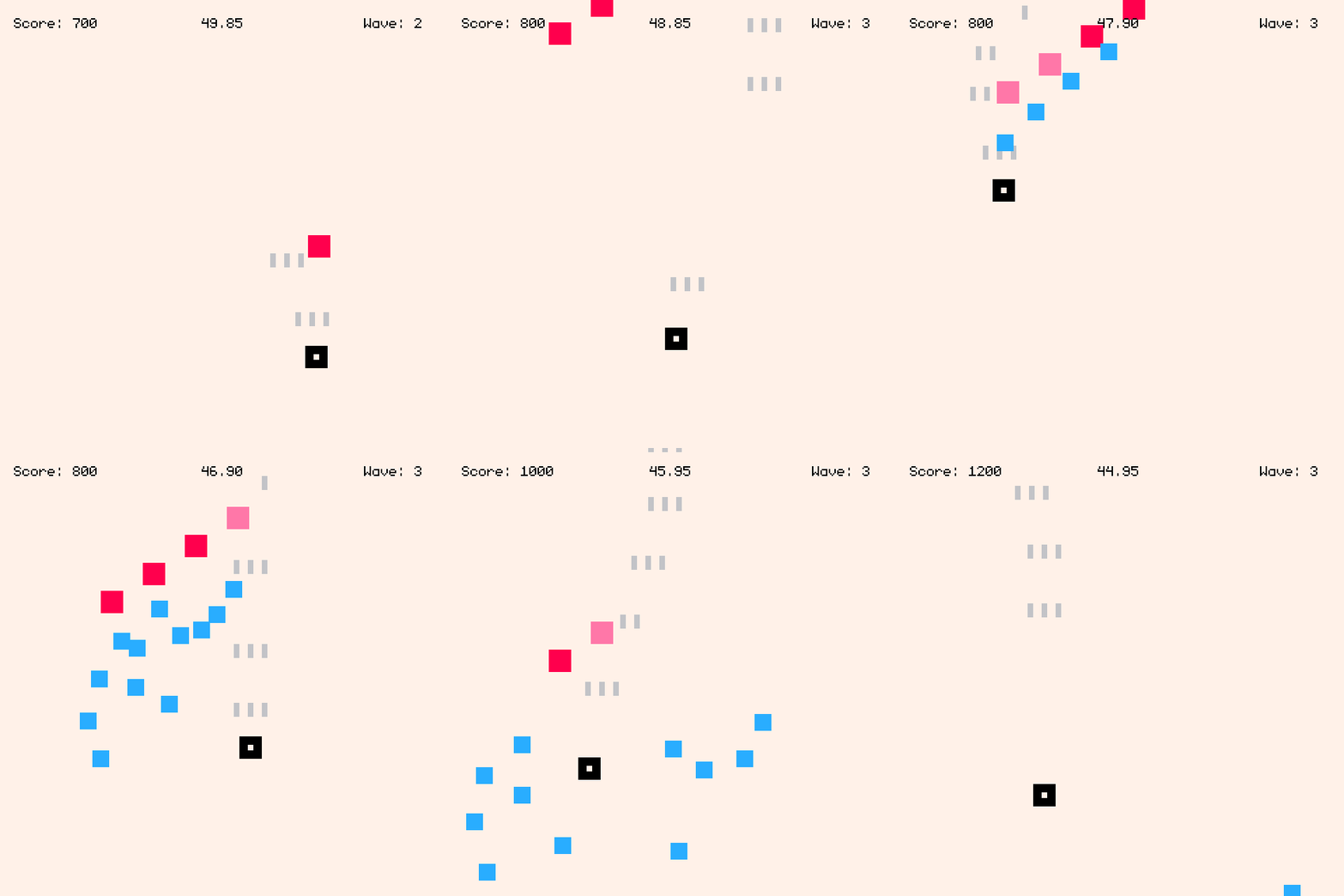
Shmups are great for learning how to make games because you can build something fun and challenging and begin iterating on it quickly, experimenting with systems and enemy behaviors. The core of the game is having a playable ship that can fire bullets, enemies that spawn and attack, and some sort of win state. These simple basics can be expanded upon endlessly.
For our shoot ’em up, we’re going to make a game where enemies spawn in waves. You have to defeat them (or they have to exit the screen) before the next wave spawns. You’ll have 60 seconds survive, defeat as many enemies as possible, and get the high score. Some enemies will dive down the screen, others will fire bullets at the player. By the end of this chapter, we’ll have made a shmup that you can tune, expand, and make your own. We’ll also dive deep on collision detection and finding a balance between challenging gameplay and enjoyable dodging.
This chapter builds upon the foundations from the Dodge ’Em Up chapter, so if you’re new to programming and Usagi Engine, read that first.
Moveable Player
Ensure you have Usagi Engine installed. Run
usagi init shmup to create your new project. Open your new project folder in
your code editor. Then run usagi dev in the folder to start up your game in
dev mode.
We’ll start by drawing a square to represent our player that can be moved around the screen. In the Dodge ’Em Up chapter, you may have noticed that if you press Up and Right (or any diagonal combination), the player moved faster than they did when moving in the cardinal directions. In a lot of shmups, this isn’t ideal, as you want movement to be precise. In order to make the distance traveled in all 8 possible directions the same, we need to normalize our input.
Here’s the starting place for our game in main.lua:
local player_size = 16
local player_speed = 180 -- px/s

function _init()
  State = {
    player = {
      x = usagi.GAME_W / 2 - player_size / 2,
      y = usagi.GAME_H - 60
    }
  }
end

function _update(dt)
  local input_delta = { x = 0, y = 0 }
  if input.held(input.UP) then
    input_delta.y -= 1
  end
  if input.held(input.DOWN) then
    input_delta.y += 1
  end
  if input.held(input.LEFT) then
    input_delta.x -= 1
  end
  if input.held(input.RIGHT) then
    input_delta.x += 1
  end
  local normalized_input = util.vec_normalize(input_delta)
  State.player.x += normalized_input.x * player_speed * dt
  State.player.y += normalized_input.y * player_speed * dt
  State.player.x = util.clamp(State.player.x, 0, usagi.GAME_W - player_size)
  State.player.y = util.clamp(State.player.y, 0, usagi.GAME_H - player_size)
end

function _draw(dt)
  gfx.clear(gfx.COLOR_WHITE)
  gfx.rect_fill(
    State.player.x, State.player.y,
    player_size, player_size, gfx.COLOR_BLACK
  )
end
We set player_size and player_speed variables. The local keyword is a new
concept in our code that’s worth covering. local is a keyword that tells Lua
to only make this variable visible within the current scope. The scope of these
variables is the current file: main.lua. But when you’re within a function and
create a local variable, the scope is that function and that variable is not
accessible outside of that function. It’s a good habit to get into creating
local variables since Lua’s variables are global by default. You don’t want to
accidentally create a global variable and end up referencing it somewhere else
because you used that same variable name. Basically: make variables local
unless you want to intentionally make it globally accessible. In Usagi code,
globals start with capital letters, like the State variable, which I’ll
explain in a moment. Functions can also be local, but this requires you to
place them in specific ordering in your source code, which is a hassle and
beyond what this tutorial covers.
In the usagi.conf file, we set the name of our game and the game_id.
Change the game_id to com.usagiengine.YOURUSERNAME.shmup, where you actually
put in your username/handle. Or if you have a website or itch.io page, use it in
reverse order, like io.itch.brettchalupa.shmup. This should be a unique
identifier for your game, which becomes important when adding save data to
games, as it helps ensure your game’s save data goes in a unique directory. The
game_width and game_height tell Usagi Engine to make our game field those
specified sizes. You can change these values to whatever you want, but for our
game, a square field feels good since you don’t have to worry about covering a
wide distance to reach enemies on the other side of the screen. Enemies will fly
in from the top, which will make our shoot ’em up a vertically-oriented game.
name = Shmup
game_id = com.brettmakesgames.shmuptutorial
game_width = 320
game_height = 320
In _init(), we create a global State table with our player’s position.
State is a common way in Usagi games to have a global to contain all of the
game’s data, allowing for easy access. Since State is initialized in
_init(), it doesn’t change when the game is live reloaded, which is what we
want. This lets our player stay in the same position when our game code changes.
You can reload State and reset your game by pressing Ctrl+R. You
can change player_speed and instantly test that new value without the entire
game reseting.
The math in the player x and y value centers our player horizontally and
places the y value 60 pixels up from the bottom of the game. The values of
usagi.GAME_W and usagi.GAME_H correspond to what we set in usagi.conf. You
could just hardcode 320 instead for each of them, but if you decide to change
the width or height of your game, you’ll be left searching for and updating all
of those old values.
The _update function contains our player movement, similar to Dodge ’Em Up.
Except rather than changing the player’s x and y value in the if checks,
we update a variable called input_delta. input_delta is a Lua table that
lets us set whether or not there was movement on a given axis. By using 1,
we’re creating what’s known as a unit vector, which makes normalizing the
movement on the diagonals easier. Then we call util.vec_normalize(input_delta)
after our input checks. util is a collection of functions that Usagi provides
to make common operations easier. That function returns a new table with the
values normalized.
When you press right and down, rather than x and y both being 1, the value
of both gets normalized to: 0.7071.... This makes it so that the distance
traveled is the same in all directions. We then take that normalized value and
multiply it by the player_speed and dt (dt is delta time, the amount of
time since our last _update call). This gives us the new position for the
State.player. After that, we prevent the player from moving off the screen by
calling util.clamp on the x and y position of the player. util.clamp
takes three values: the value you want to limit, the lower limit, and the upper
limit. If the value is below the lower limit, then the lower limit is returned.
If the value is higher than the upper limit, the upper limit is return.
Otherwise, the value is returned.
If you went through the Dodge ’Em Up chapter, you might be wondering what +=
and -= means since we didn’t use that syntax in the first chapter. Those are
called compound assignment operators. Lua doesn’t support them by default
but Usagi pre-processes your source code to add support for them.
input_delta.y -= 1 is the same as input_delta.y = input_delta.y - 1. It’s a
more convenient shorthand.
Finally, in _draw, we clear the screen so we have a white background. And then
draw a black rectangle at the State.player’s position.
This was a whole lot for the first section of our chapter, but we’ve got a good
starting point to build upon. Tweak the player_speed and player_size to see
what happens.
View the source code for this section.
Firing Bullets
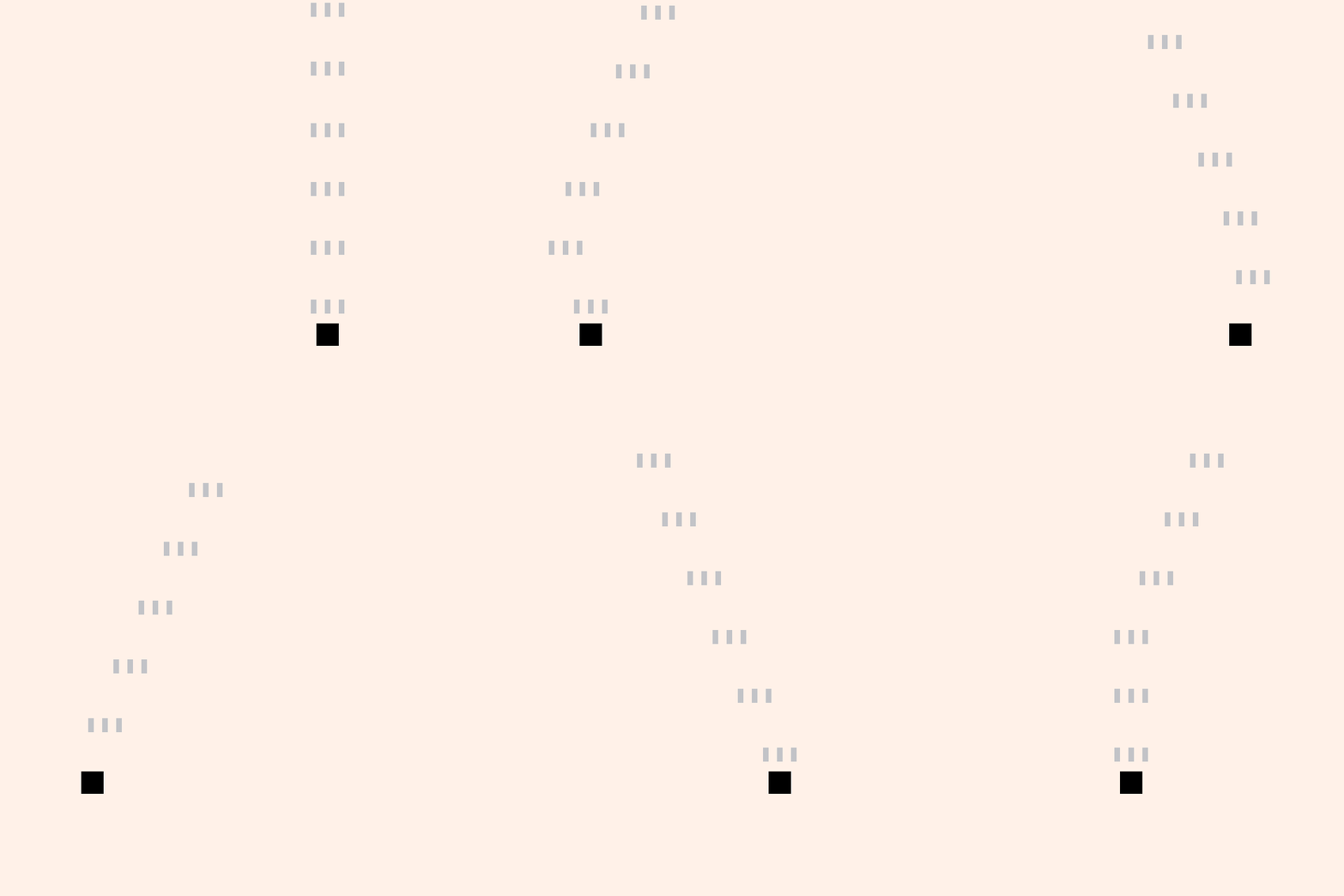
Let’s make our player’s ship fire bullets upward. We’ll keep track of them in a Lua table. Each frame we’ll move them upward and if they scroll off the screen, we’ll remove them from the table.
Start by setting up some local variables at the top of main.lua:
local fire_delay = 0.1   -- s
local fire_timer = 0
local bullet_speed = 420 -- px/s
local player_bullet_w = 4
local player_bullet_h = 10
We’ll use all of these variables for firing and drawing bullets.
In our State table, add a new empty table for bullets:
  State = {
    player = {
      x = usagi.GAME_W / 2 - player_size / 2,
      y = usagi.GAME_H - 60,
      bullets = {}
    }
  }
We’ll add new bullets into that table when they’re fired and loop through it for updating the bullets and draw them on the screen.
Note: when you add a new entry to State (or any table that’s only
initialized in _init()), you may see an error pop-up the first time you make
use of it in your code. The error will be about trying to do something with that
new table entry, like nil arithmetic error or something similar. This is because
Usagi’s live reload when you change your source doesn’t call _init() and the
code is trying to access the table entry that doesn’t exist yet (it’s nil).
Usagi’s live reload not calling init() allows you to have game state that
doesn’t get wiped on each live reload, which is ideal when testing changes you
just made. You don’t lose your level or hp or whatever it is your game has in
it. But if you change something within _init(), you need to hard reload your
game to get that value populated. Press Ctrl + R or F5 to
hard reload your game and run _init() again. When you see an error and aren’t
sure what to do, try a hard reload first!
In our _update function, below where we handle player movement, add the
following code:
  fire_timer -= dt

  if fire_timer <= 0 and input.held(input.BTN1) then
    local bul_y = State.player.y - player_bullet_h
    -- fire 3 bullets
    table.insert(State.player.bullets,
      { x = State.player.x - player_bullet_w, y = bul_y })
    table.insert(State.player.bullets,
      { x = State.player.x + player_size / 2 - player_bullet_w / 2, y = bul_y })
    table.insert(State.player.bullets,
      { x = State.player.x + player_size, y = bul_y })
    fire_timer = fire_delay
  end

  for i = #State.player.bullets, 1, -1 do
    local bullet = State.player.bullets[i]
    -- move the bullet upward
    bullet.y -= bullet_speed * dt

    -- remove bullets that have flown off the top of the screen
    if bullet.y < -player_bullet_h then
      table.remove(State.player.bullets, i)
    end
  end
In each frame, we subtract the dt from fire_timer to count it down. Then, if
the fire_timer is less than or equal to 0 and the player is pressing BTN1
(keyboard: Z or gamepad: A by default), then fire three bullets. The firing of a
bullet uses the Lua function table.insert, which appends a new bullet at the
x and y position to State.player.bullets table. Then, finally, we reset
the fire_timer to fire_delay, which restarts the countdown, adding a slight
gap between each time a set of bullets get fired.
The for i = #State.player.bullets, 1, -1 do line of code is a loop that goes
through the player’s bullets in reverse, moving them up the screen by
subtracting the bullet_speed * dt from each bullet’s y position. If the
bullet is so far up the screen that’s it’s no longer visible (the negative
height of the bullet), then we need to remove it from the player’s bullets
table. We have to loop through the bullets in reverse order so that if we do
remove a bullet, those in the array from that position onward will properly
shift into position. If you didn’t reverse the order of looping through the
bullets, if you removed the first bullet, they remaining would shift forward,
causing the next iteration of the loop to skip one and potentially access an
index that no longer exists.
Now we need to draw our bullets by looping through them at the bottom of
_draw() and drawing a light gray rectangle:
  for _, bullet in ipairs(State.player.bullets) do
    gfx.rect_fill(bullet.x, bullet.y,
      player_bullet_w, player_bullet_h, gfx.COLOR_LIGHT_GRAY)
  end
The for _, bullet in ipairs(State.player.bullets) do line loops through each
of the bullets in State.player.bullets. The code between the for ... do and
its end is called for each bullet in that list. ipairs returns two values,
the index of the item in the list and the actual item in the list. We set the
index variable to _, meaning we don’t use it.
In less than 100 lines of code, we’ve got a pretty good feeling player ship that moves around the screen and fires bullets. Not bad!
View the source code for this section.
Defeating Enemies
A shmup without enemies is no shmup at all! Let’s spawn enemies that fly down the screen and when they’re hit by the player’s bullet, they lose health points (HP). When their HP drops to 0, they’ll disappear.
Start by defining the local variable hit_flash_time. It’s the time in
seconds that an enemy will flash then they’re hit by a bullet:
local hit_flash_time = 0.2 -- secs
Then define a new function that returns a new enemy table at a given position. This function makes it easy to keep all of the different of an enemy close together.
function init_enemy(x, y)
  return {
    x = x,
    y = y,
    hp = 12,
    w = 16,
    h = 16,
    speed = 44, -- px/s
    color = gfx.COLOR_RED,
    flash_timer = 0
  }
end
We’ll call this function soon. The returned table has the width (w) and height
(h), the color, the speed, and the flash_timer to keep track of changing
the enemy’s color when they’re hit. It’s worth noting that there’s a downside to
putting all of these values in a table like this: when our game code live
reloads, the State.enemies contains the old values, not the new ones until
either new enemies spawn or you press Ctrl + R to reload your game.
Since our game is so simple right now, that’s not a big deal. But it’s worth
seeing the difference in approach compared to using local variables we use the
different player properties. Later on this chapter, we’ll break up our code into
multiple files and revise how this is handled. But for now, returning the table
like this works.
We’ll store our enemies in a table in State, spawning three of them with our
new init_enemy function:
function _init()
  State = {
    player = {
      x = usagi.GAME_W / 2 - player_size / 2,
      y = usagi.GAME_H - 60,
      bullets = {}
    },
    enemies = {
      init_enemy(72, -20),
      init_enemy(usagi.GAME_W - 72, -20),
      init_enemy(usagi.GAME_W / 2, -60),
    },
  }
end
Then in _update, in our bullet loop, loop through each enemy and check if the
bullet overlaps with any of the enemies:
    -- check if the bullet has overlapped with any of the enemies
    for _, enemy in ipairs(State.enemies) do
      if util.rect_overlap(
            { x = bullet.x, y = bullet.y,
              w = player_bullet_w, h = player_bullet_h },
            enemy) then
        bullet.dead = true
        enemy.hp -= 1
        enemy.flash_timer = hit_flash_time
      end
    end

    -- remove bullets that have flown off the top of the screen
    if bullet.y < -player_bullet_h or bullet.dead then
      table.remove(State.player.bullets, i)
    end
util.rect_overlap is a function Usagi provides that checks if two rectangles
are intersecting. It returns true if they are. Each rectangle passed to this
function must be a table with an x, y, w, and h key and value. If they
do overlap, then we set the bullet’s dead property to true, reduce the
enemy’s hp, and set the enemy’s flash_timer to the local variable we
created earlier for how long to change the color when the enemy is hit.
Then, right after that, where we were checking for bullets that fly off the
screen, we also check if bullet.dead to see if we should remove dead bullets
as well. Just add or bullet.dead to the check that previously existed.
Now, similar to bullets and still in _update, we need to move our enemies down
the screen and remove them if they’ve run out of hp or fly off the screen:
  for i = #State.enemies, 1, -1 do
    local enemy = State.enemies[i]

    enemy.y += enemy.speed * dt

    if enemy.flash_timer > 0 then
      enemy.flash_timer = enemy.flash_timer - dt
    end

    if enemy.hp <= 0 or enemy.y > usagi.GAME_H then
      table.remove(State.enemies, i)
    end
  end
We loop through in reverse, just like bullets. And we set enemy.flash_timer to
the previous value minus dt, reducing that timer. We’ll check that in the
_draw code to know which color to draw the enemy.
When we defeat all of our enemies, let’s spawn some more, at the end of our
_update function:
  if #State.enemies == 0 then
    table.insert(
      State.enemies,
      init_enemy(72, -20)
    )
    table.insert(
      State.enemies,
      init_enemy(usagi.GAME_W - 72, -20)
    )
    table.insert(
      State.enemies,
      init_enemy(usagi.GAME_W / 2, -60)
    )
  end
There’s nothing too fancy here. We check if the number of enemies is 0 and
spawn more if so.
In _draw, after we draw our player rectangle but before we draw bullets,
we’ll loop through each enemy and draw them, factoring in whether or not their
flash_timer is greater than 0. If it is, then we’ll draw the enemy as pink
instead of the red that we set in init_enemy:
  for _, enemy in ipairs(State.enemies) do
    local color = enemy.color
    if enemy.flash_timer > 0 then
      color = gfx.COLOR_PINK
    end
    gfx.rect_fill(enemy.x, enemy.y, enemy.w, enemy.h, color)
  end
Our game is starting to have glimmers of being fun with enemies endlessly approach and bullets we can hit them with.
Enemy Bullets - Aimed Shots
Our game is a bit easy though. Sure, we could make the enemies move faster or spawn more of them. But the best way to add challenge (and fun) is to make the enemies fire back. In shoot ’em ups, there are two broad categories of enemy shot types: aimed shots that move toward the player’s position and shots that move in a specific pattern, regardless of the player’s location. We’ll focus on aimed shots in this section, making our enemies fire bullets toward the player’s position at the time of fire. This allows the player to dodge them by always needing to stay in motion. This is slightly different than a homing shot, which would follow the player where they move, requiring them to either shoot the missle down or somehow shake it off (homing shots would be a cool thing for you to add once this chapter is over!).
We’ll make our enemy bullets quite large compared to the player’s. Add a new variable at the top of the file for representing the width and height of the enemy bullets:
local enemy_bullet_size = 12
Add two new properties to our returned enemy table in init_enemy() that we can
use to track when a enemy should fire a bullet:
    fire_timer = 1.5, -- seconds until first shot
    fire_delay = 0.4, -- seconds between shots
    shots_fired = 0,
    shots_limit = 3,
fire_timer will be used to countdown 1.5 seconds and then have the enemy fire
their first bullet. We’ll reset fire_timer after each shot to fire_delay,
which will set the delay of future shots to 0.2s. We’ll use shots_fired to
count how many times the enemy has spat out a bullet and stop firing once that
number reaches shots_limit.
In the _init function’s State table, add a new key: enemy_bullets that’s
initialized to an empty table: {}:
enemy_bullets = {},
We’ll keep track of enemy bullets separate from each enemy so that even after an enemy dies or flies of their screen, their bullets live on, carrying out their mission to destroy us.
We need to make it so that our enemies fire bullets in our _update function
within the enemies loop. We’ll be calculating the linear velocity of the bullet
based on the angle of the enemy toward the player. We’ll use the power of
trigonometry to accomplish this! Right after the code where we handle updating
the enemy’s flash timer, add this:
    enemy.fire_timer -= dt
    if enemy.fire_timer <= 0 and enemy.shots_fired < enemy.shots_limit then
      local ex = enemy.x + enemy.w / 2 - enemy_bullet_size / 2
      local ey = enemy.y + enemy.h

      -- bullet center positions
      local bcx = ex + enemy_bullet_size / 2
      local bcy = ey + enemy_bullet_size / 2

      local angle = math.atan(
        (State.player.y + player_size / 2) - bcy,
        (State.player.x + player_size / 2) - bcx
      )

      table.insert(State.enemy_bullets,
        {
          x = ex,
          y = ey,
          angle = angle,
        })
      enemy.shots_fired += 1
      enemy.fire_timer = enemy.fire_delay
    end
There’s a lot here. Let’s break it down and go over what’s happening.
We subtract dt from the enemy’s fire_timer so that it counts down, just like
our other timers. Then, if the fire_timer is less than or equal to 0 and
the number of shots fired is less than the limit, we insert a new bullet into
State.enemy_bullets. In order to properly aim the bullet at the player, we
need to calculate the angle at which the bullet needs to travel based on the
enemy that’s firing the bullet’s position and the player’s position at the time
of fire. This is calculated using the arctangent of the y position delta and x
position delta. Then we increment the enemy’s shots_fired and reset the
fire_timer for future checks as to whether or not the enemy should fire
another bullet.
If you’re curious about the deeper trigonometric aspects of the arctangent calculate, check out the Wikipedia page on Inverse trigonometric functions. If you’re not curious, just accept that’s how aimed shots work and move on. For what it’s worth, these aspects of math in game programming make my head spin still (maybe a sign I should study it more!).
Right below the enemy loop in _update, in a new loop, we need to loop through
each enemy bullet, update its position, check for overlap with the player, and
remove any bullets that are dead or offscreen:
  for i = #State.enemy_bullets, 1, -1 do
    local bullet = State.enemy_bullets[i]
    local speed = 120
    bullet.x += math.cos(bullet.angle) * speed * dt
    bullet.y += math.sin(bullet.angle) * speed * dt

    if util.rect_overlap(
          { x = bullet.x, y = bullet.y, w = enemy_bullet_size, h = enemy_bullet_size },
          { x = State.player.x, y = State.player.y, w = player_size, h = player_size }
        ) then
      bullet.dead = true
    end

    if bullet.y > usagi.GAME_H or bullet.dead then
      table.remove(State.enemy_bullets, i)
    end
  end
We need to take the bullet.angle into account when we move the bullet. In
order to calculate the linear velocity, we pass that bullet.angle into
math.cos for the x velocity and math.sin for the y velocity, multiplying
it by enemy bullet’s speed and dt.
We then check if the bullet’s rectangle overlaps the player’s rectangle. If so, the bullet is dead. (And in the future, the player will die too.)
At the end of the enemy bullet update loop, we remove any dead bullets or those that are off screen.
Finally, loop through and draw each of the State.enemy_bullets after we draw
the player bullets:
  for _, bullet in ipairs(State.enemy_bullets) do
    gfx.rect_fill(bullet.x, bullet.y,
      enemy_bullet_size, enemy_bullet_size, gfx.COLOR_BLUE)
  end
There’s nothing particularly special about this code, we draw a blue square to represent the enemy bullets.
The Usagi _draw loop draws in order of the gfx calls. Each proceeding gfx
call draws on top of the previous ones. In shmups, it’s absolutely vital
that enemies and bullets are visible. So we draw the enemy bullets last, on top
of everything else.
Enemy bullet firing is one of the more complex parts of our shmup. Now that we’ve cleared that hurdle, we’ll be making some smaller changes to make our game more challenging and fun.
Tune some of the different values in the code to see what feels good, like try changing the bullet size, the fire delay, how many shots get fired. When making games, once you have the systems in place, you can turn the knobs and see what happens, which can often lead to some delightful surprises in your game’s design.
View the source code for this section.
Hitboxes
Our game currently uses the entire player’s rectangle to check for collisions with enemy bullets. This makes our game quite difficult, and in many modern shmups, the hitbox of the player is a much smaller square in the center. Hitboxes are a game dev term that represent a specific shape that’s used for hit detection.
Here’s a sprite from the art Kenney with a box I’ve drawn over it:
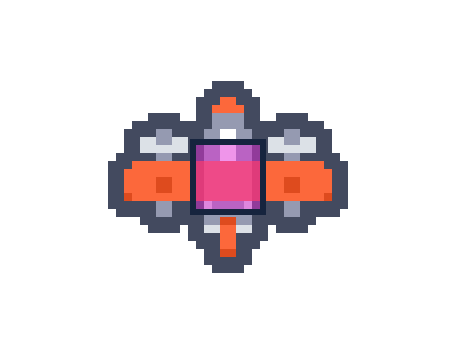
That pink-ish box would make for a more player-friendly hitbox, allowing for easier dodging and less frustrating gameplay. In some shmups, the hitbox is even smaller.
Let’s make our player’s hitbox smaller than the black square we draw and use
that for collision detection. In main.lua, create a new function called
player_hitbox. It will return a Lua table representing the rectangle we want
to use:
function player_hitbox(player)
  local hitbox_size = 4
  return {
    x = player.x + player_size / 2 - hitbox_size / 2,
    y = player.y + player_size / 2 - hitbox_size / 2,
    w = hitbox_size,
    h = hitbox_size,
  }
end
The returned table is a small square centered on the player’s location.
In the _update function where we loop through the #State.enemy_bullets and
call util.rect_overlap and pass in two tables to represent the bullet’s hitbox
and the player’s hitbox, change the second argument to instead call out to our
new function:
    if util.rect_overlap(
          { x = bullet.x, y = bullet.y, w = enemy_bullet_size, h = enemy_bullet_size },
          player_hitbox(State.player)
        ) then
      bullet.dead = true
    end
Aside: if you wanted, you could even make the enemy bullet hitbox smaller than the bullet’s size. Or extract it into a function and make it the exact same. It’d make the code a little bit cleaner.
Let’s draw the player’s hitbox as a white dot in the middle of the player in
_draw right after we draw our player:
  local p_hitbox = player_hitbox(State.player)
  gfx.rect_fill(
    p_hitbox.x, p_hitbox.y, p_hitbox.w, p_hitbox.h,
    gfx.COLOR_WHITE
  )
The reason we wrote the player_hitbox code instead of creating that table over
and over to represent the hitbox is so that we could reuse that code in the
_update collision detection code and we could then use it in _draw. By
consolidating the code into one place, this makes it much easier to change. If
you decide to make the hitbox smaller, just update hitbox_size in that single
place. This principle of don’t repeat yourself (DRY) is quite useful for making
code easier to change and understand.
View the source code for this section.
Refactoring Our Code
On the topic of code quality, there’s something that’s not great about our
main.lua code right now. It’s the _update function. It’s over 100 lines
long, and it’s doing a lot of important work. Let’s break that code down into
smaller, reusable functions. This process of reorganizing our code is called
refactoring. It’s a way to step back and assess the code that exists and try
to answer the question: can this be organized better so I can better understand
it and more easily change it in the future? A key part of refactoring is that
we don’t want to change the functionality.
When I read through our _update function, I see it handling some distinct
functionalities:
- Updating the player’s position based on input
- Handling firing the player’s bullets
- Updating the player’s bullets and checking for collisions with enemies
- Updating enemies positions and firing the enemies’ bullets
- Updating enemy bullets and checking for collisions with the player
- Spawning more enemies
These all naturally break down into distinct functions that we can call. Take
those logical groupings, give them names, and then call those functions in
_update:
function _update(dt)
  update_player_move(dt)
  update_player_fire(dt)
  update_player_bullets(dt)
  update_enemies(dt)
  update_enemy_bullets(dt)
  try_spawn_enemies()
end
Doesn’t _update just feel better now? It’s clear to see the order of
operations. And then if we need to change enemy behavior, we go to the
update_enemies function.
We use the update_* prefix to make it clear that the code is called in the
_update function. The try_spawn_enemies function uses the try_* suffix
because it doesn’t spawn enemies every time it’s called. It only does it is
there are currently 0 enemies. If the function was just named spawn_enemies,
when you read it in _update, you might think it’s always spawning enemies. By
naming it try_spawn_enemies, it implies that certain conditions must be met
for a spawn event to happen.
All of our new functions look like this:
function update_player_move(dt)
  local input_delta = { x = 0, y = 0 }
  if input.held(input.UP) then
    input_delta.y -= 1
  end
  if input.held(input.DOWN) then
    input_delta.y += 1
  end
  if input.held(input.LEFT) then
    input_delta.x -= 1
  end
  if input.held(input.RIGHT) then
    input_delta.x += 1
  end
  local normalized_input = util.vec_normalize(input_delta)
  State.player.x += normalized_input.x * player_speed * dt
  State.player.y += normalized_input.y * player_speed * dt
  State.player.x = util.clamp(State.player.x, 0, usagi.GAME_W - player_size)
  State.player.y = util.clamp(State.player.y, 0, usagi.GAME_H - player_size)
end

function update_player_fire(dt)
  fire_timer -= dt

  if fire_timer <= 0 and input.held(input.BTN1) then
    local bul_y = State.player.y - player_bullet_h
    -- fire 3 bullets
    table.insert(State.player.bullets,
      { x = State.player.x - player_bullet_w, y = bul_y })
    table.insert(State.player.bullets,
      { x = State.player.x + player_size / 2 - player_bullet_w / 2, y = bul_y })
    table.insert(State.player.bullets,
      { x = State.player.x + player_size, y = bul_y })
    fire_timer = fire_delay
  end
end

function update_player_bullets(dt)
  for i = #State.player.bullets, 1, -1 do
    local bullet = State.player.bullets[i]
    -- move the bullet upward
    bullet.y -= bullet_speed * dt

    -- check if the bullet has overlapped with any of the enemies
    for _, enemy in ipairs(State.enemies) do
      if util.rect_overlap(
            { x = bullet.x, y = bullet.y,
              w = player_bullet_w, h = player_bullet_h },
            enemy) then
        bullet.dead = true
        enemy.hp -= 1
        enemy.flash_timer = hit_flash_time
      end
    end

    -- remove bullets that have flown off the top of the screen
    if bullet.y < -player_bullet_h or bullet.dead then
      table.remove(State.player.bullets, i)
    end
  end
end

function update_enemies(dt)
  for i = #State.enemies, 1, -1 do
    local enemy = State.enemies[i]

    enemy.y += enemy.speed * dt

    if enemy.flash_timer > 0 then
      enemy.flash_timer = enemy.flash_timer - dt
    end

    enemy.fire_timer -= dt
    if enemy.fire_timer <= 0 and enemy.shots_fired < enemy.shots_limit then
      local ex = enemy.x + enemy.w / 2 - enemy_bullet_size / 2
      local ey = enemy.y + enemy.h

      -- bullet center positions
      local bcx = ex + enemy_bullet_size / 2
      local bcy = ey + enemy_bullet_size / 2

      local angle = math.atan(
        (State.player.y + player_size / 2) - bcy,
        (State.player.x + player_size / 2) - bcx
      )

      table.insert(State.enemy_bullets,
        {
          x = ex,
          y = ey,
          angle = angle,
        })
      enemy.shots_fired += 1
      enemy.fire_timer = enemy.fire_delay
    end

    if enemy.hp <= 0 or enemy.y > usagi.GAME_H then
      table.remove(State.enemies, i)
    end
  end
end

function update_enemy_bullets(dt)
  for i = #State.enemy_bullets, 1, -1 do
    local bullet = State.enemy_bullets[i]
    local speed = 120
    bullet.x += math.cos(bullet.angle) * speed * dt
    bullet.y += math.sin(bullet.angle) * speed * dt

    if util.rect_overlap(
          { x = bullet.x, y = bullet.y, w = enemy_bullet_size, h = enemy_bullet_size },
          player_hitbox(State.player)
        ) then
      bullet.dead = true
    end

    if bullet.y > usagi.GAME_H or bullet.dead then
      table.remove(State.enemy_bullets, i)
    end
  end
end

function try_spawn_enemies()
  if #State.enemies == 0 then
    table.insert(
      State.enemies,
      init_enemy(72, -20)
    )
    table.insert(
      State.enemies,
      init_enemy(usagi.GAME_W - 72, -20)
    )
    table.insert(
      State.enemies,
      init_enemy(usagi.GAME_W / 2, -60)
    )
  end
end
Every function we extracted except try_spawn_enemies needs dt passed in. But
none of the actual code within the functions has changed. That’s a clean
refactor!
Aside: A natural next step would be to extract our functions into different
files to further organize our code. That’s beyond the scope of this chapter, but
that’d be something great for you to explore on your own if you’re interested in
that. There are some natural groupings so far, like player.lua, enemy.lua,
bullet.lua.
View the source code for this section.
Game Over
When our player gets hit by bullets, nothing consequential happens. Much like in the Dodge ’Em Up chapter, we’ll make it trigger a game over and allow the player to restart to try again.
Start by adding a game_over key to the State table:
game_over = false,
Then, in our new update_enemy_bullets function, in addition to setting the
bullet to to dead, we’ll also set the State.game_over to true:
    if util.rect_overlap(
          { x = bullet.x, y = bullet.y, w = enemy_bullet_size, h = enemy_bullet_size },
          player_hitbox(State.player)
        ) then
      bullet.dead = true
      State.game_over = true
      effect.flash(0.4, gfx.COLOR_WHITE)
      effect.screen_shake(0.8, 2)
    end
We also call out to two functions Usagi provides: effect.flash and
effect.screen_shake. They add a little bit of juice to the game by flashing
the screen white for 0.4 seconds and then shaking the screen at intensity level
2 for 0.8 seconds. While you don’t want to go overboard with these effects,
using them wisely can make your game feel more alive and polished.
In _update, check if State.game_over and check for player input to restart
the game, otherwise call our normal update functions:
function _update(dt)
  if State.game_over then
    if input.pressed(input.BTN1) then
      _init()
    end
  else
    update_player_move(dt)
    update_player_fire(dt)
    update_player_bullets(dt)
    update_enemies(dt)
    update_enemy_bullets(dt)
    try_spawn_enemies()
  end
end
When game_over is true, we check to see if the player has pressed BTN1, and if
they have, just call the game’s _init() to start it all over again.
If the player is dead, we shouldn’t draw their square in _draw(), so add this
conditional check:
  if not State.game_over then
    gfx.rect_fill(
      State.player.x, State.player.y,
      player_size, player_size, gfx.COLOR_BLACK
    )
    local p_hitbox = player_hitbox(State.player)
    gfx.rect_fill(
      p_hitbox.x, p_hitbox.y, p_hitbox.w, p_hitbox.h,
      gfx.COLOR_WHITE
    )
  end
We need to let the player know it’s game over, so in _draw() render text at
the very end of the function:
  if State.game_over then
    gfx.text("GAME OVER", 10, 10, gfx.COLOR_BLACK)
    gfx.text("Press " .. input.mapping_for(input.BTN1) .. " to restart!",
      10, 32, gfx.COLOR_BLACK)
  end
While we could only draw the enemies and bullets if it’s not game over, it’s fun to draw them when they’re not updating, leading to a freeze frame effect when the player dies.
This is starting to fee like a real game! Play it for a bit and tune the enemy speeds, the bullet speeds, and whatever else is variable to see what feels best to you.
View the source for this section.
Enemy Waves
Spawning enemies over and over in the same position isn’t very fun. Let’s set up our game so that we can define the waves of enemy in an easy way that makes it possible for us to design the encounters. We’ll have enemies fly down at various locations, giving our game a flow for the player to navigate through.
The simplest way to set this up is to create an array table where each item in the array is its own array table of spawn positions.
local WAVES = {
  {
    { 72,  -20 },
    { 112, -60 },
    { 200, -100 },
    { 240, -140 },
  },
  {
    { 72,           -20 },
    { 100,          -60 },
    { usagi.GAME_W - 72,  -20 },
    { usagi.GAME_W - 100, -60 },
  },
  {
    { 72,  -20 },
    { 102, -40 },
    { 132, -60 },
    { 162, -80 },
  },
  -- add more waves here youself!
}
We reference usagi.GAME_W to position enemies relative to the game’s width,
which we set in usagi.conf. When we want enemies to spawn on the right side of
the screen, we subtract some pixels from usagi.GAME_W. You could just hardcode
the values too.
In some programming languages and in this book, it’s common to capitalize all
the characters of a value that isn’t meant to change. Lua doesn’t have a concept
of constants, so to signify that our waves don’t change, WAVES is written in
SCREAMING_SNAKE_CASE.
Each item in the WAVES array contains an array of spawn positions. In order to
keep the code concise, we just use an array to represent the x and y position,
that way we don’t have to type { x = 72, y = -20 } over and over again. The
first value is x, the second is y.
The arrays are nested three levels deep, but it makes it easy to add new waves and edit the existing enemy spawns. Also, you don’t have to format your code like it is in the book. Some editors automatically format code on save to make it easier to read.
In _init, change State.enemies to be an empty table and set current_wave
to 0:
function _init()
  State = {
    player = {
      x = usagi.GAME_W / 2 - player_size / 2,
      y = usagi.GAME_H - 60,
      bullets = {}
    },
    enemies = {},
    enemy_bullets = {},
    game_over = false,
    current_wave = 0,
  }
end
By setting current_wave to 0, we’ll let our game’s revised
try_spawn_enemies handle incrementing it and spawn the enemies of the 1st
wave, which will populate State.enemies. Revise the try_spawn_enemies
function to be:
function try_spawn_enemies()
  if #State.enemies == 0 and State.current_wave < #WAVES then
    State.current_wave += 1
    State.enemies = {}
    for _, enemy in ipairs(WAVES[State.current_wave]) do
      table.insert(State.enemies, init_enemy(enemy[1], enemy[2]))
    end
  end
end
It checks if the length of State.enemies is 0 because the enemies all died
or flew off the screen. But it also checks if State.current_wave is less than
the total number of waves in WAVES. If both are true, then it’s time to spawn
the next wave of enemies. Spawning enemies from the current wave consists of
reseting State.enemies to an empty table {} just to be sure there’s nothing
weird lingering. Then we loop through each spawn location of the current wave,
inserting the enemy into the State.enemies table. Since we set all of the y
values to be negative in WAVES, they fly in from the top of the screen. We
access the first element, the x value, with enemy[1] and the second element,
the y value, with enemy[2].
Revise the waves in WAVES by adding a bunch of different encounters. Play test
your game a bunch and see what feels good. You’re doing game design! Note:
you’ll need to press Ctrl+R to hard reload your game to reset
State.current_wave to 0 if you want to test previous waves. But if you add
new WAVES to your running game, it’ll advance through and let you play test
them right away, which is kind of nifty.
View the source code for this section.
Time Out
Let’s make it so that our game is 60 seconds long. We’ll add a timer that counts down and when it hits 0, it’ll be time out for that round. Just like when the player dies, they can restart and play again.
You’ll need to add enough WAVES to fill up the space of 60 seconds. Be sure to
account for skilled players who can clear the waves quickly. You don’t want
someone to sit there for 20 seconds if they cleared all the waves before time
ran out.
Start by adding a new timer field to State in _init:
timer = 60, -- secs
Then in _update subtract dt from State.timer each frame that it’s not game
over and when the timer hits 0, set the State.game_over boolean to true:
function _update(dt)
  if State.game_over then
    if input.pressed(input.BTN1) then
      _init()
    end
  else
    State.timer -= dt
    State.timer = math.max(State.timer, 0)
    if State.timer == 0 then
      State.game_over = true
    end
The math.max function call basically says, if State.timer is less than 0,
set it to 0 so that we can check if we’ve timed out. It returns the larger of
the two values. You could also write it like this:
if State.timer < 0 then
  State.timer = 0
end
But I thought it’d be nice for you to see another math function that Lua
provides.
In _draw, near the end so that it draws on top of everything else, render text
of the State.timer and when it is game over and the State.timer is 0, show
a “TIME OUT” message:
  gfx.text(string.format("%.2f", State.timer), usagi.GAME_W / 2 - 16, 10, gfx.COLOR_BLACK)

  if State.game_over then
    if State.timer == 0 then
      gfx.text("TIME OUT", 10, 10, gfx.COLOR_BLACK)
    else
      gfx.text("GAME OVER", 10, 10, gfx.COLOR_BLACK)
    end
    gfx.text("Press " .. input.mapping_for(input.BTN1) .. " to restart!",
      10, 32, gfx.COLOR_BLACK)
  end
string.format("%.2f", State.timer) takes our State.timer value and converts
it to a string rounded to two decimal places. So it’ll show as 44.32 in our
game. the 2 in "%.2f" means show 2 decimal places. Otherwise State.timer
will be many decimal places long and look bad.
View the source code for this section.
Scoring
Let’s add score tracking to our game. Scoring can encourage players to replay a game to try to beat their previous best. We’ll start with a very simple scoring logic: when you defeat an enemy, you get 100 points.
Add new score key to State in _init() that we’ll use to keep track of
score. Set it to 0 by default:
score = 0,
In _draw, draw our score just like we draw our wave number:
gfx.text("Score: " .. State.score, 10, 10, gfx.COLOR_BLACK)
Because we draw the score in the upper-left corner, we need to shift the game
over and restart text down a bit by adding to their y draw value:
  if State.game_over then
    if State.timer == 0 then
      gfx.text("TIME OUT", 10, 32, gfx.COLOR_BLACK)
    else
      gfx.text("GAME OVER", 10, 32, gfx.COLOR_BLACK)
    end
    gfx.text("Press " .. input.mapping_for(input.BTN1) .. " to restart!",
      10, 54, gfx.COLOR_BLACK)
  end
In update_player_bullets, check to ensure that the enemy has more than 0 HP
in the overlap check so that we don’t accidentally allow a second bullet
overlapping with the dead enemy to give us double score. And then add 100 to
State.score if we’ve just killed the enemy (i.e., their hp has dropped to
0 or less):
      if util.rect_overlap(
            { x = bullet.x, y = bullet.y,
              w = player_bullet_w, h = player_bullet_h },
            enemy) and enemy.hp > 0 then
        bullet.dead = true
        enemy.hp -= 1
        enemy.flash_timer = hit_flash_time

        if enemy.hp <= 0 then
          State.score += 100
        end
      end
That’s all it takes to add simple scoring to our game. In the Bonus Credits section below, you’ll find some ideas for how you could expand it to make it more fun. Scoring at its best gives the player more systems to experment with and play around with.
View the source code for this section.
Sound Effects
Our game is feeling a bit… quiet. In fact, there’s no sound at all yet. The proper application of sound effects can make a game go from feeling just okay to feeling real good.Let’s add some basic sound effects to our game for when the player fires, enemies get killed, and the player dies.
Usagi makes it easy to play sound effects, but we first need to make some. If you’re experienced with sound creation, use your tool of preference. I like to use jsfxr, a free web-based tool that allows you to generate and download retro sound effects for free. Alternatively, you can find sound effects online at places like itch.io and opengameart.org.
For the book, let’s use jsfxr. In the left column of the tool, you’ll see presets for different actions, like Pickup/coin, Laster/shoot, Explosion, and so on. You can click those to have it generate a sound. You can click it again to have it generate a new one. And then you can drag the sliders around to change how your sound effect sounds. Try changing them and see what happens!
Start with Laser/shoot for the player’s firing. Mash the Play button
rapidly to get a sense of how it’ll sound when repeated. Something short and
quieter is ideal since it will be repeated often. Click Download:
laserShoot.wav. It’ll put that .wav file in your Downloads folder. In your
game folder, create a new folder called sfx and move laserShoot.wav into it.
In update_player_fire in main.lua when we fire the three player bullets,
play the new sound effect:
  if fire_timer <= 0 and input.held(input.BTN1) then
    local bul_y = State.player.y - player_bullet_h
    sfx.play("laserShoot")
    -- fire 3 bullets
sfx.play plays the corresponding sound effect in the sfx folder once.
laserShoot is the name of the sound corresponding to the file
sfx/laserShoot.wav.
Usagi automatically picks up your new sound effect and plays it when you fire. Doesn’t firing the player’s bullets feel better already?
While it’s true sound effects can make your game feel better, they can also make the game worse if the sound effect is annoying when repeated a lot or particularly grating. So be sure to test your sound effects and tweak them as needed.
Repeat that process but generate an Explosion for enemy death. I’ve renamed
the explosion.wav to enemyDeath.wav so that we can have different explosion
sound effects.
In update_player_bullets, in the same place we add to the score, play the new
sound effect:
        if enemy.hp <= 0 then
          sfx.play("enemyDeath")
          State.score += 100
        end
Make another explosion sound effect, playerDeath.wav, and put it in sfx. The
player’s explosion doesn’t happen nearly as often as firing bullets or enemy’s
dying, so make it sound impactful. In update_enemy_bullets, play it when an
enemy bullet overlaps with the player’s hitbox:
    if util.rect_overlap(
          { x = bullet.x, y = bullet.y, w = enemy_bullet_size, h = enemy_bullet_size },
          player_hitbox(State.player)
        ) then
      bullet.dead = true
      sfx.play("playerDeath")
      State.game_over = true
      effect.flash(0.4, gfx.COLOR_WHITE)
      effect.screen_shake(0.8, 2)
    end
Adding sound effects makes a huge difference. Play around with making different ones until you’re happy with how it sounds.
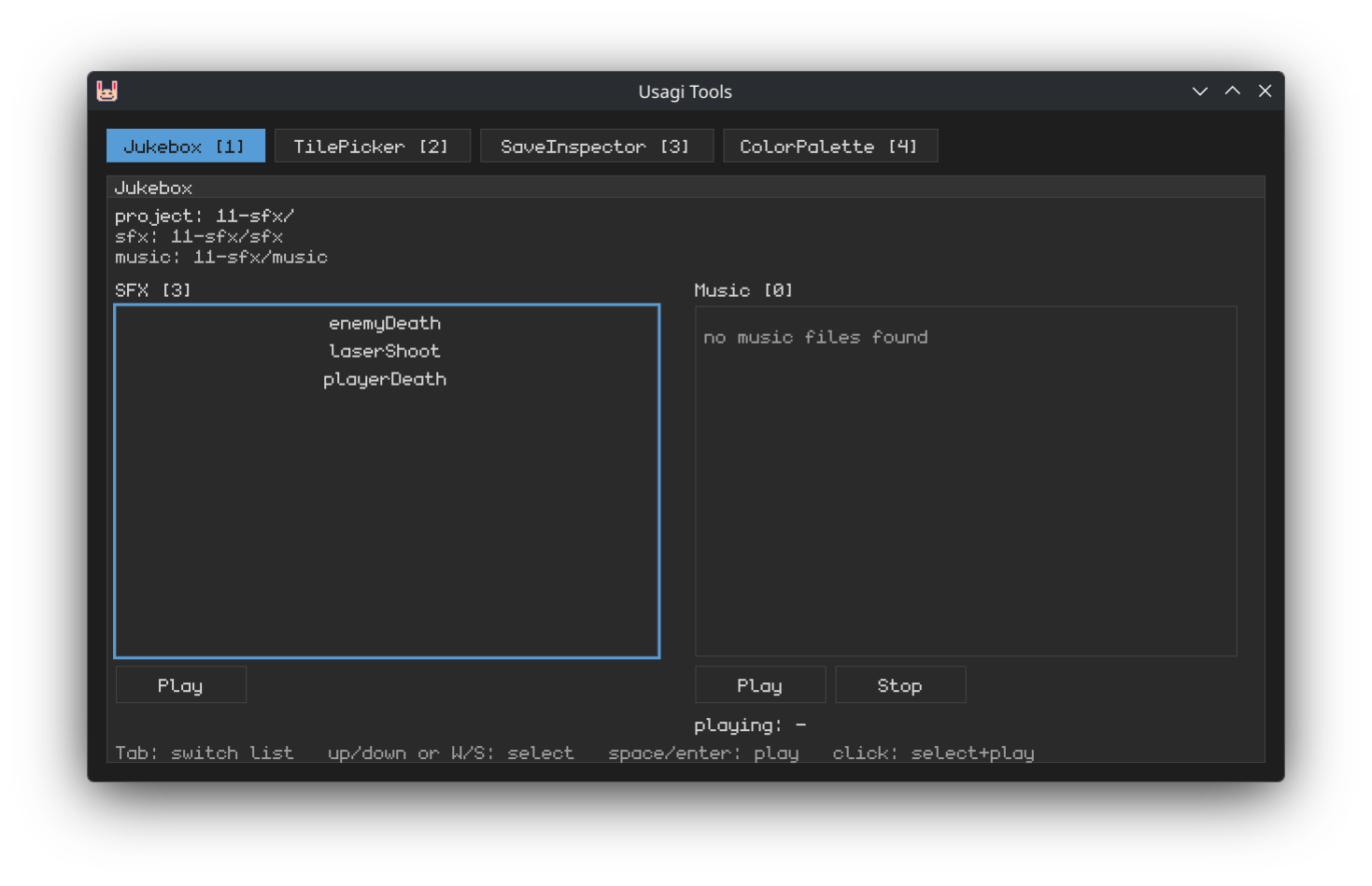
Usagi provides some tools to make game development easier. In a new command
line, run usagi tools. A window will pop up. There’s a Jukebox tab. You
can see all of your game’s sound effects and test them out to hear them.
View the source code for this section.
Sharing Your Game
You made a wave-based shmup with a playable ship that fires bullets, enemies that spawn and fire bullets, waves, scoring, and sound effects. Nice work! Action games are fun to build because of the immediate feedback and how making small tweaks and adding new systems leads to immediate feedback.
Use usagi export to generate cross-platform builds of your game in the
exports folder. You can then send your game to friends or publish it on itch
or Newgrounds or wherever. Be sure to check out
the full guide from the Dodge ’Em Up chapter
if you want a deeper dive on this process.
Bonus Credits
There’s a lot you could do to expand your shmup:
- Refine the design of the waves
- Expand the game to be 120 seconds instead of 60
- Add more types of enemies that exhibit different behaviors (add a third item to the wave spawn arrays to represent enemy type and then in the enemy update and drawing code, check that value and implement behavior accordingly)
- Add sprites once you learn how to do that with Usagi Engine
- Add in music
- Add homing missiles that the enemies fire
- Make player bullets fire out in a spread with an angle + linear velocity rather than just upward
- Give the player more points if they kill an enemy faster, encouraging more aggressive play
- Add a chain system where if the gap between killing each enemy is short enough, you get a score multiplier
- Draw explosion circles when an enemy dies to
- Try using
sfx.play_exand setting a random pitch for the player’s weapon firing to add variance, using what we learned about generating random number generation in the Dodge ’Em Up chapter - Add a bomb that fires when BTN2 is pressed, that creates an ever-growing circle that kills enemies when it encounters them
References
- Bomberfrog source code — an open source horizontal wave-based shmup I made for a game jam
- Bog Hog’s Shmup Workshop — video series detailing how to approach making a shmup, covering movement, shooting, hitboxes, scoring, pattern design, and more; there’s also a written version
- Lazy Devs Shmup Tutorial — guided video series on making a shmup in Pico-8; you could follow along but with Usagi!
Possible Future Expansions
If you liked this chapter and want more shmup tutorials, let me know in Discord!
Here are ideas of what I’d like to add to this chapter in a possible future expansion:
- Sprites for the player, enemies, and bullets
- Drawing a moving starfield on the background
- Adding more enemy types, like a boss
- How to code more bullet patterns, like spirals
- High score tracking with saving and loading
It’s likely those concepts will be covered in future chapters too. Those would also be great items for you to explore as part of self-learning too. If you get stuck, let me know and I’ll try to help!